
The shortcut key for redo allows users to immediately reverse the actions that they have undone in their work.
The most common function key for redo in the Windows operating system is Ctrl+Y, whereas the Mac version uses Ctrl+Shift+Z. Most commonly used software, including Google Docs, Photoshop, and VS Code, uses Ctrl+Shift+Z. This article discusses all the function keys for redo.
1. What Is the Redo Shortcut?
The redo function is a shortcut key used to undo an undo command. With this feature, one can reverse actions performed in any software without having to redo them.
In computing, redo refers to restoring the previous undone action or repeating an undone action. It is the opposite of undo and is mostly used when a person regrets using undo. If someone deletes an action, uses undo, and then regrets it, they can undo the undo with redo. Below is a quick overview of the redo hotkey for each major platform. This article covers every shortcut for redo across all major platforms.
2. Redo Shortcut Key Quick Reference Table
| Platform | Redo Shortcut | Alternative Redo Shortcut | Notes |
| Windows | Ctrl+Y | Ctrl+Shift+Z | Most common on Windows |
| Mac | Command+Shift+Z | — | Standard macOS redo shortcut |
| Linux | Ctrl+Y | Ctrl+Shift+Z | Depends on the application |
| Chromebook | Ctrl+Shift+Z | Ctrl+Y | Common in browser apps |
3. Standard Redo Keyboard Shortcut for Windows
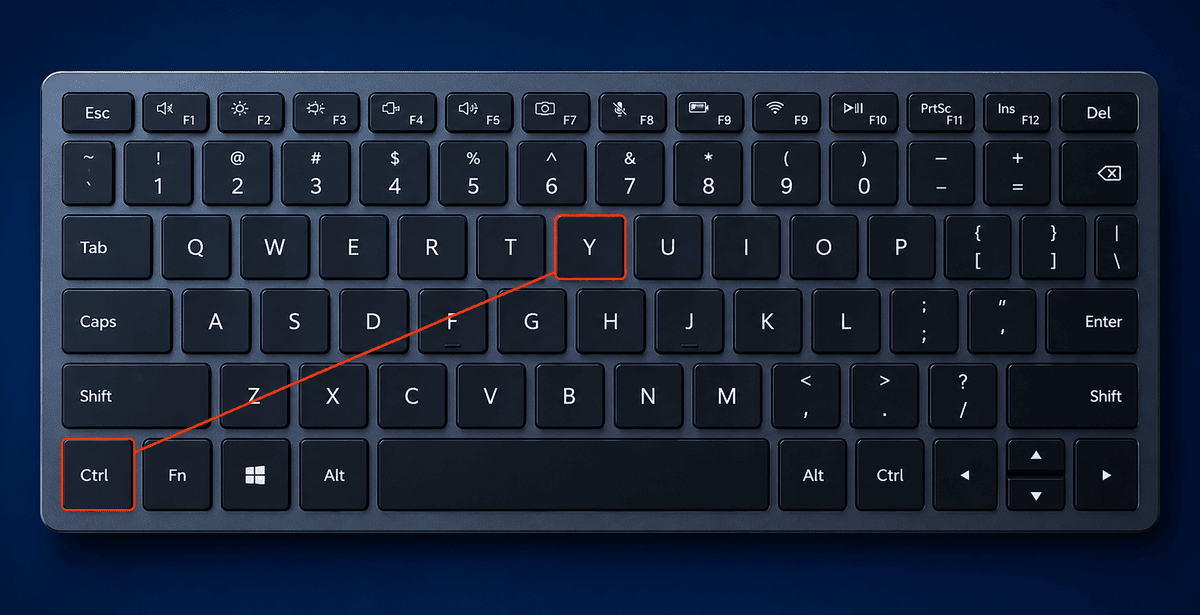
The standard redo keyboard shortcut on Windows is Ctrl+Y
This keyboard shortcut lets you redo the most recent undo. It is among the most popular productivity keyboard shortcuts in Windows applications. You can access Ctrl+Y in applications such as
- Microsoft Word
- Microsoft Excel
- Microsoft PowerPoint
- Notepad
- File Explorer
If you have accidentally undone the deletion of some text in Microsoft Word, you can press Ctrl+Y to get that text back in no time. You can restore formatting, formulas, and even deleted data in Excel with your redo function.
3.1 Alternative Redo Shortcut on Windows
Some Windows applications use Ctrl+Shift+Z. Instead of using Ctrl+Y for redo actions.
It is used frequently in many software applications, such as creative software applications, web page editing software, code writing software, and multiplatform applications. Developers tend to use Ctrl+Shift+Z since it follows the same pattern as the undo shortcut, Ctrl+Z.
3.2 Apps Where Ctrl+Y Does Something Else
Google Chrome
Google Chrome is a major case where Ctrl+Y cannot be used for Redo operations. It is because pressing Ctrl+Y opens the browser history page. Users usually find this behavior strange since they expect a redo operation similar to those performed on Windows.
To redo in text editors and applications that run in web browsers, such as Google Docs, you need to press Ctrl+Shift+Z.
Adobe Photoshop & Illustrator
Redo shortcuts can be tricky in Adobe Photoshop and Adobe Illustrator programs. It is because Ctrl+Y might be assigned to perform various operations, such as previewing and repeating transformations. As a result, redo operations will require Ctrl+Shift+Z.
4. Redo Shortcut Key on MacBook
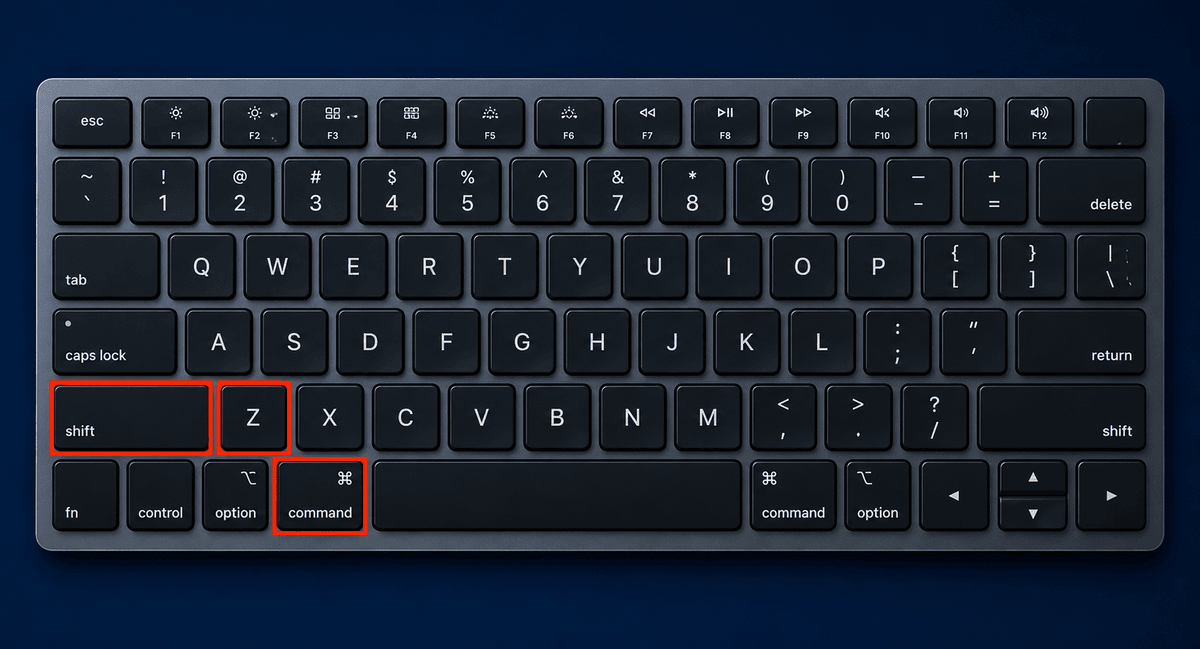
On a Mac, if you are wondering how to redo, you can use the Command + Shift + Z keys. This is really helpful when you want to fix a mistake. For example, if you delete something by accident, you can use Command + Z to get it back. Then, if you want to redo what you just undid, simply press Command + Shift + Z.
The undo keys, on Macs, are Command+Z, and to redo something, you need to add the Shift key, so it becomes Command+Shift+Z.
4.1 Why Mac Uses Shift With Z
The keyboard shortcuts on Apple computers follow a similar format when using the Mac operating system. The command to undo is Command+Z, since this is among the easier shortcuts to use. To undo this shortcut, press the Shift key, resulting in Command+Shift+Z.
4.2 Apps That Support the Mac Redo Shortcut
Redo works in almost all third-party and native applications, such as Apple Pages and Apple Notes. Redo is used in Pages to undo deleted text, formatting, pictures, and document modifications, and is also available in Apple Notes for typing, formatting, pasting content, and modifying checklists.
Safari can use redo on some websites, but its functionality may depend on the website itself; similarly, Finder might also have limited options for performing a redo action, such as renaming files.
Microsoft Office for Mac provides full support for redo operation with several history states. The same goes for applications developed by Adobe, such as Photoshop and Illustrator.
4.3 Redo on Mac Without Keyboard
Users who prefer not to use keyboard shortcuts can still access redo features through the macOS interface.
Using the Edit Menu
Most of the programs developed by Apple have the “Redo” function in the Edit menu at the top of the menu bar. The function does exactly what the key command does when clicked.
The menu name may vary depending on the previous function performed. Some possible examples include “Redo Typing” and “Redo Delete.”
Using the Touch Bar
On supported MacBook models, the Touch Bar may display undo and redo buttons while editing documents or text. Users can tap the redo icon directly without pressing keyboard combinations.
5. Redo Shortcut Key on Linux
5.1 Common Linux Redo Shortcuts
Linux applications commonly use two redo shortcuts:
1. Ctrl+Y
2. Ctrl+Shift+Z
The shortcut that works depends on the application, desktop environment, and toolkit used by the software.
5.2 Why Linux Shortcuts Vary
Linux distributions support multiple desktop environments and software frameworks, which leads to differences in keyboard shortcut behavior.
5.3 Redo in Popular Linux Applications
LibreOffice
LibreOffice primarily uses Ctrl+Y for redo. It supports multiple redo levels for documents, spreadsheets, and presentations.
Gedit
Gedit typically uses Ctrl+Shift+Z as the redo shortcut, especially in GNOME-based systems.
VS Code
VS Code usually uses Ctrl+Shift+Z to perform Redo on Linux. Redo can also be accomplished via the Keyboard Shortcuts menu.
JetBrains IDEs
Software development platforms like IntelliJ IDEA and JetBrains’ other IDEs often allow you to use both Ctrl+Y and Ctrl+Shift+Z.
5.4 Redo in Linux Terminal Editors
Linux redo shortcuts can vary depending on the editor, desktop environment, and terminal application being used.
Nano Redo Shortcut
In Nano, the redo shortcut is:
- Alt+E
This restores the last undone action in supported Nano versions. Since Nano runs in a terminal, some terminal emulators may require pressing Esc followed by E instead of using Alt + E directly.
Vim Redo Shortcut
In Vim, the redo command is:
- Ctrl+R
After reversing edits with the ‘u’ key, pressing Ctrl+R applies the undone edit one step at a time.
Redo works differently in Vim than in other graphical programs because Vim uses modal editing.
5.5 GNOME vs KDE Redo Shortcut Differences
Linux desktop environments may also use different redo shortcut conventions.
| Desktop Environment | Common Redo Shortcut |
| GNOME Applications | Ctrl+Shift+Z |
| KDE Applications | Ctrl+Y |
| Cross-Platform Apps | Either shortcut may work |
GNOME-based applications often follow modern cross-platform shortcut patterns, similar to those in browser apps and creative software. KDE applications more commonly use the traditional Windows-style Ctrl+Y redo shortcut.
6. Redo Shortcut Key on Chromebook
6.1 Chromebook Redo Shortcut
The standard redo shortcut on a Chromebook is Ctrl+Shift+Z. This shortcut is used a lot in ChromeOS for browser-based applications like Google Docs and Google Sheets.
Google decided to make shortcuts that work the same way on different operating systems because Chrome OS is designed for web applications.
6.2 Why Chromebook Shortcuts Differ
Chromebook keyboard shortcuts are different from those on a Windows laptop. This is because Chrome OS is designed for browser functions, not desktop applications.
6.3 Redo in Google Docs and Sheets
The redo function works well on Google Docs and Google Sheets on a Chromebook. You can redo the recent action you undid by pressing Ctrl+Shift+Z.
Google Docs and Google Sheets have a redo button on the toolbar. This button looks like a curving forward arrow icon. The redo function helps you recover deleted text. It also helps restore formatting in spreadsheets and bring back formulas. You can even use it to undo commands that were undone by mistake.
7. Redo Shortcut in Popular Applications
Each application may use a slightly different redo key shortcut depending on the platform.
7.1 Microsoft Word & Excel Redo Shortcut
Microsoft Word and Excel use the same redo shortcut keys on Windows and Mac. On Windows, the shortcut key combination is Ctrl+Y.On Mac, it is Command+Shift+Z.
In Microsoft Word, the redo function restores everything erased by actions. This includes text deletions and formatting changes. There is also a redo button in the Ribbon toolbar. In some cases, pressing F4 repeats the action.
In Excel, the undo function restores all kinds of formulas, formatting, and other changes made to the spreadsheet. You can use the redo function in Excel to restore changes you made. The redo shortcut in Excel helps you fix mistakes.
7.2 Google Docs Redo Shortcut
Google Docs supports redo shortcuts across multiple operating systems.
| Platform | Redo Shortcut |
| Windows | Ctrl+Shift+Z |
| Mac | Command+Shift+Z |
| Chromebook | Ctrl+Shift+Z |
Because Google Docs runs in a browser, Google standardized the redo shortcut across most platforms rather than relying on traditional Windows behavior.
The redo command restores deleted content, formatting, comments, and collaborative edits that were previously undone. Users can also access redo via the toolbar button next to the undo icon.
7.3 Adobe Photoshop Redo Shortcut
Adobe Photoshop handles redo differently from many standard applications. Instead of relying solely on a traditional redo system, Photoshop uses its History panel and Step Forward commands for navigating edits.
| Platform | Redo Shortcut |
| Windows | Ctrl+Shift+Z |
| Mac | Command+Shift+Z |
Each press moves forward through the editing history one step at a time. This system gives designers more control over layered edits, effects, and image adjustments.
The History panel in Photoshop provides a visual timeline of changes. Users can jump backward or forward to specific editing states without relying entirely on keyboard shortcuts.
7.4 VS Code Redo Shortcut
Visual Studio Code supports redo shortcuts across operating systems and allows extensive keyboard customization.
| Platform | Redo Shortcut |
| Windows | Ctrl+Y |
| Mac | Command+Shift+Z |
| Linux | Ctrl+Shift+Z or Ctrl+Y |
Redo in VS Code helps developers recover deleted code, restore formatting changes, and reverse accidental undo actions during programming tasks.
One major advantage of VS Code is keyboard remapping. Users can customize redo shortcuts by opening the Keyboard Shortcuts settings and assigning new key combinations to suit their workflow preferences.
8. Redo Shortcut Not Working? Fixes
Sometimes the redo shortcut stops working because of application conflicts, keyboard layout differences, or application-specific overrides. If the hotkey for redo is not working, try the alternatives below.
8.1 Try Alternative Redo Shortcuts / Hotkeys
Different apps use different redo shortcuts. If Ctrl+Y does not work, try:
| Platform | Alternative Redo Shortcut |
| Windows | Ctrl+Shift+Z |
| Mac | Command+Shift+Z |
| Linux | Ctrl+Shift+Z |
| Chromebook | Ctrl+Shift+Z |
Browser-based editors and design software commonly prefer Ctrl+Shift+Z over Ctrl+Y.
8.2 Why Is Ctrl+Y Not Working?
There are reasons why Ctrl+Y stops working. Sometimes Ctrl+Y does a thing in some applications. For instance, in Google Chrome, when you press Ctrl+Y, it shows you the browser history page of what you did last.
This happens because Ctrl+Y has a job in Chrome. The Ctrl+Y shortcut is used for something; in this case, it is for viewing history. So Ctrl+Y works differently in applications. The redo function might not work with Ctrl+Y. You should check what Ctrl+Y does in the application you are using.
Other common causes include:
| Problem | Solution |
| App uses a different redo shortcut | Try Ctrl+Shift+Z |
| Keyboard shortcut conflict | Disable conflicting extensions or software |
| No previous undo action | Use Ctrl+Z first |
| Keyboard layout issue | Check language and keyboard settings |
| Application bug | Restart the application |
If Ctrl+Y still does not work, try using the Edit menu or the application’s redo button.
Is Ctrl+Shift+Z the Same as Ctrl+Y?
Yes, in many applications Ctrl+Shift+Z performs the same redo function as Ctrl+Y. Both shortcuts are commonly used for redo, but software developers choose different standards depending on the platform and user experience goals.
Here is the difference:
| Shortcut | Common Usage |
| Ctrl+Y | Traditional Windows redo shortcut |
| Ctrl+Shift+Z | Common in creative apps and web tools |
Applications like Adobe Photoshop, Figma, Google Docs, and VS Code often prefer Ctrl+Shift+Z because it creates a clearer opposite to Ctrl+Z for undo.
Can You Redo Multiple Steps?
Yes, most modern applications allow multiple redo actions. This means you can restore several previously undone changes one step at a time.
For example:
- Undo three edits using Ctrl+Z
- Press the redo shortcut repeatedly
- Each press restores one action
The number of redo levels depends on the application. Some software stores dozens or even hundreds of undo and redo actions.
Conclusion
The redo command is something we use a lot in different programs like text editors, spreadsheets, browsers, programming languages, and graphic design tools.
We use it to undo the undo we did. Most modern programs use the shortcut for redo, Ctrl+Shift+Z, to redo something. This makes sense because it is similar to the undo shortcut. A long time ago, Microsoft Windows used the Ctrl+Y keys to redo things.
If you cannot use one of the commands for some reason, you can always use the other one. This is because different programs like browsers, graphic design software, and programming environments use shortcuts.
Frequently Asked Questions (FAQs)
What is the redo shortcut key on Windows?
The redo shortcut on Windows is Ctrl+Y. It repeats the action you undid. Some programs also use Ctrl+Shift+Z.
What is the redo shortcut on a Mac?
On a Mac, the redo shortcut is Command+Shift+Z. This works in Mac programs like document editors and browsers.
How do I redo multiple actions at once?
Most modern programs let you redo actions. After you undo changes with Ctrl+Z, you can press the redo shortcut to bring back actions one step at a time.
What is the redo shortcut on a Chromebook?
On a Chromebook, the redo shortcut is Ctrl+Shift+Z. This works for Google Docs, Google Sheets, and other web applications using Chrome OS.
What is the difference between undo and redo?
The undo command undoes what you did. The redo command does the last undone action. The undo shortcut is usually Ctrl+Z.. The redo shortcut is Ctrl+Y or Ctrl+Shift+Z.
Which applications use Ctrl+Shift+Z for redo?
Google Docs, Adobe Photoshop, Figma, Visual Studio Code, and many other web-based editors use the keyboard shortcut Ctrl+Shift+Z for the redo command.
How to redo on Windows, Mac, and Chromebook?
To redo an action on Windows, press Ctrl + Y or Ctrl + Shift + Z, depending on the program you are using. On Mac, press Command + Shift + Z, while on Chromebook, most apps use Ctrl + Shift + Z.
What is the keyboard shortcut for redo in different applications?
The keyboard shortcut for redo is usually Ctrl + Y or Ctrl + Shift + Z on Windows, depending on the application. On Mac, most applications use Command + Shift + Z to redo the last undone action.
what is the keyboard shortcut for redo?
The keyboard shortcut for redo is usually Ctrl + Y or Ctrl + Shift + Z on Windows, depending on the application. On Mac, the redo shortcut is commonly Command + Shift + Z.

Comments are closed