

Everything goes smoothly until your PC starts running at its lowest speed. You experience long loading times across all applications, fan noise even when you are doing nothing demanding, and your laptop is heating up. All these symptoms may occur during gaming, video editing, and simply surfing the web. However, if after checking Task Manager and discovering the source of the problem, a process that requires an enormous amount of CPU usage, RAM, or even hard drive consumption, Antimalware Service Executable, you have doubts about it, then you may have serious concerns.
Naturally, everyone has such questions regarding this situation. Can the process be considered to be a virus? Why is it always active? How can you block it without compromising your PC’s security? First of all, it should be noted that the process in question is most likely not a virus but something useful from Microsoft Defender. It is the thing that often takes much more computing power than necessary, thus slowing down your device.
1. What Is Antimalware Service Executable?
Among the components of Microsoft Defender Antivirus is the antimalware service executable. This tool helps keep your computer safe from things like malware and spyware. The Antimalware Service Executable does this by monitoring activity on your computer and running scans in the background. The Antimalware Service Executable file is also known as MsMpEng.exe. It starts working after you turn on your Windows 10 or Windows 11 computer.
The Antimalware Service Executable is important because it helps scan your computer for malware. It means it looks at everything you do on your computer. So it uses more of your computer’s power when it is scanning, installing software, viewing many files, or using a storage device. Microsoft Defender Antivirus and the antimalware service executable help protect your computer against ransomware and other malware.
2. Why Is Antimalware Service Executable Running on Your PC?
The Antimalware Service Executable is always running in the background as part of Microsoft Defender Antivirus. The Antimalware Service Executable ensures Microsoft Defender can protect your computer from threats. The Antimalware Service Executable monitors everything you do on your computer to determine whether it is safe.
The Antimalware Service Executable scans your computer periodically. Every time you use your files, install software, download something, or plug in a USB drive, the Antimalware Service Executable checks to make sure it is safe. Some things that might make the Antimalware Service Executable run often are:
- Downloading or opening any files
- Installing or updating applications
- Plugging in drives or USB devices
- Security updates and scheduled scans by Microsoft Defender.
That is why you might see the Antimalware Service Executable using a lot of your computer’s memory or power when you are doing something.
3. Common Problems Caused by Antimalware Service Executable
There are various ways the Antimalware Service Executable can affect your system resources, depending on the tasks Defender performs.
Common Antimalware Service Executable Problems
| Problem | Symptoms | Most Common Cause |
| High CPU | Fan noise, lag, system slowdown | Real-time scanning |
| High Memory | Slow multitasking, delayed app loading | Large file scans |
| High Disk Usage | SSD or HDD spikes, freezing | Full Defender scan |
| High Power Usage | Battery drain, overheating | Continuous background scans |
4. What Causes Antimalware Service Executable High CPU Usage?
Microsoft Defender works hard to protect your system at all times. It checks files, downloads, apps, and what is happening in the background all the time. It can cause the antivirus service executable to use a lot of CPU while you are browsing the internet, installing software, or opening folders.
Sometimes the problem is not just because of how Microsoft Defender works. It could be due to problems with your system. The common reasons for this are:
- Conflicts with antivirus software that cause them to scan things twice
- Microsoft Defender files that are corrupted or Windows updates that did not work correctly, which cause it to scan things over and over
- Software that poses as the anti-malware service executable file, referred to as MsMpEng.exe, is operating in an unauthorized location
If you see that the antimalware service executable is active and using a lot of computer resources, you should check where it is located. You should make sure it is actually Microsoft Defender software, not something else.
Normal vs Abnormal Antimalware Service Executable CPU Usage
Sometimes the Antimalware Service Executable uses a lot of CPU. That does not always mean something is wrong. Microsoft Defender checks your files. Downloads to keep your computer safe. When it does this, it might use CPU and memory for a little while.
Suppose the Antimalware Service Executable is using a lot of CPU all the time, even when you are not doing anything on your computer. It could mean that the Microsoft Defender files are corrupted or that a virus is posing as Microsoft Defender. It could also mean that the software is stuck in a loop or that there is a conflict with something on your computer.
| Usage Type | Normal Behavior | Potential Problem |
| CPU Usage | Brief spikes during scans or updates | Constant high CPU for hours |
| Memory Usage | Temporary RAM increase while scanning | Memory usage stays unusually high |
| Disk Usage | Short disk activity during full scans | Continuous disk usage is causing freezes |
| Fan Noise | Fans increase briefly during scans | Fans are constantly running at high speed |
| System Performance | Slight slowdown during scanning | Severe lag even while idle |
When Should You Be Concerned?
You should investigate further if:
- CPU usage stays above 30–50% for long periods while idle
- The process runs constantly without active scans
- Your PC overheats frequently
- Battery life drops unusually fast
- MsMpEng.exe appears outside the Windows Defender folder
Most of the time, Windows Defender has spikes, and that is okay. When Windows Defender uses a lot of resources all the time, it probably means the Windows Defender settings need to be adjusted, or there is something else wrong with the system that is interfering with Windows Defender scans. Windows Defender is a tool, and when it is not working right,t it can fix problems. So it is an idea to check the Windows Defender settings and make sure everything is working properly with Windows Defender.
5. How to Check if the Antimalware Service Executable Is Legitimate
The real antimalware service executable process is a part of Microsoft Defender Antivirus. This process is called MsMpEng.exe. It works without causing any problems with your computer’s operating system.
But since malicious software can masquerade as a system process, it is a good idea to verify it is real before you stop it.
How to Identify a Fake Antimalware Service Executable Process?
First, open Task Manager by pressing Ctrl+Shift+Esc on your keyboard. Then go to the Processes tab. Find the Antimalware Service Executable process. Click on this process. Then choose Open File Location from the menu.
The correct location of the legitimate process would be the following:
C:\Program Files\Windows Defender
If the process file is elsewhere, like in a different folder or in temporary files, it is probably not real.
You should also check the signature of the Antimalware Service Executable process file. To do this, right-click the MsMpEng.exe process, click Properties, then go to the Digital signatures tab. If Microsoft is not listed as the company that signed it, then the Antimalware Service Executable process is probably fake.
6. How to Stop Antimalware Service Executable From High CPU Usage
6.1 Restart Your PC
Among the simplest but yet very effective solutions is to restart your computer after you update Windows or Microsoft Defender definitions. This solution becomes necessary since, after such an operation, the Antimalware Service Executable may use up to 100 percent CPU.
In fact, this may be due to the creation of some new databases or scanning that goes on in the background.
6.2 Limit CPU Usage Through Defender Scheduling
Windows Defender sometimes runs scans while you are gaming, editing videos, or multitasking. Changing the scan schedule can reduce sudden CPU spikes caused by the Antimalware Service Executable process.
Follow these steps:
- Press Windows + S and search for Task Scheduler
- Open Task Scheduler
- Navigate to:
Task Scheduler Library → Microsoft → Windows → Windows Defender - Double-click Windows Defender Scheduled Scan
- Open the Triggers tab
- Click Edit
- Choose a time when your PC is usually idle
- Avoid scheduling scans during gaming or work hours
- Click OK and save the changes
- Restart your computer
This will help avoid unexpected scanning by Defender when there is a lot of work to be done, and you can considerably reduce the CPU usage of the Antimalware Service Executable.
6.3 Add Defender Exclusions
The large folder of files that are always being updated can cause the computer to run many scans. This makes the Antimalware cause service Executable use more of the computer’s brain power and multiprocessing.
You can leave out things you know are safe, like the folders for your development projects, the node_modules folders, files that store machines, large collections of music and videos, and temporary files created when you are building or caching something. These things are usually okay, and they take up a lot of room, so leaving them out can help stop the computer from scanning them over and over again. This can make your computer run better. To add things to the list of excluded items:
- Open Windows Security
- Go to Virus & Threat Protection
- Click Manage Settings under Virus & Threat Protection settings
- Scroll to Exclusions
- Click Add or Remove Exclusions
- Select Add an Exclusion → Folder and choose trusted locations
6.4 Disable Scheduled Scans
Windows Defender scans might occur more often than necessary, increasing CPU and disk usage. You can tweak Windows Defender scans to lessen their impact while still maintaining protection. Do this with Windows Defender settings to make them work better for you.
- Press the keys Windows and R simultaneously on your keyboard.
- Type taskschd.msc and hit Enter to launch Task Scheduler.
- Find the following path within the left-hand pane:
- Task Scheduler Library -> Microsoft -> Windows -> Windows Defender
- Click on Windows Defender Scheduled Scan in the center pane.
- Right-click the selected task and choose Disable.
- Reboot your computer afterward.
6.5 Update Windows and Defender
In some cases, high CPU usage is caused by bugs in Windows Defender itself. Microsoft regularly releases fixes through Windows Update and Defender security intelligence updates.
Your computer system can still be running scans, or it can get stuck in a loop of scanning over and over again.
To update your PC:
Open Settings → Windows Update → Check for Updates
You should install all available updates, including security updates that are not required.
6.6 Repair Corrupted System Files
If your Windows system files are damaged, this can also cause Windows Defender to behave strangely. If Windows Defender keeps scanning over and over again, or it is using too much memory, you might be able to fix this by repairing your system files.
Open Command Prompt as Administrator and run:
sfc /scannow
After the scan finishes, run:
DISM /Online /Cleanup-Image /RestoreHealth
These commands will fix the parts of your system that are damaged. They will also restore corrupted Windows files, which can affect how Windows Defender works.
6.7 Disable Real-Time Protection Temporarily
If you are trying to fix performance issues on your computer, you can temporarily disable Windows Defender’s real-time protection. It will help you determine whether Windows Defender is the cause of the problem.
Open:
Windows Security → Virus & Threat Protection → Manage Settings
Then temporarily turn off Real Time Protection.
If CPU usage immediately drops, Defender is likely responsible for the resource spike.
Do not leave this permanently disabled unless you have another trusted antivirus installed. Your system becomes more vulnerable to malware, ransomware, and phishing attacks without active protection.
7. Best Performance Tips to Reduce Resource Usage
7.1 Performance Optimization Table
| Optimization | Performance Impact | Difficulty |
| Add Exclusions | High | Easy |
| Schedule Scans | Medium | Easy |
| Upgrade RAM | High | Moderate |
| Disable Real-Time Protection | Temporary Relief | Easy |
| Remove Extra Antivirus | High | Easy |
| Run SFC/DISM Repair Tools | Medium | Moderate |
| PowerShell Update (Defender/Windows Modules) | Medium | Moderate |
| Add MsMpEng.exe Process Exclusion | High | Advanced |
| Enable/Adjust Periodic Scanning (instead of full scans) | Medium | Easy |
| Upgrade to SSD Storage | Very High | Moderate |
Some users search for how to stop or turn off the Antimalware Service executable. While disabling Defender may temporarily reduce CPU usage, it also leaves the system exposed to malware and ransomware threats. A better approach is to optimize the service instead of permanently turning it off.
7.2 Turn Off Periodic Scanning in Windows 11
Windows 11 includes a feature called Periodic Scanning, which allows Microsoft Defender to continue occasional background scans even when another antivirus program is installed. On some systems, this can contribute to unnecessary CPU or memory usage.
You can turn it off with these steps:
- Open Windows Security
- Click Virus & Threat Protection
- Scroll to Microsoft Defender Antivirus options
- Locate Periodic Scanning
- Turn the feature off
- Restart your PC
Disabling Periodic Scanning may reduce background activity and help lower Antimalware Service Executable resource usage, especially on low-end systems or laptops.
8. Antimalware Service Executable on Windows 10 vs Windows 11
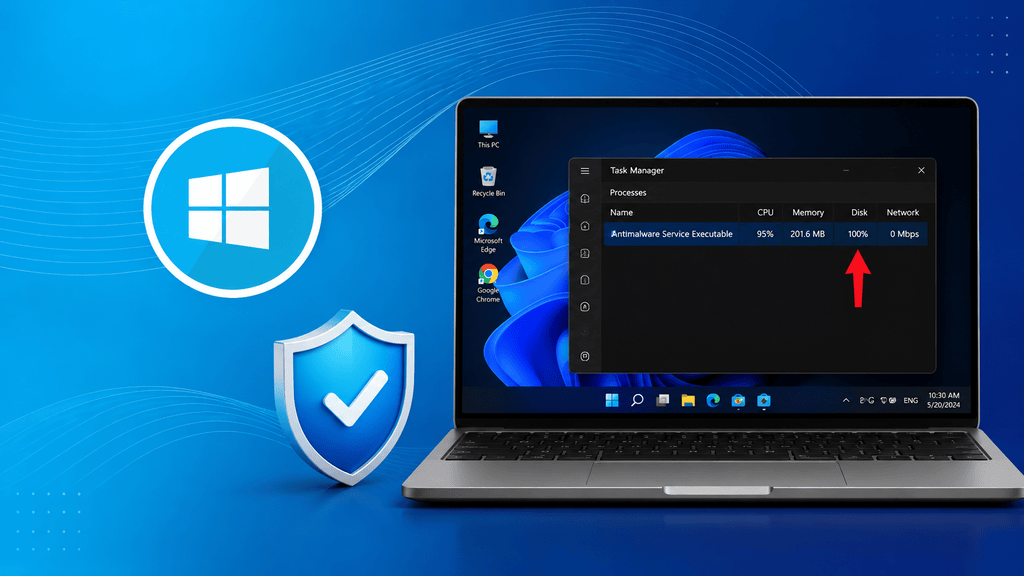
Antimalware Service Executable acts differently on Windows 10 and Windows 11 since Microsoft has made considerable improvements to its Defender engine and background scheduling in later versions. Defender’s scans lead to increased CPU usage more frequently when playing games or extracting/installing files on Windows 10. The older way of scheduling the scanning process often leads to a fight between foreground programs and scan operations, resulting in higher CPU usage by Antimalware on mediocre hardware.
Windows 11 has some cool behind-the-scenes features to make Microsoft Defender better. It can now focus on the stuff while scanning in the background. This means Windows 11 uses its resources in a way. Windows 11 also works well with Game Mode. So when you are playing games on Windows 11, Microsoft Defender will not interrupt you much.
8.1 Windows 10 vs Windows 11 Comparison
| Feature | Windows 10 | Windows 11 |
| Defender Efficiency | Moderate | Improved |
| CPU Optimization | Older engine | Better scheduling |
| Gaming Performance | More spikes | Better Game Mode support |
| Background Scan Handling | Aggressive at times | More balanced |
| Memory Management | Higher RAM spikes | Improved caching |
| Power Consumption | Can run hotter | Better optimized overall |
For most users, Windows 11 offers a smoother Defender experience. Still, the operating system alone does not eliminate performance problems. Hardware limitations, outdated drivers, and conflicting antivirus tools can still lead to complaints about high power consumption on both Windows versions.
If your computer keeps slowing down a lot, you should try to improve Microsoft Defender and stop background processes. This usually works better in the run than turning off the Antimalware Service Executable does.
9. Should You Disable Antimalware Service Executable?
The antimalware service executable is a part of Microsoft Defender. It helps keep your computer safe from things like malware and ransomware all the time.
If you keep the antimalware service executable turned on, your computer will always be protected without you having to do anything. It can slow your computer for a while, especially when it is scanning or updating. If you turn it off, you will no longer have this important protection. This is a problem if you often download things from the internet, use drives, or visit websites you do not trust.
The table below shows safer alternatives compared to fully turning off the service.
| Action | Impact on Performance | Security Risk | Recommended |
| Schedule scans manually | Moderate improvement | Very low | Yes |
| Add trusted exclusions | Good improvement | Low | Yes |
| Pause real-time protection temporarily | Temporary improvement | Medium | Only when necessary |
| Install another trusted antivirus | Depends on the software | Low if reputable | Yes |
| Turn off the antimalware service executable permanently | High improvement | Very high | No |
Overall, optimizing settings is a safer approach than fully turning off the antimalware service executable, especially when dealing with performance issues such as high memory usage or power consumption.
Conclusion
The Antimalware Service Executable is crucial to keeping Windows systems safe from malware and other security threats. Sometimes it uses too many system resources, and that can slow down your computer. It usually happens during background scans, when your system is out of date, or when it is competing with other programs.
The good news is that you can fix most problems with the Antimalware Service Executable without disabling security on your Windows system. You can make some changes, like changing when the scans run, updating Windows, telling it to ignore large folders, or making it use less power when you start up your computer. These changes can help your computer run better while keeping it safe.
You should not think of the Antimalware Service Executable as a thing. It is better to learn how it works and how to use it properly. If you strike the right balance between keeping your computer safe and keeping it running well, you can have a computer that runs smoothly and stays protected. The Antimalware Service Executable is a component that helps keep your Windows system safe.
Frequently Asked Questions
Why is Antimalware Service Executable using a high CPU?
Microsoft Defender uses a lot of CPU when it performs real-time protection tasks, runs background scans, or checks files you recently downloaded. CPU usage can also increase while you install Windows updates, transfer files, play games, or install new software.
Can you end Antimalware Service Executable in Task Manager?
You can try ending the task, but Windows often restarts it automatically because it is connected to Microsoft Defender security services. Permanently stopping it usually requires changing Defender settings or installing another antivirus program.
Is Antimalware Service Executable a virus?
No, Antimalware Service Executable is normally a legitimate Windows process associated with Microsoft Defender. Its official executable file is called MsMpEng.exe. However, if you notice unusual behavior from a file with a similar name located outside the Windows system folders, it could be suspicious and worth scanning.
How do you permanently disable Antimalware Service Executable?
If you want to permanently disable the Antimalware Service Executable, the most common method is to install another antivirus solution. Windows usually disables Microsoft Defender automatically when another trusted antivirus becomes active.
Does Windows 11 fix Antimalware Service Executable problems?
Windows 11 has improved Defender compared to earlier versions of Windows. Many users report issues with the Antimalware Service Executable consuming too much memory. However, the Antimalware Service Executable can still cause performance issues during scans or updates.
What happens if you disable Microsoft Defender?
If you disable Microsoft Defender without installing another antivirus, your PC becomes more vulnerable to malware, phishing attacks, spyware, and ransomware. You may notice better performance temporarily, but the security risk increases significantly.
Does Microsoft Defender scan itself? Can you exclude MsMpEng.exe?
Yes, Microsoft Defender can scan its process, MsMpEng.exe. It can increase CPU usage during scans. You can exclude MsMpEng.exe in Defender settings to reduce system load. Use this option carefully. It may slightly reduce protection coverage for MsMpEng.exe.

Comments are closed