
The threat of modern malware is growing, and protecting your computer from infection is no longer optional. Viruses and malware can encrypt your files, spy on you, and even turn your device into a botnet of which you won’t be aware. According to Cybersecurity Ventures, cybercrime is expected to cost the world $10.5 trillion annually by 2025.
Staying safe from viruses and malware does not involve becoming a computer science expert, but it does involve some consistent practices and the use of appropriate tools and resources.
This virus prevention and protection guide is meant to present everything in an easily understandable way. You will learn virus and malware types, infection vectors, and how to protect your Windows PCs. We also include some other tips that will be helpful for Mac and other device users. If Windows Security itself is slowing your PC down, our guide to Antimalware Service Executable high CPU usage explains why and how to fix it.
1. What is a Computer Virus?
A computer virus is a program that infects other files or systems, just like how a real virus spreads from person to person. The computer virus attaches itself to a file. When you open the file, the virus becomes active, it starts doing harmful things like:
- Corrupting files
- Making your system slow
- Stealing important information
- Spreading to other devices
2. Different Types of Viruses in Computer and Malware
For effective computer virus protection, you need to know about the different types of threats. Here are some common types:
2.1. File Infector and Macro Viruses
This is a type of virus that attaches itself to a file or document. When a file becomes infected, opening it triggers the infection process because the virus is able to execute itself once the infected file is opened.
File infector viruses usually infect executable files, whereas macro viruses usually infect documents created using programs such as Microsoft Word or Excel sheets. Despite their rarity, such types of viruses are still present today and can be distributed via email attachments or downloading files from the internet.
2.2. Trojan Horse
The Trojan looks like a program, but it has bad code inside. When you install it, it lets attackers into your system, downloads malware, and steals important information.
2.3. Worms
Worms spread through networks without anyone’s help. They use system weaknesses, infect networks, and help build groups of infected computers.
2.4. Ransomware
Ransomware is a threat in 2026. It locks your files, blocks you from using your system, and asks for money to unlock your files.
2.5. Keyloggers
These work quietly in the background. It can track what you do online, record what you type, and send information to attackers. Most people do not notice them until it is too late.
2.6. Rootkits
Rootkits are threats that hide deep inside your system. They avoid detection, give attackers control, and can survive when you try to remove them.
2.7. Adware and Browser Hijackers
These are annoying, but still risky. It shows many ads, changes your browser settings, and redirects you to other websites.
2.8. Botnet
A botnet is a type of malware that turns your computer into a “zombie” device controlled by hackers. Your system might be used to send spam, attack systems, or mine cryptocurrency.
3. How Computer Viruses Infect Your PC?
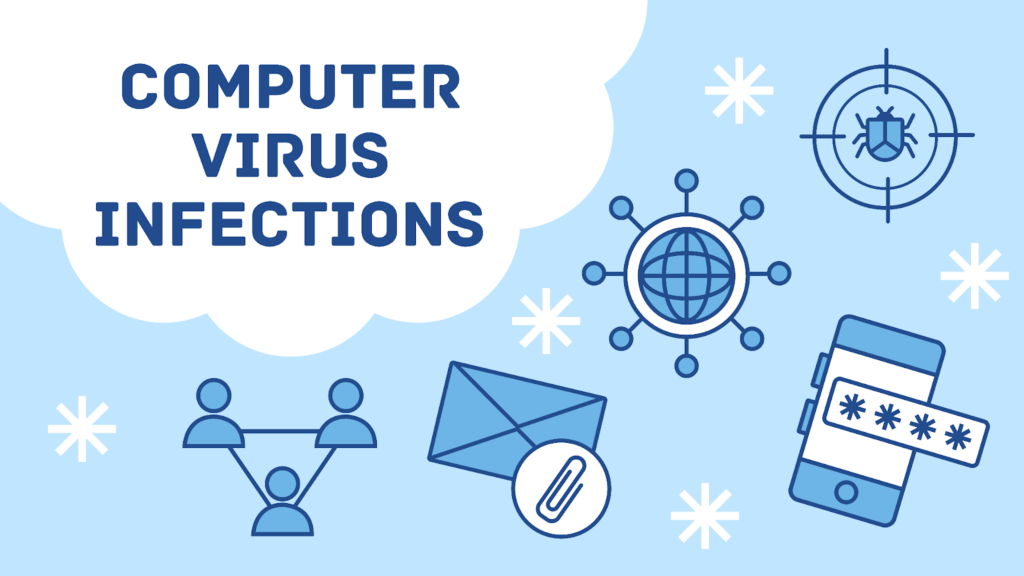
Understanding how computer viruses spread is the first step in the prevention of computer virus infections. Most infections are not due to hacking. Most infections happen during daily activities such as clicking unverified links, downloading unsafe files, or using infected USB drives. Viruses rely on user actions. One reckless click or download can let malware enter your computer.
In 2026, the most common methods of spreading computer viruses are:
3.1. Email & Phishing Attacks
Email remains one of the most effective ways to spread malware. 90% of cyberattacks start with phishing emails, making it the most common attack method. Attackers send messages that appear to be from banks, delivery services, social media platforms, employers, or clients.
These emails often create urgency:
👉 “Your account will be locked.”
👉 “Invoice attached urgently.”
👉 “Confirm your payment now.”
Once you open an attachment (PDF, Word, or ZIP) or click a malicious link, the infection begins. Some files may ask you to “Enable Content” or “Enable Macros”; this is a common trick to activate hidden malware.
3.2. Malicious Downloads & Cracked Software
Downloading software from untrusted sources is one of the fastest ways to infect your PC. 1 in 10 downloads may contain malware, especially from untrusted sources.
High-risk downloads include:
- Cracked or pirated software
- “Free” premium tools
- Fake system optimizers or PC boosters
- Games from unofficial websites
These files often come bundled with:
- Trojans
- Adware
- Spyware
Even if the software appears to work, malware may be silently installed in the background.
3.3. Infected Websites & Drive-by Downloads
You don’t always need to click anything to get infected.
Some compromised websites use hidden scripts that:
- Exploit outdated browsers or plugins
- Automatically downloads malware in the background
This is known as a drive-by download.
Common risk factors:
- Outdated browser
- Old plugins (Flash, Java, etc.)
- Clicking on shady ads or pop-ups
Even legitimate websites can be hacked and temporarily used to spread malware.
3.4. USB Devices & External Drives
USB drives are a classic yet still relevant method of infection.
Viruses can spread when:
- You plug in an infected USB
- Files automatically run (autorun exploits)
- Malware copies itself to your device silently
This often happens in:
- Offices
- Schools
- Internet cafés
An infected computer can also transfer malware to every USB device connected to it.
3.5. Public Wi-Fi & Social Engineering
Public Wi-Fi doesn’t directly install viruses, but it creates the perfect environment for attacks. On unsecured networks, attackers can:
- Redirects you to fake websites
- Inject malicious pop-ups
- Intercept login credentials
Combined with social engineering, this becomes powerful. 82% of data breaches involve human error, often through phishing or unsafe behavior. Social engineering means manipulating users into making bad decisions, such as
- Clicking “Update Now” on a fake alert
- Installing fake antivirus software
- Entering passwords on fake login pages
In most cases, malware succeeds not because of technology but because of human trust and urgency.
4. How to Know if Your PC has a Virus
Not all malware proclaims itself. Some malware is built to remain stealthy while stealing information from you or your computer.
But the telltale signs can be detected, particularly when more than one symptom occurs.
4.1. Early vs Advanced Symptoms
- Early signs: slight slowing down, a few malfunctions
- Advanced signs: system crash, being locked out, data loss, or even full computer compromise
Identifying them early enough may help you save your data.
4.2. Performance Issues
One of the first signs of infection is a noticeable drop in performance.
You may experience:
- Slow startup times
- Applications are taking longer to open
- System lag or freezing
It often happens because malware is running in the background, using system resources, or installing additional malicious files.
4.3. Browser Hijacking
If your browser starts behaving strangely, it’s a major red flag.
Signs include:
- The homepage changed without permission
- New toolbars or extensions
- Redirects to unknown websites
- Excessive pop-ups and ads
This is usually caused by:
- Adware
- Browser hijackers
4.4. Unknown Programs
If you see unfamiliar software installed on your system, don’t ignore it.
Check:
- Installed apps list
- Startup programs
- Desktop icons
Malware often installs additional tools such as the following:
- Fake security programs
- Background data collectors
- Crypto miners
4.5. Security Tools Disabled
It is a serious warning sign. If your security features turn off automatically, fail to update, or stop working unexpectedly, it may indicate malware trying to avoid detection.
Targets often include:
- Antivirus software
- Firewall settings
- System updates
4.6. High CPU or Network Usage
If your system is idle but using high CPU and consuming internet bandwidth, it could mean your PC is used for botnet activity, cryptocurrency mining, or data transmission to attackers
You might also notice:
- Fans running loudly
- The Internet is slowing down for no reason
5. Core Computer Virus Prevention Methods
This section is the foundation of your entire security strategy. Most cyberattacks don’t rely on advanced hacking; they succeed because basic computer virus prevention measures are missing. If you implement the methods below, you can prevent the vast majority of computer virus infections in 2026.
Think of this as layered security: each step adds another barrier between your system and attackers.
5.1. Best Antivirus Software Comparison (2026)
Choosing the right antivirus depends on your needs, budget, and level of risk. Here’s a quick comparison of popular options:
| Feature | Norton 360 | Bitdefender | Microsoft Defender |
| Real-time protection | ✅ | ✅ | ✅ |
| Ransomware protection | ✅ Advanced | ✅ Strong | ⚠️ Basic |
| Firewall | ✅ | ✅ | ✅ Built-in |
| VPN included | ✅ | ❌ (separate) | ❌ |
| Ease of use | Very easy | Easy | Built-in |
| Best for | All-in-one security | Performance + protection | Free basic users |
Which One Should You Choose?
- Use Microsoft Defender if you want free, solid protection
- Choose Bitdefender for strong performance + advanced protection
- Pick Norton 360 if you want full security with VPN and identity protection
Every computer needs reliable computer virus protection software. It acts as your first line of defense against malicious files, downloads, and suspicious activity.
5.2. Keep Your System Updated (Patch Management)
Outdated software is one of the biggest security risks. Hackers actively exploit known vulnerabilities in:
- Operating systems
- Browsers
- Plugins and apps
Why Updates Matter
Updates fix:
- Security vulnerabilities
- Bugs and system weaknesses
Delaying updates gives attackers a window of opportunity.
Zero-Day Risks
A zero-day vulnerability is a flaw that attackers exploit before it is patched. While you can’t fully prevent zero-day attacks, keeping your system up to date reduces your exposure.
Best Practices
- Enable automatic Windows updates
- Restart your PC when required
- Update browsers and apps regularly
5.3. Enable Built-in Security Features
Modern operating systems already include powerful protection tools—if you use them properly.
Firewall
A firewall monitors incoming and outgoing network traffic.
It helps:
- Block unauthorized access
- Prevent worms and botnet activity
SmartScreen
SmartScreen warns you about:
- Suspicious websites
- Unsafe downloads
It acts as a real-time filter between you and risky content.
User Account Control (UAC)
UAC prompts you when a program tries to:
- Make system-level changes
- Install software
Tamper Protection
This prevents malware from:
- Turning off your antivirus
- Changing security settings
5.4. Safe Browsing & Download Habits
Your behavior online plays a huge role in computer virus removal.
Avoid Shady Downloads
Never download:
- Cracked software
- Pirated games
- Unknown “PC booster” tools
These are common malware carriers.
Verify Websites
Before downloading anything:
- Check the domain name carefully
- Look for HTTPS (secure connection)
- Avoid lookalike or misspelled URLs
Watch Out for Pop-up Scams
Fake alerts like:
👉 “Your PC is infected!”
👉 “Click here to clean now.”
These are designed to trick you into installing malware.
👉 Close the tab—don’t click anything inside the pop-up.
Use a VPN on Public Wi-Fi
When using public Wi-Fi networks (like in cafés, airports, or hotels), your data can be exposed to hackers. A VPN (Virtual Private Network) helps protect your connection by encrypting your internet traffic, which also supports avoiding computer viruses and other online threats. This makes it much harder for attackers to intercept sensitive information like passwords or browsing activity. It adds an extra layer of security when you’re browsing outside your home network.
5.5. Email & Phishing Protection
Phishing is still one of the top infection methods worldwide.
How to Identify Fake Emails
Watch for:
- Urgent or threatening language
- Suspicious sender addresses
- Grammar mistakes
- Unexpected attachments
Attachment Risks
Be cautious with:
- .zip, .exe, .docm files
- Files asking you to “Enable Content.”
When in doubt, don’t open it.
5.6 Strong Passwords & MFA
Weak passwords can turn a small infection into a full account takeover.
Use Password Managers
A password manager helps you:
- Generate strong passwords
- Store them securely
- Avoid reuse across accounts
Multi-Factor Authentication (MFA)
Multi-factor authentication can block over 99% of automated cyberattacks. MFA adds an extra layer of security:
- Even if your password is stolen, attackers can’t log in
Use MFA for:
- Banking
- Cloud storage
- Work accounts
5.7. Backup & Recovery Strategy
Even with strong prevention, nothing is 100% secure. Backups are your last line of defense.
Best Backup Approach
Follow the 3-2-1 rule:
- 3 copies of your data
- 2 different storage types
- 1 offline or external backup
Cloud + Offline Backups
- Cloud backup protects against hardware failure
- Offline backup protects against ransomware
Why Backups Matter
If ransomware hits:
- You can restore files without paying
- You avoid permanent data loss
👉 Always test your backups to ensure they work.
5.8. Reduce Attack Surface
The more software and access your system has, the more ways attackers can get in.
Remove Unused Applications
Old or unused software may:
- Contain vulnerabilities
- Be exploited by attackers
Avoid Risky File Types
Be careful with:
- Executable files (.exe)
- Scripts (.bat, .ahk)
- Compressed files (.zip, .rar)
Limit Admin Access
Using an administrator account daily increases risk.
Best practice:
- Use a standard account for daily tasks
- Only use admin rights when necessary
6. Advanced Virus Prevention Methods
Protection measures alone may not be enough for those working with sensitive information or businesses. These offer an additional layer of defense.
6.1. Computer Virus Prevention for Mac Users
Mac devices are generally more secure than Windows systems, but they are not immune to malware protection. Threats like adware, phishing attacks, and fake applications still target macOS users.
How to Protect Your Mac
- Keep macOS updated at all times
- Only install apps from the App Store or verified developers
- Avoid fake updates and pop-ups
- Enable built-in protections like Gatekeeper and XProtect
- Use antivirus software if you handle sensitive data
Common Mac Threats
- Fake software installers
- Browser hijackers
- Phishing attacks
- Crypto miners
Even though macOS has strong built-in security, safe browsing habits are still essential
6.2. Endpoint Detection & Response (EDR)
An EDR is an application that monitors system activity in real-time. It is capable of:
- Detecting any anomalies
- Blocking threats that regular antiviruses cannot detect
- Quarantining compromised devices
6.3. Intrusion Detection & Prevention Systems (IDS/IPS)
It includes:
- Monitoring all traffic on the network
- Detecting any anomalies
- Preventing possible attacks
6.4. Network Segmentation
This means splitting the network into various small sections. This ensures:
- Limits the spread of malware
- Protects critical systems
6.5. Sandboxing
Sandboxing allows you to:
- Run suspicious files in a safe environment
- Analyze behavior without risking your system
6.6. Zero Trust Security
Zero Trust means “Never trust, always verify.” Every user and device must be verified before accessing systems. This approach reduces insider threats and limits unauthorized access.
7. What To Do If Your Computer Has a Virus (Response Plan)
Even with strong computer virus prevention, no computer is completely safe. What matters most is how quickly and correctly you respond. If you think my computer has a virus, stay calm and take action. Follow these steps to limit the damage and get back on track.
7.1. Disconnect from the Internet
Immediately disconnect your PC from Wi-Fi or Ethernet (LAN cable). This helps stop malware from spreading, prevents data from being sent to attackers, and blocks remote access. This is especially critical for ransomware, spyware, and botnet infections.
7.2. Boot into Safe Mode
Safe Mode starts Windows with only essential processes. Why this helps:
- Prevents many types of malware from running
- Makes removal easier
You can access Safe Mode through:
- Windows Recovery options
- Advanced startup settings
Ideally, use Safe Mode without networking for maximum safety.
7.3. Run a Full Antivirus Scan
Use your installed antivirus (like Microsoft Defender or a trusted alternative).
- Choose Full Scan, not Quick Scan
- Make sure virus definitions are updated
- Allow the tool to quarantine or remove threats
This step removes the most common infections.
7.4. Use a Dedicated Malware Removal Tool
If the infection persists, use a second opinion scanner from a reputable vendor. These tools are designed to:
- Detect hidden malware
- Remove stubborn threats
- Clean adware, spyware, and trojans
Avoid unknown “cleaner” tools they are often scams themselves.
7.5. Restore from Backup (If Needed)
If files are corrupted, missing, or encrypted:
- Restore from a clean backup
This is the safest way to recover data while avoiding interaction with infected files. Always ensure your backup is clean before restoring.
7.6. When to Reinstall Windows
Sometimes, cleaning is not enough. In serious cases, the safest option is to wipe your system and reinstall Windows.
When Should You Do This?
- Infection involves rootkits
- Presence of keyloggers or backdoors
- Repeated infections after cleanup
- Unknown or deeply embedded malware
7.7. Professional Virus Removal
Some situations require expert help. When to seek professional help:
- Ransomware has locked critical files
- You’re handling sensitive business or client data
- You’re unsure about removing advanced malware
- The system remains unstable after cleanup
What to Look For
Choose a service that:
- Clearly explains their process
- Uses trusted tools
- Does not promise “instant fixes” without diagnosis
For deeper guidance, see a dedicated computer virus removal guide.
8. Common Mistakes & Myths
Even careful users make mistakes that weaken their protection. Understanding these myths can help you avoid costly errors.
“Antivirus Is Enough”
This is one of the biggest misconceptions. Antivirus alone cannot protect against:
- Phishing attacks
- Weak passwords
- Unsafe downloads
- Social engineering
Real protection requires:
- Updates
- Safe habits
- Backups
- Strong authentication
“Macs Don’t Get Viruses”
No system is immune. While macOS has strong security:
- Malware targeting Macs is increasing
- Phishing and browser-based attacks affect all platforms
The difference is risk level, not immunity.
“Only Shady Websites Are Dangerous”
Many people think they’re safe as long as they avoid “bad” websites. In reality:
- Legitimate websites can be hacked
- Ads can deliver malware (malvertising)
- Phishing emails look highly convincing
Most attacks succeed through trust, not obvious danger.
Fake Antivirus Scams
You’ve probably seen pop-ups like:
“Your PC is infected! Click here to fix now!”
These are fake antivirus scams.
They:
- Trick you into installing malware
- Steal payment information
- Show fake “threat reports” to scare you
How can i protect myself against fake antiviruses
How to Stay Safe
- Never trust random pop-ups
- Only download security tools from official sources
- Close suspicious tabs immediately
Final takeaway for this section:
Most infections don’t happen because users are careless, they happen because attackers exploit common assumptions. Stay aware, question anything unusual, and rely on trusted tools and habits rather than fear-based alerts.
9. Quick Computer Virus Prevention Checklist
Use this simple, scannable checklist to protect your PC from viruses and malware. This is your everyday defense system:
- Install a trusted antivirus with real-time protection
- Keep Windows and all software updated automatically
- Enable firewall, SmartScreen, and security features
- Use strong, unique passwords for every account
- Turn on multi-factor authentication (MFA)
- Avoid downloading cracked or untrusted software
- Don’t open suspicious email attachments or links
- Only download apps from official or trusted sources
- Regularly back up important files (cloud + offline)
- Remove unused programs and browser extensions
- Avoid clicking fake pop-ups and scareware alerts
- Use a standard user account for daily activities
If you follow these consistently, you’ll block most real-world malware threats.
10. Future of Computer Virus Prevention (2026 & Beyond)
Cybersecurity is evolving fast, and so are cyber threats. Understanding where things are heading helps you stay ahead.
AI-Based Malware
Attackers are now using artificial intelligence to:
- Create more convincing phishing emails
- Automate attacks at scale
- Adapt malware behavior in real time
This makes threats more difficult to detect and prevent:
- Harder to detect
- More personalized
- More dangerous
Behavioral Detection & Smart Security
Traditional antivirus software relies on known virus signatures.
Modern systems now use:
- Behavioral analysis
- Anomaly detection
- Machine learning
These tools can:
- Detect unknown threats
- Stop zero-day attacks
- Identify suspicious activity instantly
This shift is critical for modern computer virus protection free.
Cloud Security Trends
More data and applications are moving to the cloud.
It means:
- Security is no longer just device-based
- Cloud platforms must be secured properly
Key trends:
- Cloud-based antivirus scanning
- Real-time threat intelligence sharing
- Remote device monitoring
Increasing Ransomware Sophistication
Ransomware is becoming:
- More targeted (businesses, freelancers)
- More aggressive (data theft + encryption)
- More automated
Attackers now:
- Steal data before encrypting it
- Threaten to leak sensitive information
Backups and prevention are more important than ever.
Final Thought
Computer virus prevention is not about being perfect; it is about being consistent. You do not need to install tools or know every technical detail. What matters most is building simple habits.
- Keep your system updated.
- Think before you click.
- Use trusted software.
- Back up what matters to you.
The reality is that cyber threats keep changing. Attackers find ways to trick users and exploit weaknesses. The main idea stays the same: the more aware and prepared you are, the better you can protect your computer and make it harder for those threats to succeed.
If there is one thing to remember from this guide, it is that most problems can be avoided before they even begin. Stay cautious. Stay informed. Treat your safety like you treat your personal safety. With the right approach, you can use your computer with confidence. You do not have to worry about what might go wrong.
FAQs About Computer Virus Prevention
1. How do you protect yourself against computer viruses in 2026?
Protecting your computer from viruses begins with ensuring that your operating system is always up to date since this helps eliminate any vulnerabilities within the system. It is important to have good antivirus software and to have it operational in real-time so that it can identify viruses before they can infect your system. Do not open emails, links, or other downloads unless you are certain about their source. Also, using MFA and strong passwords can be an effective way to avoid infections.
2. Is free antivirus enough for protection?
The free version of antivirus software is enough for protection. For instance, applications like Microsoft Defender offer continuous protection from any virus attacks. They are also updated frequently. However, if you are working with sensitive information, using a computer in your business, or require ransomware protection and identity monitoring, then it might be best to buy an antivirus application that will offer you such protection.
3. How do computer viruses spread most commonly?
Computer viruses usually spread through everyday online activities rather than direct hacking. The most common sources include phishing emails, malicious attachments, unsafe downloads, and compromised websites. Viruses can also spread through infected USB drives or fake software updates that trick users into installing malware. In most cases, infections begin with a single unsafe click or download, which is why user awareness plays a key role in prevention.
4. Can smartphones get viruses or malware?
Yes, smartphones can be attacked by malware. However, this is a little less probable than for standard PCs. Smartphones tend to get infected when the user downloads harmful applications, phishing websites, or false updates without realizing it. The problem tends to affect Android devices since the system is much more open to various apps than Apple.
5. What is the safest way to browse the internet without viruses?
One of the best ways to surf the internet securely and safely is by only visiting reputable websites and avoiding unknown or suspect links. It is important to keep your web browser up-to-date because this will provide protection against any viruses. Safe browsing and pop-up blocking features can also be used to ensure that one does not land on any malicious websites.

Comments are closed