
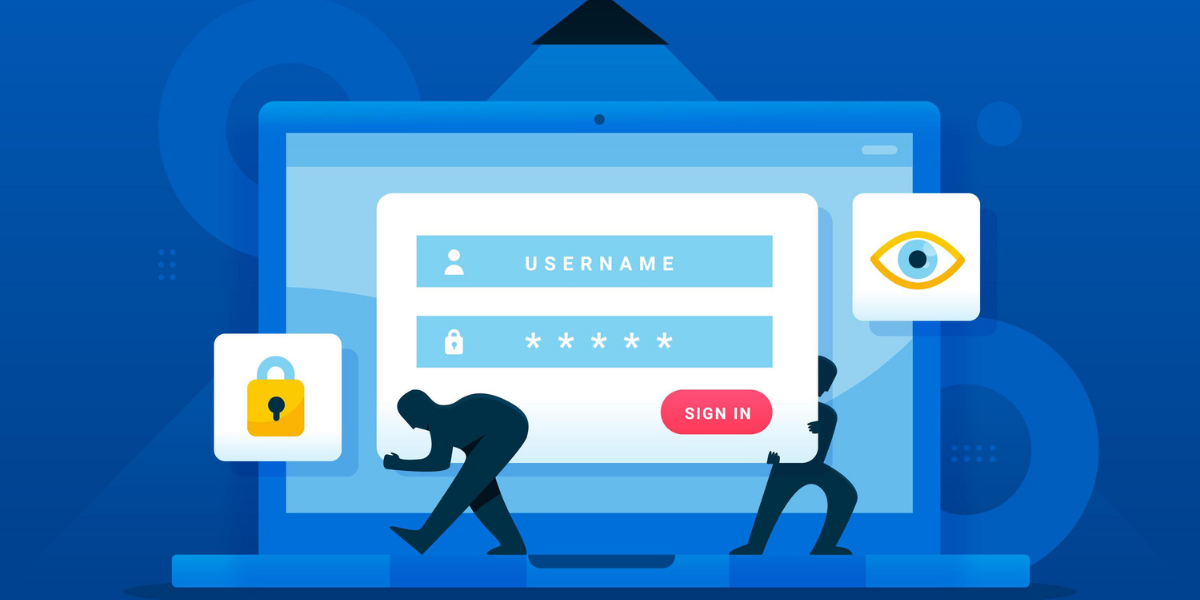
When your browser suddenly looks different, opens random tabs, or keeps sending you to sites you never asked for, it is often not just a glitch.
Many times this comes from a browser hijacker, a kind of browser-based malware that quietly takes control of how your browser behaves.
Key Takeaways
- A browser hijacker is unwanted software that changes your browser settings and redirects you to sites you did not choose, to show ads or control your web traffic.
- Many hijackers go beyond ads and collect data such as searches, cookies, and even login details.
- Browser hijackers usually get on your device through bundled installers, fake updates, cracked software, malicious or unnecessary browser extensions, phishing sites, or drive-by downloads.
Browser Hijacker Definition in Simple Terms
A browser hijacker is a type of browser-based malware that changes your browser settings without your permission. It is usually called a redirect virus, search redirect malware, or unwanted browser modification because it forces a homepage redirect or search engine redirect to websites you did not choose.
This unwanted software is called a PUP (Potentially Unwanted Program) or a PUP bundle. It might look like a toolbar, coupon tool, or video downloader, but its real goal is web traffic manipulation and traffic monetization.
Some browser hijackers mainly create adware infection. Others behave like spyware: they watch what you type and where you log in, and they help attackers with credential harvesting by stealing passwords, payment details, and other sensitive data.
Browser Hijacking in Cyber Security
In cyber security, browser hijacking is a client-side attack. The attacker does not hack the website server. Instead, they target your browser session on your laptop, phone, or desktop.
A browser hijacking attack can use several methods at the same time, such as:
- Web session manipulation – your clicks and searches are routed through attacker servers
- Cookie tracking abuse – cookies and session tokens are collected and reused to impersonate you
- Malicious JavaScript injection – extra code runs inside pages and can change or steal form data
- browser exploitation – a browser exploit kit or zero-day browser exploit runs code without a normal download prompt
Advanced browser hijackers can act like a man-in-the-browser attack. The malware sits between your browser and the real website. It can change form fields, payment amounts, or destination accounts while the page still looks normal to you.
DNS Hijacking vs Browser Hijacking
- With DNS hijacking, the attacker alter DNS settings on a router, device, or even at ISP (Internet Service Provider) level. Every browser on that network can be sent to fake or malicious sites.
- With browser hijacking, the attacker changes one browser or profile using extensions and browser configuration changes. Only that hijacked web browser is affected.
Both methods can redirect you to phishing websites and browser-based phishing kits, but they work at different layers of the connection.
How Browser Hijackers Work

Most browser hijackers follow a similar pattern. They get onto your system, change settings, then use your browser to redirect traffic and collect browsing data.
Unwanted Changes to Browser Settings
The first thing a browser hijacker does is change key settings in your browser. It might alter your homepage and new tab page, switching them back after you try to fix them. It can also change your default search engine to a fake one that it controls, or install malicious extensions and toolbars that inject ads into your pages.
In some cases, it even replaces error pages and search results with sites owned by the attacker. These changes give the hijacker control over where you go online, allowing it to flood you with extra ads, pop-ups, fake download buttons, and automatic redirects. It can also use affiliate fraud or click fraud to generate money by manipulating your clicks and traffic.
Data Collection, Tracking, and Credential Harvesting
Most hijackers don’t just show ads, they also try to collect your browsing data and personal information. They can track what you search for and the websites you visit, use tracking scripts and cookies to follow you, and even run spyware to record your keystrokes on login or payment pages. This turns a simple adware issue into a serious problem where your login details and identity could be stolen, used to hijack accounts, or sold to other attackers.
From Browser Problem to System Problem
In more serious campaigns, the browser is just the first step. After successful browser exploitation, the attacker may:
- download and install additional malware, including spyware, ransomware, or remote access tools
- use API abuse and more cross-site scripting (XSS) attacks to move deeper into your system
- maintain long-term access for spying, fraud, or data theft
Because of this, security teams treat any browser hijacker as real browser-based malware, not just a minor setting change.
How Browsers Get Hijacked in Practice
Most users do not decide to install a browser hijacker. It usually arrives hidden inside something that looks normal or useful.
Freeware Bundles and Unwanted Software
A very common source is freeware bundle installation. You download a free converter, game, or utility and click “Next” quickly. One step includes a shopping tool or search helper. This extra component is unwanted software (PUP) that later acts as a hijacker.
Malicious or Fake Downloads
Attackers also use malicious downloads such as:
- installers from untrusted sites
- fake software updates that pretend to be browser or plugin updates
- cracked software and key generators
These files ususally add viruses and malware that change your settings and redirect your searches.
Phishing Websites and Drive-By Downloads
Some phishing websites and compromised websites use drive-by downloads. A hacked page uses a browser exploit kit or other exploit to install a hijacker without any normal download box.
Unsafe or Malicious Browser Extensions
Unsafe browser extensions are now one of the main paths for browser hijacking. Attackers abuse Chrome Web Store abuse and similar platforms to spread:
- fake “helpers” that are malicious from day one
- normal-looking add-ons that later receive an infected update
- AI-generated malicious extensions and fake AI tools as hijackers that steal AI chats, logins, and crypto data
Because extensions already have access to page content, they are perfect tools for browser exploitation, traffic monetization, and data theft.
Email Attachments and Documents
Some hijackers still arrive through email attachments. A phishing email may contain a fake invoice or delivery file. Opening it can install a potentially unwanted program, adware, or small loader that later hijacks the browser.
Main Types of Browser Hijackers
Not all browser hijackers work in the same way. Most fit into a few clear types.
Search Engine Hijackers
These hijackers replace your search engine with fake search providers. The page looks normal, but it adds ads, shows sponsored results, and records every search you make before sending you to the next page.
Homepage and New Tab Hijackers
These focus on forced homepage replacement. When you open your browser or a new tab, you are always sent to a specific portal full of ads, links, or software offers. If you change the homepage, it soon switches back.
Ad Injection Hijackers
These focus on visible ads. They show pop-up ads, add extra banners, and perform banner injection on websites that did not have them. Some also use auto redirects to send you from normal news or video pages to crypto scam redirect sites or fake prize pages.
Spyware-Based Hijackers
These hijackers combine tracking and spying. They log what you type using keystroke logging and perform broad data harvesting, including usernames, passwords, and card data. Some also install spyware or remote access tools for long-term monitoring.
DNS-Based and Network-Level Hijacking
In DNS-based hijacking, the attacker does not change the browser itself. Instead, they attack DNS and cause a router DNS compromise or ISP-level manipulation. All devices on that network may be redirected to copies of real sites, even if each browser looks normal.
Real Examples and Current Trends
Browser hijackers have been around for many years. Older examples include:
- CoolWebSearch, which changed homepages, redirected searches, and was very hard to remove.
- Toolbars such as Conduit Search and Ask Toolbar, known for aggressive installation and search hijacking in Google Chrome, Mozilla Firefox, Microsoft Edge, and Safari.
- In the GhostPoster campaign, researchers found 17 harmful browser extensions in Chrome, Firefox, and Edge stores, with about 840,000 installs. These extensions used hidden code to track your browsing, steal affiliate links, and show fake ads or clicks without you noticing.
- Between 2024 and 2026, several fake “AI helper” extensions were caught stealing data. One group of fake AI Chrome extensions had about 300,000 users and was used to steal login details and emails. Another set of malicious extensions targeting ChatGPT and DeepSeek users stole AI chats, login data, and crypto information from over 900,000 devices before being removed.
Step-By-Step Browser Hijacker Removal

There is no single tool that works in every case, but this step-by-step removal guide will help you remove browser hijacker threats from most modern browsers.
This process also covers how to remove browser hijacker, delete browser hijacker traces, and choose an antivirus for browser hijacker protection.
Step 1: Pause and Think About Recent Changes
If you think you have a hijacked web browser, stop using it for banking, email, and work accounts until you clean it. Plan to change important passwords later from a clean device.
Try to remember what changed just before the problem started: a free tool, a new extension, an email attachment, or a risky site. This can help you find the right program or extension to remove.
Step 2: Uninstall Suspicious Programs
Open the list of installed applications on your system and uninstall suspicious programs added around the time the hijack began. Watch for vague names like “search helper”, “PC booster”, or unknown download managers.
Many hijackers live in separate PUPs, so removing these is an important step in browser hijacker removal.
Step 3: Clean Browser Extensions and Add-Ons
Open your browser’s extensions or add-ons page. Remove any tools you do not recognise or no longer use, especially:
- shopping or coupon add-ons you never wanted
- unknown video downloaders or converters
- extensions that request full access to all sites without a good reason
Removing a malicious browser extension is the key step to remove browser hijacker behaviour.
Step 4: Reset Browser Settings
Use the built-in option to reset browser settings to their defaults (bookmarks are usually kept). Make sure you:
- restore the correct homepage and stop the unwanted homepage redirect
- set your real default search engine and remove the search engine redirect
- clear any extra startup or new tab pages
If the same unknown search engine or homepage returns after a restart, the hijacker or PUP is still present.
Step 5: Clear Cache, Cookies, and DNS
Next, perform local cleanup:
- clear browsing history, clear browser cache, and cookies to remove leftover scripts and tracking IDs
- check and change DNS settings back to your normal ones, or use secure DNS from a trusted provider
- Clear your DNS cache to remove old malicious entries
Step 6: Run a Full Security Scan
Now run a full system scan using:
- a reliable antivirus for browser hijacker threats or strong anti-malware software
- preferably a product with real-time protection and a browser protection module
- malicious extension detection, heuristic detection, and behavior-based detection
- an optional rootkit scan (if persistent) and other endpoint security features
Let the system scan finish. Use the quarantine feature and threat removal engine in the product to remove all found items, including PUPs and adware. Many tools also act as a browser cleaner tool, PUP remover, adware cleaner, and general malware removal utility at the same time.
Step 7: Check Startup and System Settings
For infections:
- check startup programs and disable unknown items that launch browsers or scripts at boot
- on Windows, carefully clean Windows registry entries only with trusted tools or support, because some hijackers hide there
If the browser still shows hijacking symptoms after all these steps, or if the same threat keeps coming back, a factory reset (if severe) or full system reinstall may be needed to completely delete browser hijacker files and restore trust in the device.
You can also use a dedicated browser hijack cleaner as an extra layer if your main security product does not remove all traces.
How To Log and Investigate a Browser Hijacker
In companies and technical teams, you may need to document what happened. Knowing how to log browser hijacker activity helps with forensic investigation and future protection.
Useful sources include:
- Browser activity logs, which show redirects, errors, and extension activity
- Windows Event Viewer, plus other system logs and security logs, which show installs and warnings
- DNS query logs from your router or DNS service, which can reveal strange domains
- Network monitoring output, proxy logs, and firewall logs that show suspicious outbound traffic and blocked connections
By comparing times and events in these logs, you can usually see whether the browser hijacking attack started with phishing websites, fake software updates, unsafe browser extensions, or drive-by downloads from compromised websites.
Preventing Browser Hijacking in 2026
Good habits and basic security controls reduce the chance of future browser hijackers. These habits are also a basic form of computer malware prevention, not just protection against browser hijackers.
Be Careful With Software and Extensions
- Download software from official sites, not random portals
- Avoid cracked software and keygens
- Always check extension permissions and reviews before installing anything
- Remove extensions you no longer use or trust
Keep Software Updated
- Keep browser updated and regularly update operating system
- Enable browser safe browsing and built-in anti-phishing filters
- Use ad blockers to cut down on malicious ads and scripts
Strengthen Account and Network Security
- Enable firewall on your device and router
- Use secure DNS that blocks known malicious domains
- Turn on multi-factor authentication for important accounts
Final Thoughts
If your homepage or search engine keeps changing or you see lots of pop-ups, it’s likely a hijacker. To fix it, remove any unwanted software and extensions, reset your browser, and run a full scan with trusted security tools. By following these steps and being careful with downloads, you can avoid hijackers in the future.
FAQs
What is a browser hijacker in simple words?
A browser hijacker is a piece of software that takes control of your web browser without your permission. It changes things like your homepage and search engine and sends you to websites you did not choose.
Is a browser hijacker a virus?
A browser hijacker is a type of malware, but it is not always a classic virus. Many hijackers are adware or unwanted programs that mainly change your browser settings instead of infecting your entire system.
How do I remove a browser hijacker?
To remove a browser hijacker, start by uninstalling any suspicious programs and removing unknown extensions. Reset your browser settings, and clear the cache and cookies. Then run a full scan with a trusted anti-malware tool.
Why does my browser keep redirecting to strange sites?
If your browser keeps redirecting to unfamiliar websites, it can be due to malware or a hijacked browser. A suspicious program or extension might be controlling your traffic and sending you to certain sites.
Can antivirus remove browser hijackers?
Yes, most latest antivirus programs can remove browser hijackers. They have built-in tools to detect and remove harmful extensions, files, and registry entries.
Are browser hijackers dangerous or just annoying?
Some browser hijackers are mainly annoying, like changing your homepage or forcing you to use a particular search engine. However, others can be more dangerous, stealing your personal information or installing additional malware.
How do browsers usually get hijacked?
Browsers usually get hijacked when you install software that includes unwanted programs, click on fake update alerts, add risky extensions, or visit unsafe websites. These actions let attackers change your settings and install harmful software.
What is the difference between adware and a browser hijacker?
Adware shows unwanted ads, while a browser hijacker is a type of adware or malware that changes your browser settings, like your homepage or search engine, and manipulates your web traffic.

Comments are closed