
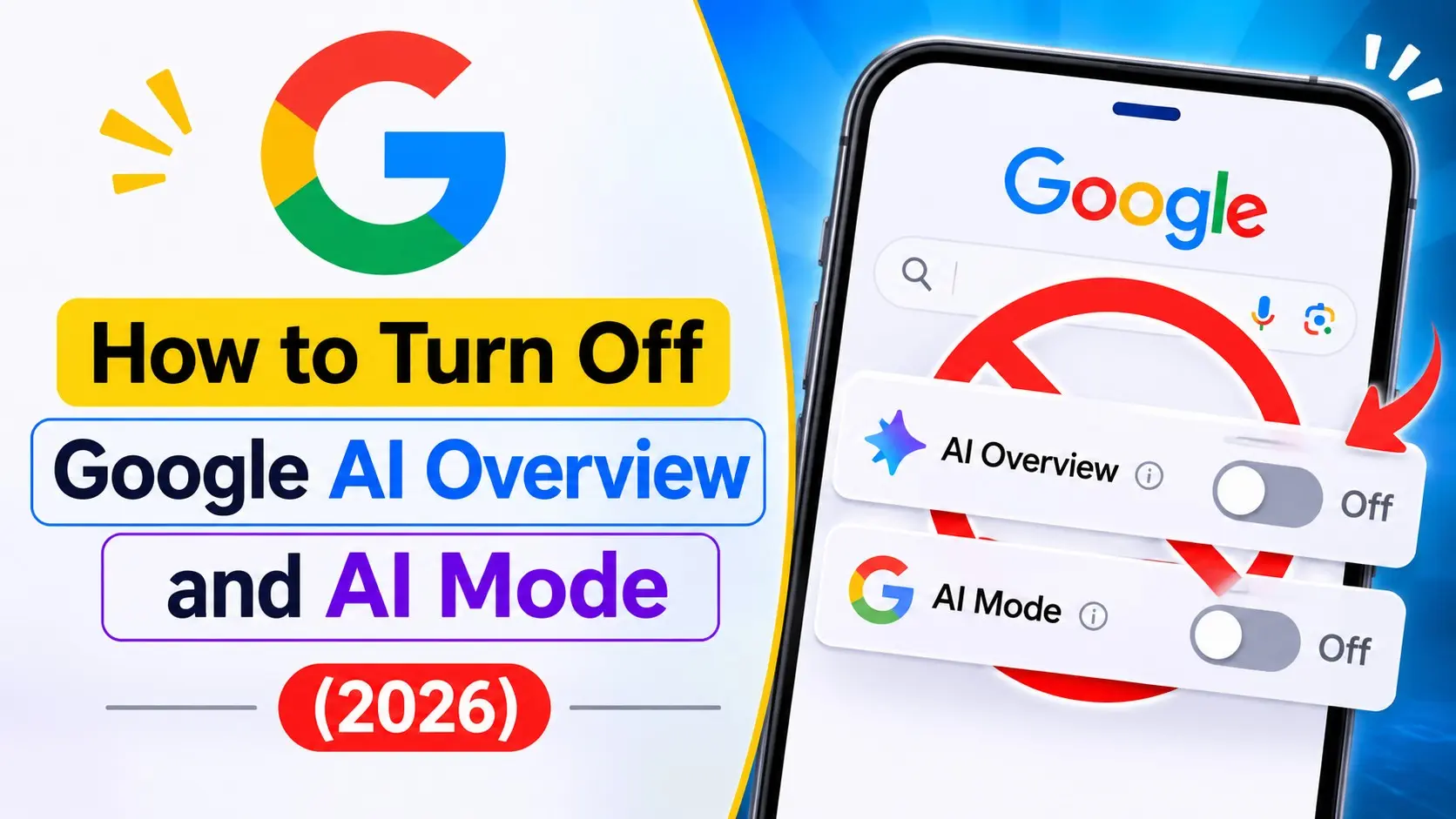
Want to know how to turn off Google AI? The short answer is that you can’t turn off Google AI completely, because Google doesn’t give you a setting for it. What you can do is hide AI Overviews with the Web tab under the search box, and make that stick by adding a different search engine in google Chrome.
AI Mode and Gemini work a little differently, and the account settings behind all of this decide what Google actually keeps about you. Each one has its own section below, easiest fix first.
Turn off AI Overview with the Web filter
This is the simplest method because it requires no setup and is the fastest answer for how to disable AI Overview or how to get rid of AI Overview on a single search.
- Search for anything. Say, how to get a wine stain out of a rug.
- Under the search box, you’ll see a row of tabs: All, Images, Videos, and so on.
- Click Web. If it’s missing, it’s tucked under More.
Google reloads the page with plain blue text links and no AI box up top. Google’s own help page on AI Overviews suggests this exact filter, which makes it the only method in this guide that Google itself points to.
The downside? It fixes one search, that’s all. Next time you search from the address bar you get the usual AI-heavy page again, and you click the tab again. But it works on every browser and every phone.
Remove AI from Google search with -ai
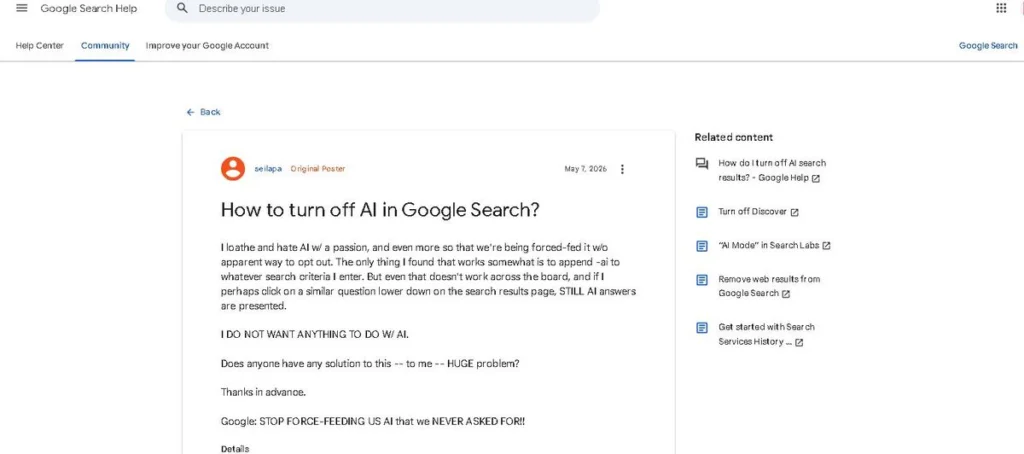
This is a simple trick many people use when they want to remove AI from Google search quickly. Add a space and then “-ai to the end of whatever you are searching. So: cheap laptops for students -ai.
That minus sign tells Google to drop pages with the word, and a lot of the time the AI Overview goes away with them. Not always, though. Google never said this would work, and it might stop working next month.
One more thing. If a page uses the word “ai” anywhere that matters, it can drop out of your results too. Search for a company whose name has those letters in it and you’ll see what I mean. So I keep this one for quick lookups only.
Turn off AI in Google search with &udm=14
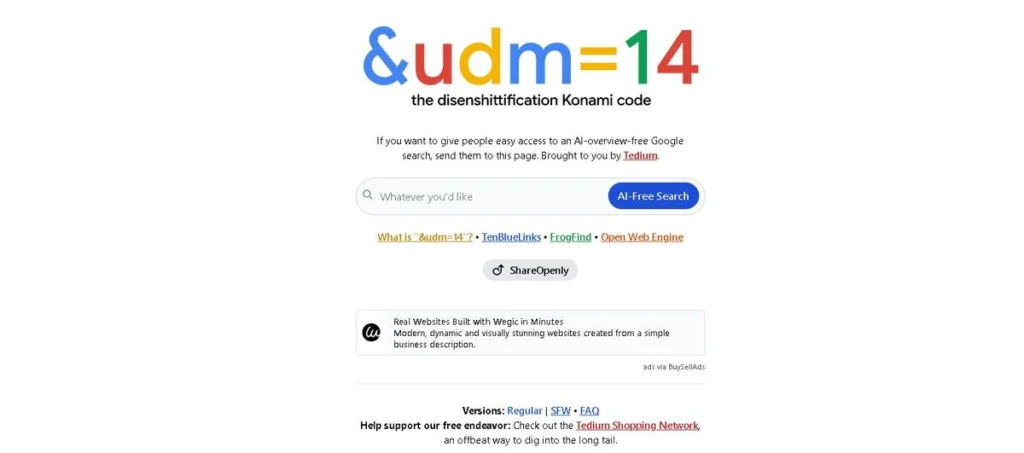
Look at the link on any Google results page, and you will spot a bunch of little settings after the question mark. udm is one of them, and it picks the type of results. Number 14 means Web, the same plain view the Web tab gives you. It is the cleanest way to turn off AI in Google search without adding anything to your browser.
To do it by hand, run a search, click into the address bar, press End so you’re at the very end of the link, and type &udm=14. Hit Enter. Done.
You can bookmark the result, but that saves one search, not every search. If you want the habit, keep reading.
Remove Google AI from Chrome and Firefox
This is the fix that lasts. You tell the web browser to add udm=14 parameter whenever you search from the address bar, and then you forget about it. It is the closest thing to a real Google disable AI switch, and the best answer to how to remove Google AI from Chrome. One catch before you start: the big box on the Google home page won’t obey. Only the address bar does.
Disable Google AI in Chrome
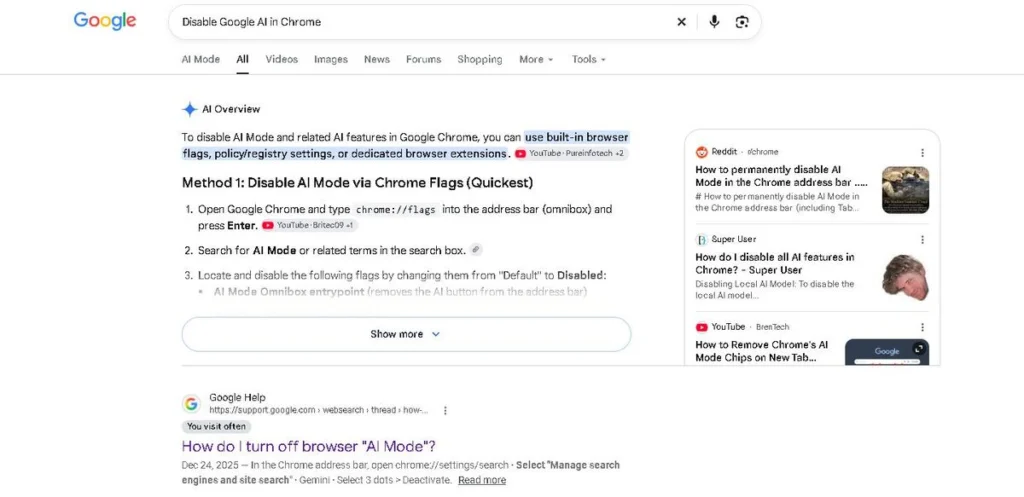
If you want to turn off the AI on Chrome searches and stop Google AI search results from loading first, set it up once like this. Google’s own Chrome Help page on default search engine and site search shortcuts walks through the same Add screen.
- Open Chrome’s three-dot menu and select Settings.
- Go to Search engine, then select Manage search engines and site search.
- Under Site search, click Add.
- For the name type Google’s Web- Only, for the shortcut type gw, and paste this URL: https://www.google.com/search?q=%s&udm=14
- Click Add again to save it.
- Back in the list, hit the three dots next to your new entry and choose Make default.
Try a search from the address bar. The AI box should be gone. That is the simplest answer I know for how to disable Google AI in Chrome, and it also works if you were searching for how to turn off Google AI search results altogether.
Turn off AI Overview in Firefox
Firefox takes a few more steps. Some versions have an Add button in the Search settings, and if yours does, use the same URL as above.
If not, go with a keyword bookmark. Open your bookmarks Library (Ctrl+Shift+O on Windows), make a new bookmark using that URL, and give it the keyword gw. After that you type gw, a space, and your search into the address bar. It is one extra step every time, but it works, and it is a handy way to disable AI Google results in Firefox without installing anything.
Turn off Google AI on your phone
Phones are trickier. Chrome on Android and iPhone doesn’t give you the same Add button that desktop Chrome has, so the desktop trick doesn’t follow you over. If you were hoping for an easy way to get rid of Google AI on mobile, I’d rather tell you that now than waste your time.
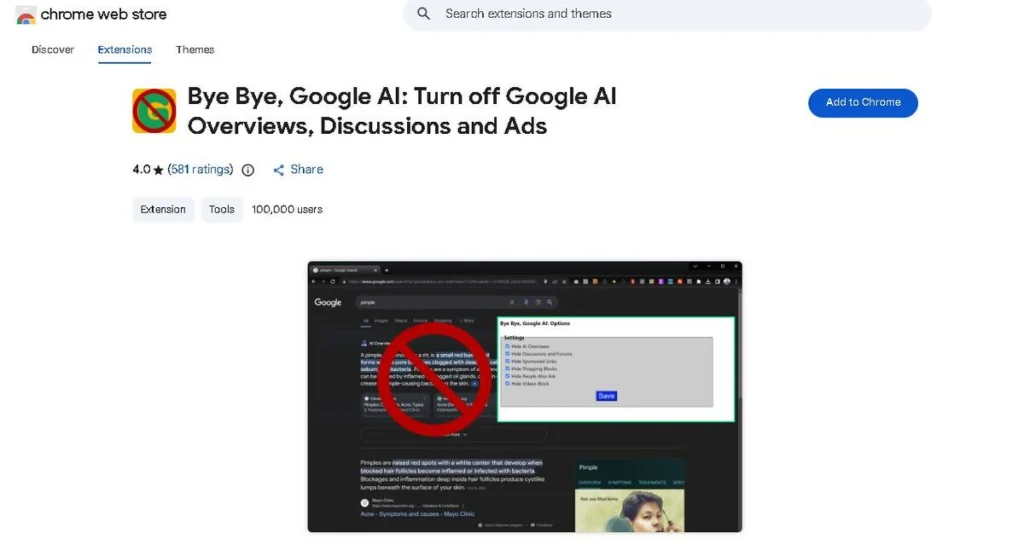
What I would try is Firefox for Android, which usually lets you add a custom search engine in its search settings with the same URL. Or save a udm=14 search as a bookmark on your home screen. A browser extension can do it too, so if you go looking for an AI Overview remover, read what permissions it wants before you tap install. The wrong one can see every page you open.
Also, the Google app has its own search box that ignores all of this.
Turn off AI Overviews from Google Labs
Google Labs is where Google tries out new stuff. If your account has it, open a new tab in google Chrome while you are signed in and look for a Labs button. Tap Manage, find the experiment called “AI Overviews and more,” and switch it off. For some people this is the first stop when they google turn off AI Overview and hope for a toggle.
Google says turning that experiment off will not disable all AI Overviews. Many accounts don’t even see the option, and Google moves things around in Labs now and then. Treat it as a nice extra, not as the way to turn off AI Overview for good; also disable AI on Google across the board.
Ways to turn off Google AI
Here are all the methods in one place.
| Method | How long it lasts | Works on | Effort | The catch |
| Web filter tab | One search | Any browser, phone or computer | Very low | You click it every single time |
| Adding -ai | One search | Any browser | Very low | No promise it works, and it can hide useful pages |
| &udm=14 typed in the URL | One search | Any browser | Low | Fiddly on a phone |
| Default search engine in Chrome | Every address bar search | Chrome on a computer | Medium (about 5 minutes) | Skips the Google home page box and the Google app |
| Keyword bookmark in Firefox | Whenever you use the keyword | Firefox on a computer | Medium | You have to type the keyword first |
| Custom engine in Firefox for Android | Every address bar search | Android | Medium | Menu names change between versions |
| Labs toggle | Account-wide, if you have it | Signed-in accounts | Low | Doesn’t turn off all AI Overviews |
| Browser extension | Runs by itself | Most desktop browsers | Low | You’re trusting a third party with page access |
If it were me, I’d set up the Chrome default engine on my computer and just click the Web tab on my phone. That covers most of your searches for about five minutes of work.
How to turn off AI Mode in Google
AI Mode isn’t the same thing as an AI Overview. An overview is a summary parked above your normal results. AI Mode is its own chat-style tab, where you ask a question and then keep asking follow-ups. Google explains both on its AI features page for Search. If you want to turn off AI Mode Google style, or you keep typing turn off AI mode into the search box, this is the section for you.
Here is the honest truth about how to turn off AI Mode in Google: there is no setting that removes the AI Mode tab, so a true AI mode off switch doesn’t exist yet. But you do have a few options. Whether you want to disable AI Mode Google hands you, remove AI Mode Google adds to the page, or simply remove Google AI Mode from your daily routine, the workarounds below are the ones worth trying.
| Feature | AI Overview | AI Mode |
| What it is | A summary above your normal results | A separate chat-style tab with follow-up questions |
| Where it appears | Top of the results page | Its own tab, opened only when you click it |
| Can you turn it off? | No | No |
| Best workaround | Web tab or udm=14 default search engine | Skip the tab, remove the Chrome shortcut, or use a trusted extension |
- How to get out of AI Mode: it only opens when you click it. If you land inside it by mistake, switch to another tab or start over from the Google home page. This is also the answer to how to get out of AI Mode on Google if you tapped it by accident.
- Remove the AI Mode shortcut in Chrome: this is the nearest thing to how to remove AI Mode from Google search and the address bar. In recent versions you can right-click the address bar and untick the option that keeps showing AI Mode shortcuts. The wording shifts between versions, so poke around Chrome’s search settings if you can’t spot it. People often ask how to turn off tab for AI Mode, and this shortcut is the closest fix inside Chrome itself.
- Labs: if AI Mode still shows up in your Labs list, switch it off there. A lot of accounts have lost that toggle, since Google has been moving features out of Labs and into regular Search.
- Extensions: the only sure way to hide the tab itself is a content-blocking extension. Pick one that explains how it works and has lots of reviews, because it can read the Google pages you open. This is the only real answer to how to get rid of Google AI Mode completely.
You’ll also run into advice about hidden Chrome flags. They’re experimental and tend to reset after updates, so I wouldn’t build on them.
Stop Google using your saved media for AI
This one has nothing to do with how your results look. It is about what Google keeps. If you want to turn off AI Google style data collection, this is where it starts.
In July 2026, TechCrunch reported that media you use in Google’s Search services (images, files, audio and video recordings) gets saved and can be used to improve Google’s AI models unless you opt out. Think of a photo you search with in Lens, or a voice search. Engadget covered the same change and points to the same fix.
- Sign in to your Google Account and open My Google Activity at myactivity.google.com.
- Open Search Services History. Google is rolling this out slowly, so if it isn’t there yet, check again in a few weeks.
- Untick Save Media.
That only covers what happens from now on. Old items stay until you delete them from your activity page. Gemini has its own setting too, which I get to a bit further down.
Turn off AI personalization
Google uses machine learning to tailor results to you, based on what you searched before, where you’ve been and what you tend to click. That’s personalization, and it runs on the data in your Google Activity Controls. Many people who search google turn off AI or Google turn off AI features are really asking about this part.
Open that page and look at three things:
- Web & App Activity saves your searches and what you do across Google services.
- Location History (called Timeline on some accounts) tracks where your devices go.
- Ad personalization sits in your Google ad settings and controls how ads get matched to you.
Switch off whatever you are okay losing. Your results will get more generic, and some handy bits, like smarter suggestions in Maps, can get worse. One more thing from the TechCrunch report: search media now has its own control, so changing Web & App Activity alone won’t cover it. And remember, none of this will turn off Google AI Overviews. It only changes what Google stores about you.
Turn off Gemini and Google Assistant on Android
On lots of Android phones Gemini has taken over from Google Assistant. Google’s Gemini help page explains how the two work together. If you want to know how to turn off AI Mode on Android in the sense of Gemini, three things are worth changing. (Strictly speaking Gemini is not the same thing as AI Mode in Search, but this is what most Android users mean when they ask.)
- Switch the assistant. Open the Gemini app, tap your profile picture and go into Settings to find the assistant options. You can go back to Google Assistant or, on some phones, pick no assistant at all. Menu names change from phone to phone, so check your phone maker’s support page if you use a different
- Turn off “Hey Google.” In the Gemini app tap your profile picture, open Settings, find the Google Assistant features section, and switch off “Hey Google” and Voice Match.
- Stop Gemini saving your chats. Tap your profile picture in the Gemini app, choose Gemini Apps Activity, and turn it off. Delete old chats from the same screen if you like.
The Gemini Apps Privacy Hub has a catch worth knowing. Even with Gemini Apps Activity off, your conversations stay on your account for up to 72 hours so Google can run the service and handle feedback.
Got a Google Home speaker? Open the Google Home app, pick the speaker and dig through its settings for assistant options. They vary by device.
Turn off Smart Compose and Smart Reply in Gmail
Smart Compose finishes your sentences in grey text while you type. Smart Reply puts one-tap answers under the emails you get. Both are AI. If you’d rather write your own emails, here’s how to switch them off, based on Google’s Smart Compose help page.
- Open Gmail on a computer.
- Click the gear icon in the top right, then See all settings.
- On the General tab, scroll to Smart Compose and choose Writing suggestions off.
- See an option for custom suggestions or personalize? Turn that off too. It’s the bit that learns your writing style
- Scroll down to Smart Reply and choose Smart Reply off.
- Click Save Changes at the very bottom. If you skip it, nothing changes.
Newer Gemini writing ai tools inside Gmail may have their own switches, so scan the General tab for anything with “write” or “Gemini” in the name.
Turn off AI suggestions in Chrome autofill
Plain autofill isn’t really a chatbot, it’s just a convenience. Still, Chrome keeps getting smarter at filling in forms, and Google’s Chrome autofill help page even mentions an “enhanced autofill” option. Lots of people lump it in with the rest of Google’s AI, so it gets a section here.
- In Chrome, open Settings, then Autofill and passwords.
- Click Payment methods and turn off Save and fill payment methods.
- Go back, click Addresses and more, and turn off Save and fill addresses.
Search suggestions in the address bar live somewhere else. Open Settings, then You and Google, then Sync and Google services, and turn off Autocomplete searches and URLs. Chrome will quit finishing your searches for you.
If the Web filter or udm=14 stops working
None of these tricks are official, so now and then one breaks. Here’s what usually goes wrong.
- The AI Overview came back. Check where you searched. The Google home page box and the Google app skip your custom engine. Use the address bar or click the Web tab.
- You can’t find the Web tab. Open More next to the other tabs. On some pages it hides there.
- Shopping, Maps or news boxes disappeared. That’s the Web view doing what it does. It strips the extras. Switch to the other tabs when you want them back.
- Your custom search engine vanished. You might be in a different Chrome profile. Add it again and make it the default.
- The -ai trick stopped working. Move to the Web tab or the udm=14 method, which have held up better.
- Nothing works on your phone. Chrome on mobile can’t take a custom engine, so use the Web tab or try Firefox.
Google changes its search page a lot. If a step here doesn’t match your screen, check Google’s help pages for the latest wording.
Use Google without AI: should you switch?
Maybe. It depends on how much of your life already lives in a Google Account. If your real question is how to use Google without AI, or whether you can ever disable AI on Google completely, the honest answer is that switching products is the only full escape.
If search is all you use Google for, switching is easy. Try another search engine for a week and see. Some let you turn AI answers off in their settings, and some don’t show them at all. You might miss Google’s local results, especially maps and nearby shops.
Use Gmail, Docs, YouTube, Android and Chrome too? Leaving takes more work. In that case the settings in this guide will probably do more for your privacy than changing the search box. Start with Save Media and Activity Controls, then decide if a bigger move is worth it.
Conclusion
So, how to turn AI off on Google? You can’t disable it for good, because Google doesn’t offer a real off switch. You can hide it, though. If you are still stuck on how to disable AI on Google, here is the plan I would follow. Use the Web filter when you need a quick fix. Set up a udm=14 default search engine in Chrome when you want it to last. Then spend ten minutes in your Google Account switching off Save Media, personalization, Gemini activity, and Smart Compose.
Check these settings now and then, because Google changes them often.
FAQs
Can you turn off Google AI Overviews permanently?
No. Google says AI Overviews are a core Search feature and can’t be turned off, so if you were wondering whether you can turn off AI on Google for good, the answer is no. If you ask can I turn off Google AI Overview or can you disable AI Overview on Google, the closest thing is a custom Chrome search engine with udm=14 added, which makes Web results the default for every address bar search.
How do I turn off AI Overview on Google quickly?
Search on Google, then click the Web tab under the search box. Can’t see it? Open More first. That is the fastest way to turn off Google AI Overview. The page reloads without the AI Overview, but you have to do it again on each new search.
Does adding -ai to a search remove AI Overviews?
Often, but not always. The -ai tells Google to leave out that word, which can stop the AI Overview from showing up. Google doesn’t promise it, and it can hide pages that happen to contain those letters.
What does udm=14 do on Google?
It is a small setting in the Google search community web address that switches results to the Web view. You get plain text links, with no AI Overviews and no extras. It is the same view the Web tab gives you, and it is the base of the best method for how to remove Google AI Overview every time you search.
How do I turn off AI Overviews on my phone?
Tap the Web tab under the search box after each search. Chrome on mobile doesn’t offer the same Add button as desktop, so the desktop trick doesn’t carry over. Firefox for Android is one option that usually can. If you want to turn off Google AI search results on a phone, that is the realistic route.
Can I turn off AI Mode on Google?
Not fully. Google has no setting that removes the AI Mode tab. You can hide the AI Mode shortcut from Chrome’s address bar menu, and a trusted extension can hide the tab. Some accounts may still have a Labs toggle. That is also the honest answer to how to remove AI Mode.
Does turning off AI Overviews stop Google from collecting my data?
No. Hiding AI Overviews only changes what you see on the page. People who search about disabling AI on Google for privacy reasons need to change their Google Account settings separately: Save Media in Search History, Activity Controls, and Gemini Apps Activity.
Is there a way to use Google without AI?
Partly. The Web tab and a udm=14 default search engine give you plain results without AI Overviews. Google offers no official way to remove every AI across all its products, so a few will always stick around. If you are asking, can I disable AI on Google across the whole account, you will have to remove Google AI piece by piece. How to remove Google AI in one click isn’t possible today. And if you only want to turn off AI search results rather than the whole ecosystem, the Web view is the answer.
Sources
• Google Search Help: Find information in faster & easier ways with AI Overviews in Google Search
• Google Search Central: AI features and your website
• Chrome Help: Set default search engine and site search shortcuts
• Chrome Help: Fill out forms automatically in Chrome
• Gmail Help: Use Smart Compose in Gmail
• Gemini Apps Help: How your Gemini mobile app and Google Assistant work together on Android phones
• TechCrunch: If you use Google, you’re training its AI. Here’s how to opt out (July 6, 2026)
• Engadget: Google now uses your uploaded search media to train AI

Comments are closed