

Waking up to a stacked inbox is the worst. You sit down with your coffee, look at fifty unread notes, and suddenly half your morning is gone just clearing out noise. It’s annoying, but worse, critical stuff gets buried. Figuring out how to use an AI agent to sort emails actually fixes that.
Once you set up AI for email management, software takes care of the mess. It can tag urgent stuff, move receipts or newsletters out of sight, catch you up on long threads, and write basic replies so you aren’t starting from scratch. Gmail and Outlook both have these tools built in now, though you can also grab third-party apps if you want custom rules.
Using AI to manage emails saves a ton of effort, but let’s be real, it won’t magically make email go away. AI makes mistakes, so you’ll still want to look over anything important or sensitive before hitting send.
Below, we’ll go step-by-step through setting up an AI email agent in Gmail and Outlook, plus a few simple tricks to keep your inbox under control.
What Is an AI Agent for Email?

Think of an ai email agent as a smart assistant that takes care of your inbox. Old-school email filters only look for exact keywords like “receipt” or “bill,” but an email ai agent reads your messages to figure out what someone is actually saying. Most run on large language models (LLMs) that process context and intent rather than following rigid rules.
What an agent does depends heavily on the setup you choose. Google Gemini and Microsoft Copilot are built straight into Gmail and Outlook, while third-party apps give you custom automation. Across these platforms, email ai agents can read incoming mail, sort messages into categories, rank urgent notes, apply labels, sweep out newsletters, summarize massive email chains, and draft quick replies for you to review.
How AI Email Agents Work
An email AI doesn’t just scan for basic keywords like “urgent” or “receipt.” It actually looks at the whole message to figure out tone, context, and what the sender wants.

Here is how the process works in practice:
- You grant access to your Gmail or Outlook account through a secure login prompt.
- The ai agent to read emails looks at incoming metadata and message body text.
- The system checks sender details, subject line, and overall context to determine intent.
- It organizes incoming messages into categories or assigns specific labels.
- Important or time-sensitive notes get pushed straight to the top.
- The tool generates thread summaries, drafts quick replies, or sends data to other connected apps.
Every platform works a little differently, so available features depend on your specific setup. Over time, many systems pick up on how you handle your inbox, making your ongoing ai email management much smoother as you train it with daily use.
AI Agent vs Traditional Email Filters
| Feature | Traditional Email Filters | AI Email Agent |
| How it works | Uses fixed rules based on keywords, sender, or subject | Understands email context, intent, and conversation history |
| Setup | Manual rule creation | Guided setup with AI learning from your preferences |
| Accuracy | Works well for repetitive tasks | Better at handling complex or changing email patterns |
| Prioritization | Limited to predefined rules | Identifies urgent and important emails based on context |
| Learning ability | Does not improve over time | Some tools improve with user feedback and corrections |
| Automation | Basic actions like moving or deleting emails | Can categorize, summarize, label, draft replies, and automate workflows |
| Best for | Newsletters, receipts, promotional emails | Busy professionals, teams, and high-volume inboxes |
Why Use AI for Email Management?
Nobody enjoys starting their day by going through fifty unread messages. Putting AI for email management to work in your daily routine gives you a real way to keep your inbox clean without sacrificing your entire morning to manual sorting.
Filing every message by hand is a waste of time. Today’s AI email management software takes care of the work. It files incoming mail into clear categories, clears out promotional junk, and turns massive, multi reply threads into short updates. When a pile of messages hits your inbox all at once, using ai to manage emails keeps you moving fast with pre-written draft replies you can quickly check and send. That keeps urgent requests right in front of you, cuts down overall clutter, and gives daily productivity a genuine lift for both individuals and teams.
Just keep in mind that these tools are built strictly to assist your workflow, not replace human decision making. AI models can easily misread tone or miss subtle context. Because of that, you should always personally check over high-priority, financial, legal, or confidential emails before taking action or hitting send.
| Benefit | How AI Helps |
| Save Time | Automatically sorts and labels incoming emails |
| Better Organization | Groups emails into meaningful categories |
| Faster Prioritization | Highlights urgent or high-priority messages |
| Less Inbox Clutter | Filters newsletters, promotions, and spam |
| Improved Productivity | Reduces manual email management tasks |
| Quicker Responses | Suggests summaries and reply drafts (if available) |
Best AI Email Management Tools

Picking an ai tool to organize emails depends on which email provider you use, how your daily work flows, and what you need to automate. No single platform works best for every setup. Your ideal combination relies heavily on your current mail software and the specific tasks .
First, figure out if you need an AI assistant or a dedicated automation platform. AI assistants sit inside your inbox to help you read, write, and summarize incoming messages. Automation platforms connect your email account to external tools so routine tasks trigger automatically. As features and integrations change over time, checking the official documentation for each service before setting up new workflows is always a smart move.
- ChatGPT works across both Gmail and Outlook. It provides flexible prompt based help to draft replies, rewrite rough thoughts, and condense lengthy thread chains.
- Microsoft Copilot is built directly for Outlook and Microsoft 365 environments. It organizes your incoming inbox, pulls out key action items from long discussions, and suggests quick contextual replies.
- Google Gemini works inside Google Workspace and Gmail. It lets you search your inbox with plain language queries, summarize messy email threads, and draft quick response options.
- Claude supports both Gmail and Outlook. It handles massive, multi page email threads that require careful reading and context aware writing adjustments.
- Make is a visual builder that uses an email AI agent to scan incoming messages, extract specific data points, and run multi step tasks across Gmail or Outlook.
- Zapier connects both major email platforms with thousands of third party web apps. It lets you build instant custom actions based on new incoming mail to streamline your overall ai email management.
These email management ai tools cover everything from quick drafting support to full cross app workflow automation
| Tool | Best For | Gmail Support | Outlook Support | Key Features |
| ChatGPT | Drafting emails, summarizing conversations, and generating replies | Yes | Yes | Summarizes emails, drafts responses, helps organize inboxes with prompts |
| Microsoft Copilot | Managing emails in Microsoft 365 and Outlook | No | Yes | Prioritizes emails, summarizes long threads, suggests replies, and helps manage the inbox |
| Google Gemini | Organizing and managing Gmail inboxes | Yes | No | Categorizes emails, summarizes messages, improves search, and assists with drafting replies |
| Claude | Understanding long email conversations and writing responses | Yes | Yes | Creates detailed summaries, drafts natural replies, and understands complex email context |
| Make | Building automated email workflows | Yes | Yes | Connects email with other apps, automates sorting, labeling, and follow-up tasks |
| Zapier | Connecting email with business apps and automating repetitive tasks | Yes | Yes | Creates automated workflows between email and thousands of applications without coding |
How to Use an AI Agent to Sort Emails
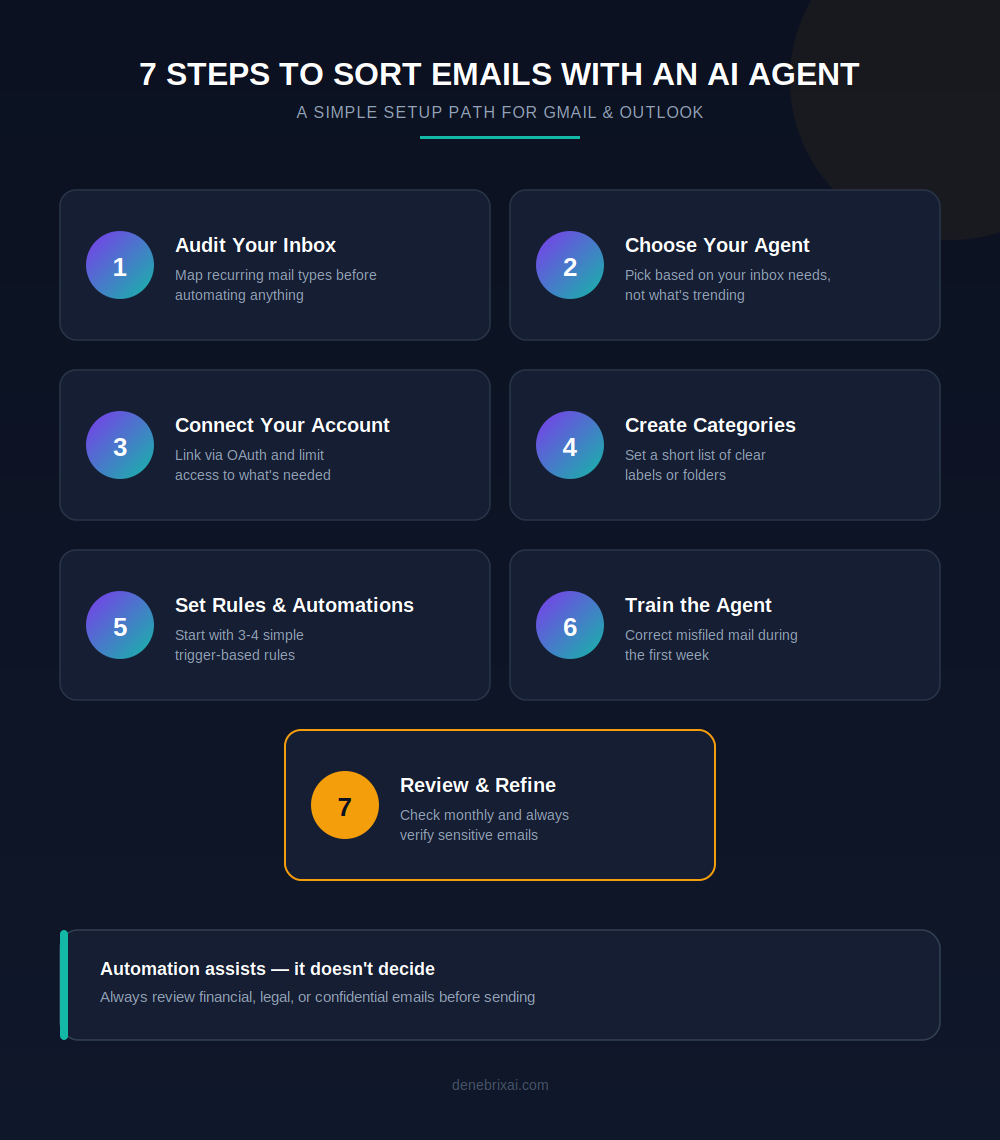
Step 1: Audit Your Inbox
Look at your inbox right now. What kind of mail comes in every single day? Before setting up software to help you, you need to map out your current habits. Sort your recent messages into basic piles. You might have customer questions, bills, internal chatter, and unwanted ads. Notice which daily chores drag you down. Maybe you spend twenty minutes moving receipts or hunting down urgent messages. Learning how to use an ai agent to sort emails starts right here. Automation needs clear patterns to follow, or it will sort your messages into the wrong places.
Do not try to fix every email account at once. Pick one address first. Testing your setup on a single inbox keeps things simple and prevents lost messages while you fine-tune your rules.
Step 2: Choose the Right AI Email Agent
Finding an AI email agent comes down to the mail app you use, what you need to protect, and the specific jobs you want. Forget about what is trending online. Focus on what fits your current inbox setup.
Each app handles different jobs:
- Google Gemini runs inside Gmail to search your messages and write fast replies.
- Microsoft Copilot works inside Outlook and Microsoft 365 to manage your inbox.
- ChatGPT drafts responses and summarizes messy notes when you give it prompt directions.
- Claude reads long email threads so you can pull out key details quickly.
- Make and Zapier act as a multi step email ai agent when you need to connect your inbox to external programs.
Check the access list before you log in with any tool. Knowing what your software can read or save keeps your private mail safe.
Step 3: Connect Your Gmail or Outlook Account
Once you pick a tool, you need to link it to your inbox. The setup screen looks a little different for each app, but the process is basically the same.
Start by logging into your account and clicking the option to connect your email. Most apps use a system called OAuth. This lets you sign in safely through Google or Microsoft without giving your actual password to the third-party app.
Pay attention to what access the software asks for during setup. If you are figuring out how to use AI for Outlook email or setting up AI agents for Outlook, try to limit the app to specific folders rather than your whole account. The same idea applies if you want to use AI to organize Gmail. Only grant the access you actually need for your work.
Let the app finish its first sync before you turn on any automated features. If you want to learn how to use AI in Outlook email across multiple accounts, connect just one email address first. Testing one account lets you make sure the tool works correctly before you add the rest.
Step 4: Create Categories and Labels
Set up your main piles before turning on any features so your email organizer AI knows where messages belong. Keep this list short. Simple choices like Work, Personal, Clients, Invoices, Newsletters, Promotions, Support, and Travel work best.
An AI email sorter uses these exact names to put incoming messages away. If your names overlap, the app will make mistakes and put mail in the wrong spots. Clear choices help the system drop every message in the right place on the first try.
Remember that mail apps name these things differently. Gmail uses Labels. Outlook uses Folders and Categories. The setup steps match even if the words do not. Do not build dozens of small subfolders at the start. Check your list every few months and change any folder names that stop making sense for your daily work.
Step 5: Set Up AI Rules and Automations
Now you can create simple instructions so your software handles incoming mail on its own. Setting up basic conditions lets an AI email sorter group, tag, or clean up messages without you doing it by hand.
Build your rules using simple triggers like the sender name, email type, priority level, or specific keywords. Here are a few practical ways to use ai to manage emails in your daily setup:
- Send routine newsletters straight to a Newsletters folder.
- Tag incoming receipts or bills with a Finance label.
- Mark messages from your top clients as High Priority.
- Automatically archive promotional clutter after two weeks.
Start with just three or four basic rules. If you build dozens of rules all at once, tracking down mistakes becomes hard if an ai email filter starts moving the wrong files.
Run a quick test on a few messages before turning an automation loose on your whole inbox. Check your sorted folders every week or two to make sure important messages are not getting archived or mislabeled by mistake.
Step 6: Train Your AI Email Agent
Your ai agent to read emails needs time to learn how you work. Check your inbox every day during the first week rather than letting the app run completely on its own. Checking your main folders early on helps you catch misfiled messages before they stack up.
When you see an email in the wrong folder, drag it to the right label and mark your main clients as priority contacts. Keep in mind that apps handle this differently. Some software follows set rules you build, while other ai email management tools learn from your manual moves over time.
Your workload shifts as new projects pop up. Take a few minutes every month to adjust your rules and remove old categories. Updating your settings keeps your inbox accurate whenever new senders or email types land in your inbox.
Step 7: Review and Refine AI Actions
Inbox automation works best when you keep an eye on it. Plan a quick monthly check to see how your AI email management setup performed over the past few weeks. Scan through archived and labeled folders to make sure no important messages got hidden by mistake.
Your daily priorities shift over time, so your setup needs to adapt too. Delete old rules you no longer use, organize folder names, and clean up keyword triggers. If you rely on AI for email management to write response drafts or sum up long messages, read every line before you click send.
Never skip reading through notes that touch on money, legal issues, or sensitive client details. Taking five minutes every month to review your inbox keeps everything organized without letting critical messages slip through the cracks.
How to Use AI to Organize Gmail
Google builds Gemini directly into Gmail, though you can also link third-party software if you need specific features. What you see in your inbox depends on your region and your Workspace plan.
When you connect outside apps, do it through your Google Account settings and stick to services you fully trust.
Despite traditional folders, Gmail relies on labels. Set up a few simple labels for work, clients, or receipts so incoming messages get organized without getting hidden. You can build basic filter rules to send newsletters, receipts, and project updates straight to those labels automatically. Tag your most important contacts so their emails pop out right away.
For long conversation threads, open the side panel tool to pull out quick key points. You can also generate quick reply drafts for basic questions, but always read through summaries and response drafts before hitting send.
Over time, your setup will need quick tune-ups. Head into your Google account settings every couple of months to clear out any old apps you do not use anymore for clean ai for email management. That keeps your account secure while you use ai to organize gmail to clear out daily clutter.
How to Use AI in Outlook Email
Microsoft Copilot serves as the main helper across Outlook and Microsoft 365, offering built-in tools to manage your inbox. Depending on your version and your subscription plan, available options may differ slightly.
Check your admin or privacy permissions before setting up these features on a work account.
Key Ways to Organize Your Inbox
Access Copilot by looking for the icon in your ribbon menu or compose window.
Draft messages using the composer to write new emails, adjust tone, or expand quick notes directly on screen.
Summarize email threads by selecting long conversation chains to pull out key points without reading every single response.
Prioritize important mail by combining app suggestions with Focused Inbox, custom rules, and categories to highlight main contacts.
Sort automatically by setting rules that map incoming mail straight to specific folders based on sender or subject.
Best Practices
Learning how to use AI for Outlook email features cuts down on repetitive typing, but checking your work is still necessary. Always read through suggested drafts or summaries before sending messages.
When setting up AI agents for Outlook or learning how to use ai in outlook email, keep your folder structure simple so automated rules work smoothly without hiding important mail.
Best Practices for Organizing Emails with an AI Agent
Getting good results from an email organizer ai comes down to keeping things simple at the start. Build a basic sorting setup first, rather than trying to automate your entire workflow on day one.
Set up clean, distinct labels so the software knows exactly where each message goes. Keeping your list of main folders short prevents misfiled messages. Tag your most important contacts as priority senders so key client notes never get buried in side folders.
Schedule a quick weekly or monthly check to look through your sorted folders. Your daily workload changes over time, so delete old rules and clear out categories you do not use anymore.
Use ai email management for repetitive jobs like filing receipts or grouping newsletters. However, make final decisions yourself on legal, financial, healthcare, or confidential notes. Human oversight matters when messages carry real risk.
If you connect tools to a work account, check your company data privacy policies and security rules before giving any app access to your inbox. Following these steps helps you get the most out of ai for email management without losing control of important messages.
Conclusion
Managing a flooded inbox does not have to eat up your morning. Setting up an ai email management tool helps you clean out clutter by handling routine steps for you. Start by choosing a system that fits your current setup, such as built-in features in Gmail or Outlook or an external app. Pick a few basic sorting rules first, then let the system run while you check its work and adjust settings over time.
Using AI for email management saves hours on repetitive tasks like filing receipts, organizing newsletters, and drafting quick replies. However, software cannot replace your actual judgment. You still need to review sensitive notes, client decisions, and important financial or legal messages yourself. Start small with two or three simple rules today, and expand your setup as you learn how to use an ai agent to sort emails without letting critical messages slip past you.
Frequently Asked Questions
Can AI automatically sort emails?
Yes. An ai email sorter scans new messages when they hit your inbox and moves them into set folders or labels. It checks who sent the note and what it says, keeping urgent client emails front and center while sweeping newsletters and receipts into background folders.
What is the best AI email management tool?
That depends on your email provider and daily setup. Google Gemini and Microsoft Copilot work fine inside Gmail and Outlook. If you handle multiple accounts or need custom rules, dedicated email management ai tools like SaneBox or Shortwave are solid options.
Is AI email management safe?
Most apps use standard encryption, but safety varies depending on the vendor. Always read the privacy agreement and check what inbox permissions an app wants. If you use a company account, clear ai email management tools with your IT team before connecting them.
Can I use AI to organize Gmail?
Yes. You can use ai to organize gmail using native Gemini tools or third-party extensions. Gmail can pull key points out of long threads, write quick reply drafts, and auto-label incoming mail so your main inbox stays uncluttered.
How do I use AI in Outlook email?
To start learning how to use ai in outlook email, turn on Copilot in your Microsoft 365 toolbar or install a supported app integration. From there, you can summarize long threads, draft quick responses, and build sorting rules that move mail into specific folders.

Comments are closed