
Looking to build your own AI setup at home?
Maybe you’re tired of hitting usage limits on Claude or ChatGPT, or you’ve got an idea for a project, and you’re wondering what it would actually take to run this stuff yourself.
Good news: you don’t need a server farm in your garage.
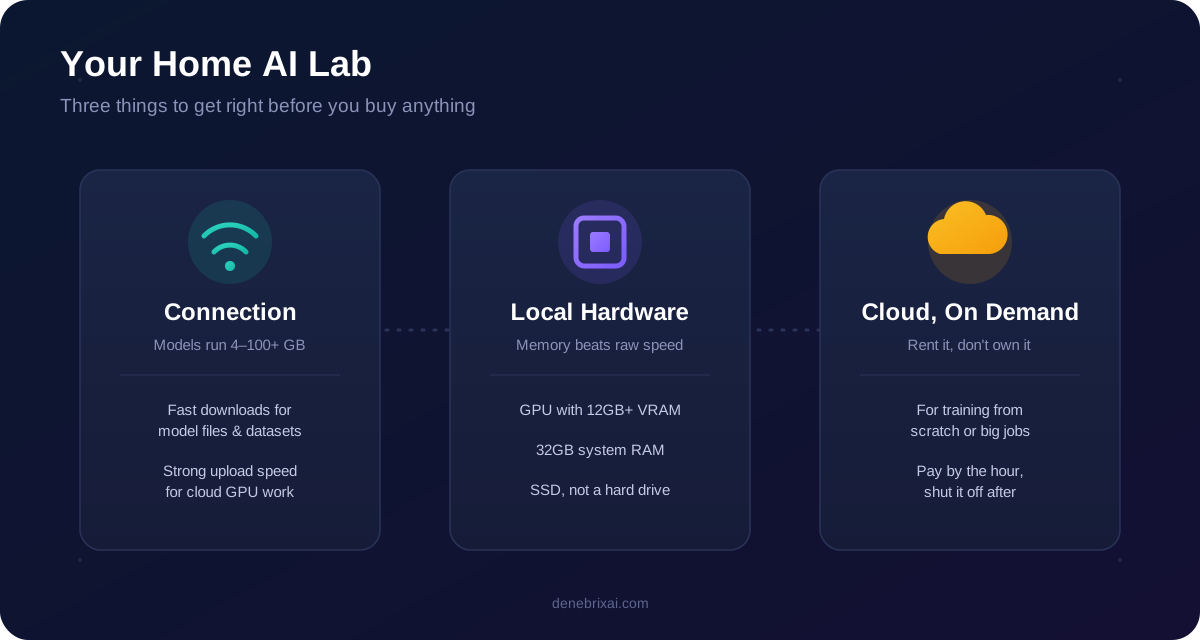
You do need to think through three things that people usually skip past: your internet connection, the actual computer doing all the heavy lifting, and how much of it you want to hand off to the cloud.
Let’s go through all three.
Internet Connection Matters More Than You Think
Here’s the thing nobody tells beginners: AI work is bandwidth-hungry in ways that regular browsing isn’t.
A single open-source language model can be anywhere from 4 GB to over 100 GB.
Image and video models aren’t much better. If you’re experimenting, you’ll be downloading these things constantly, trying one, deleting it, grabbing a newer version, and downloading a dataset to test against.
None of that happens instantly on a slow connection.
Upload speed matters too, and this is the part people aren’t really prepared for. If you’re using cloud GPUs to train or fine-tune a model, you’re often pushing your own data up to a remote server first.
A reliable connection with solid speeds saves you real hours of tinkering.
If you’re shopping around for something that can handle this kind of daily back-and-forth, it’s worth checking what’s actually available at your address. Something like Cox Internet is a reasonable example of a plan built with enough headroom for large file transfers, while not breaking the bank.
What Hardware Do You Actually Need?
This is where people either overspend or underspend, and both mistakes are annoying in their own way.
For basic experimentation, like running smaller open-source models, playing with image generation, testing scripts, a modern gaming PC with a decent graphics card handles more than you’d think.
Graphics Card (GPU) is the Powerhouse
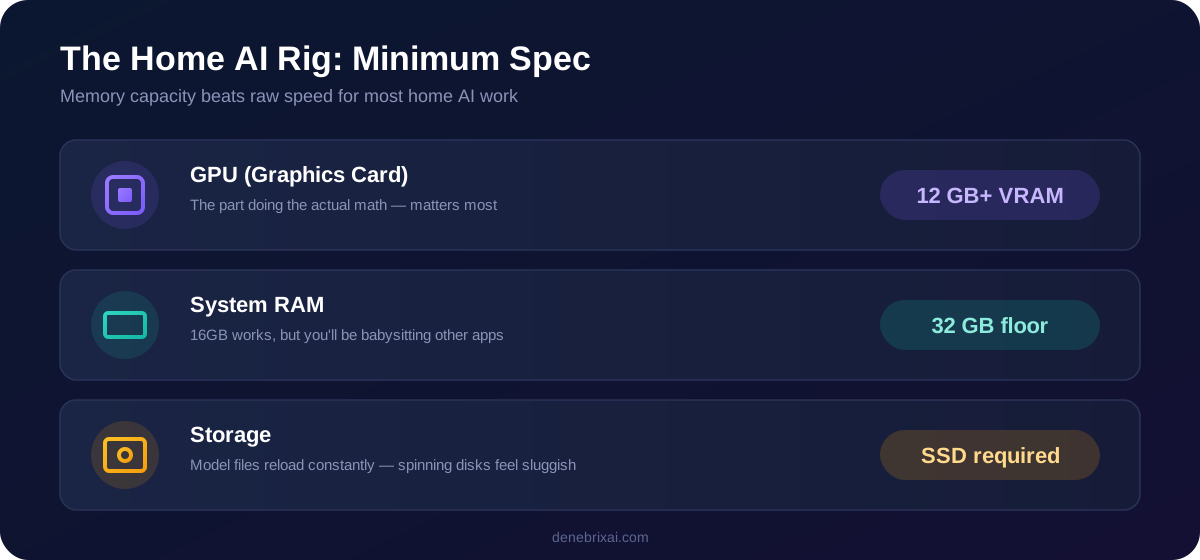
The GPU is the part that matters most, because it’s doing the actual math that the AI needs and regular processors just aren’t built for that kind of repetitive number-crunching. A card with at least 12 GB of video memory gets you into “reasonably capable” territory.
Less than that and you’ll find yourself running into walls constantly, restarting things, closing tabs to free up memory.
If you’re on a Mac, the newer chips with unified memory are surprisingly good at this. They’re not always as fast as a dedicated gaming GPU, but they can load bigger models without running out of memory, which for a lot of home projects matters more than raw speed.
Don’t Ignore RAM and Storage
RAM and storage are the boring parts that still trip people up.
32 GB of system RAM is a sensible floor these days. While 16GB works, you’ll be babysitting your other programs. Make sure you get an SSD, not a hard drive. Model files are large and get loaded and reloaded constantly; a spinning hard drive will make every single test feel sluggish in a way that’s honestly kind of maddening once you notice it.
One thing worth saying clearly: you don’t need the newest, most expensive card on the market. A used previous-generation GPU with enough memory will outperform a brand-new budget card almost every time. Memory capacity beats raw speed for most home AI work.
Where Does the Cloud Come In?
Here’s where a lot of guides get confusing, so let me simplify it.
Local hardware is great for everyday use, running models you already have, quick experiments, anything private you don’t want leaving your house.
The cloud earns its keep for the occasional big job: training a custom AI model from scratch, running a task that needs more GPU power than your home rig has, or handling a short burst of heavy work that doesn’t justify buying new hardware.
Think of it like renting a truck. You don’t buy one just because you’re moving a couch once a year.
Cloud GPU rental works the same way. You pay by the hour, you use it for the big job, and then you shut it off. Services in this space charge anywhere from under a dollar to several dollars an hour depending on how powerful a GPU you’re renting.
For a weekend project, that’s usually cheaper than buying hardware you’ll only occasionally max out. The setups that actually work well long-term are hybrid ones.
Run your day-to-day stuff locally. Keep a cloud account ready for when a project genuinely needs more horsepower. Sync files between the two using regular cloud storage rather than anything fancy.
This is where that upload speed we talked about earlier comes back into play, since you’re moving data back and forth between your home machine and whatever server you’ve rented.
Putting Your First High-Performance AI Lab Together
A realistic starter setup looks something like this: a home computer with a solid GPU and enough RAM to run smaller models comfortably, a home internet plan that doesn’t choke on large uploads, and a cloud account you dip into a few times a month for anything bigger.
That’s it. No server room, no elaborate networking, nothing exotic.
The mistake most beginners make is trying to solve everything with hardware. They buy the most expensive GPU they can find and then discover their internet connection is the actual bottleneck the whole time.
Test your internet speeds before you spend a dollar on a graphics card. If your uploads are crawling along, you’ll feel that pain on every single project, no matter how good your computer is.
And if your connection has been acting up lately, it’s worth a quick call before you assume the fix is more hardware. A conversation with the customer support rep can sometimes solve in ten minutes what feels like a hardware problem but is actually just a router that needs resetting or a plan that’s underpowered for what you’re now asking it to do. A good example of proactive ISP is Cox Customer Service, which usually solves most internet-related issues on the spot. If the real problem is weak coverage in parts of your home, a mesh Wi-Fi network is often a better fix than a faster plan.
So, start small.
Get your internet connection sorted first since it’s the cheapest thing to fix and the easiest to overlook. Add the GPU that fits your budget and your actual projects, not the one with the best marketing. And treat the cloud as a tool you reach for occasionally, not a subscription you’re paying for every month out of habit.
That’s really the whole formula.

Comments are closed