
To make a QR code for a link, open a free QR code generator (or the built-in tool in Chrome or Edge), paste your full URL, adjust the colors if you like, and download the image as a PNG or SVG. Test it with your phone camera, and it is ready to share. The whole process takes about two minutes and costs nothing.
You have a link, and you want people to open it with one scan instead of typing it out. That is exactly why so many people ask how to create a QR code for a link.
In this guide, you will learn four easy methods, how to style your code, which file type to download, how to test it, and which mistakes to avoid.
What Is a QR Code for a Link?
A QR code is a square pattern of tiny black and white modules. A phone camera reads the pattern and jumps straight to a web page. QR stands for “Quick Response.” The format was created in 1994 by Denso Wave, a Toyota subsidiary, to track car parts in factories. You can read the full history on Wikipedia.
Today these codes sit on menus, posters, business cards, packaging, and even bus stops. When the code holds a web address, it acts as a direct link to QR code shortcut: someone scans it, and the page opens immediately.
Static vs. Dynamic QR Codes: Which One Should You Pick?
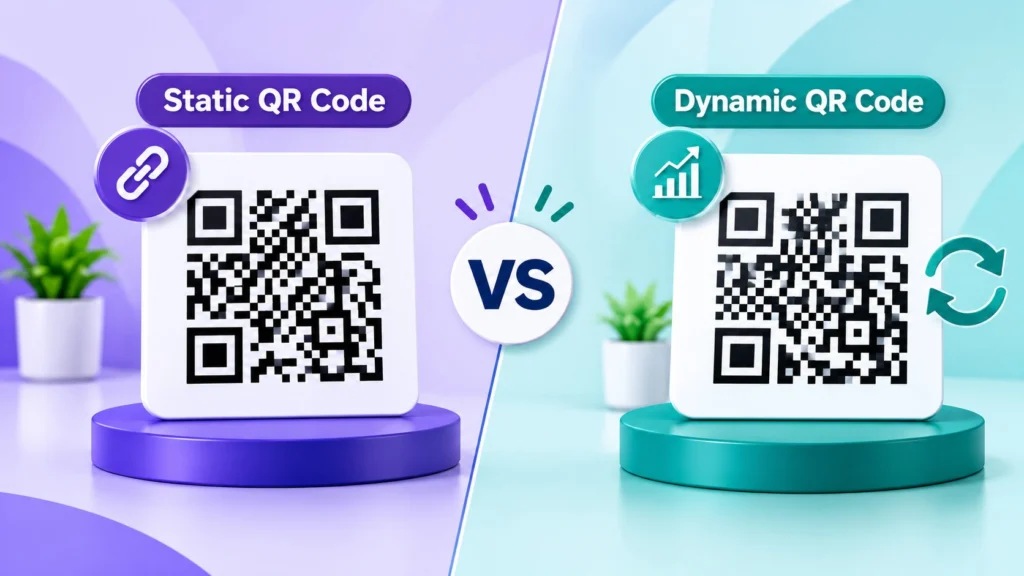
Before you make anything, choose the type. This decision matters more than most people think.
| Static | Dynamic | |
| Link stored | Inside the pattern itself | Short redirect link |
| Can you edit it later? | No | Yes |
| Expires? | Never | Can stop if a plan ends |
| Scan tracking | No | Usually yes |
| Cost | Free | Often paid |
A static code is permanent. If you typed the link wrong, you have to print a new one. A dynamic QR code points to a redirect, so you can change the destination any time without reprinting.
Simple rule: use static for something permanent, like a portfolio. Use dynamic for anything you may update, like a seasonal offer.
Before You Start: Is a QR Code the Right Choice?
Not every link needs a code. Ask yourself two quick questions. Will people actually be able to scan it where you place it? Is the page you are linking to mobile-friendly? A code that sends someone to a page that is hard to read on a phone wastes the scan.
This is also where QR code marketing starts. A scannable code only works when it promises something clear, such as a menu, a booking form, or a discount.
Your pre-flight checklist:
- Copy the full link and include https://.
- Open it on your phone to confirm it works.
- Shorten it if it is long. Longer links create denser, harder-to-scan patterns.
Method 1: Make a QR Code in Google Chrome
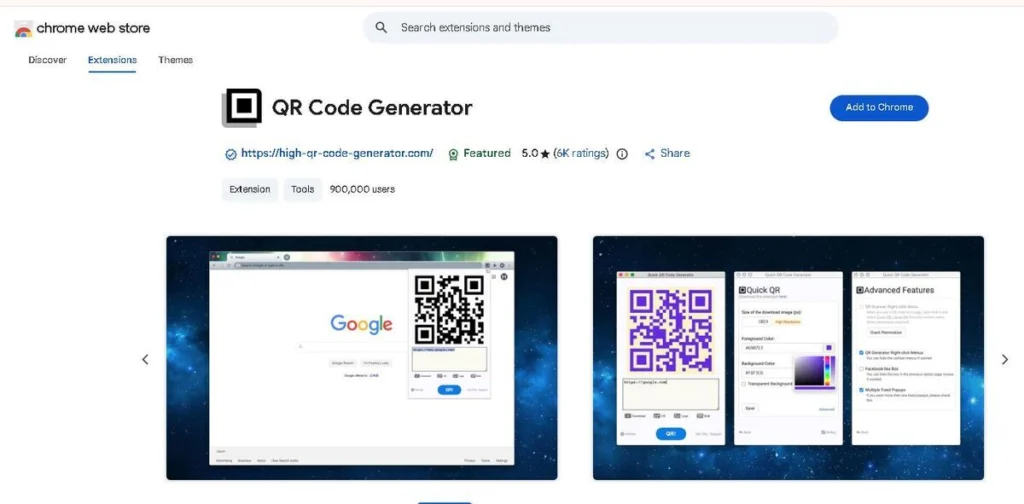
Chrome has a built-in tool, so you do not need an account or an extra website. It only works for the page you are currently viewing, but that is often enough.
Here is how to create a QR code in Chrome:
- Open the page you want to share.
- Click the three-dot menu in the top-right corner.
- Choose Save and share.
- Click Create QR code.
- Click Download to save the image.
Chrome adds a small icon in the middle of the code. That is fine for casual use, but it may look too playful for a law firm or a bank.
Method 2: Make a QR Code in Microsoft Edge
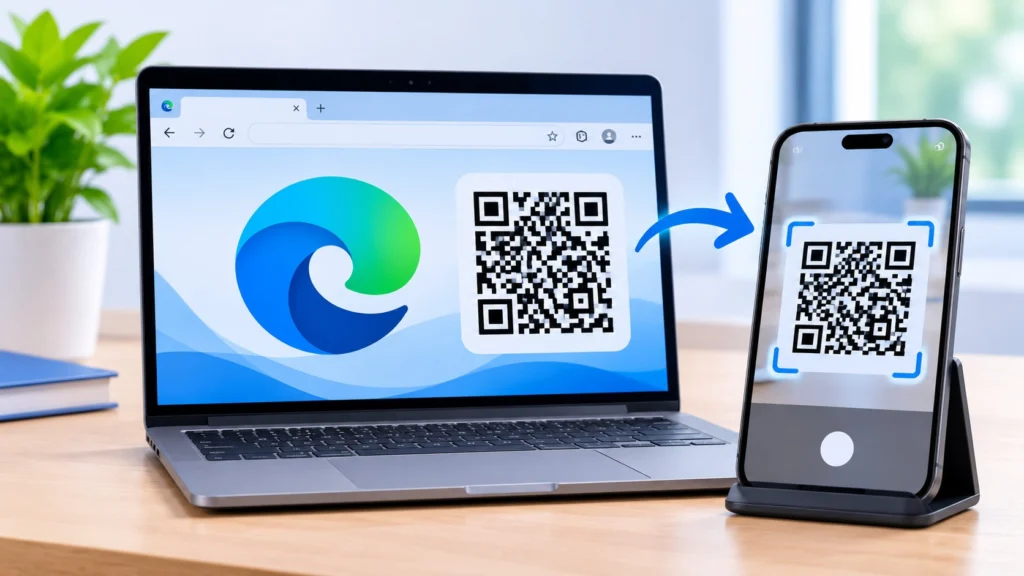
Edge makes it even faster. Right-click any empty spot on the page and choose Create QR code for this page. A small box appears with your code and a download button. You can also scan another code from the same box.
Mike, a freelance plumber, used this trick to turn his booking page into a code for his van door. It took him under a minute, and he now gets bookings from people stopped at traffic lights.
Method 3: Use a Free Online QR Code Generator
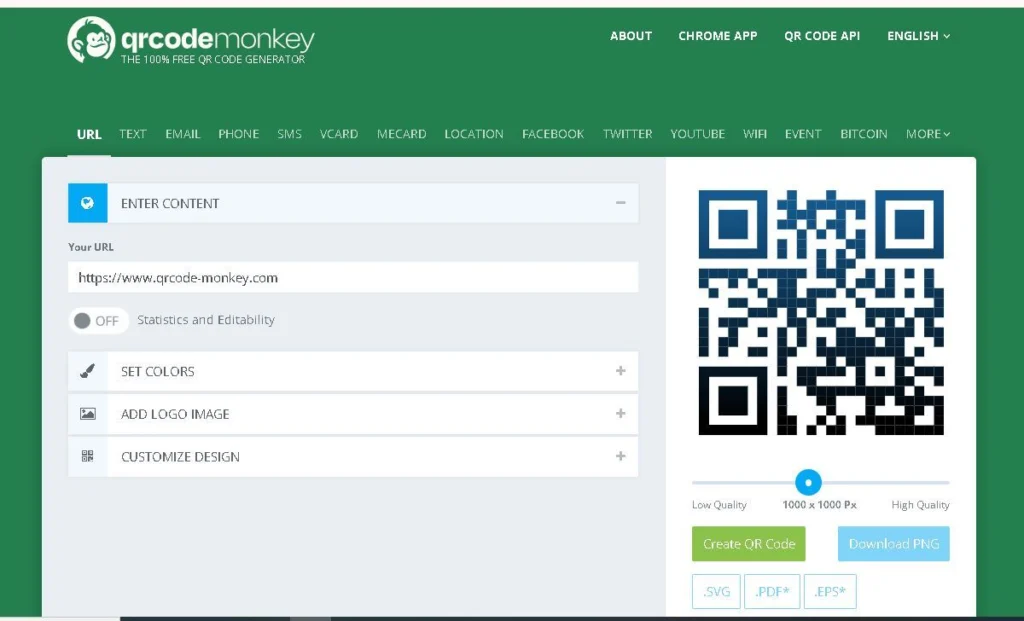
Browser tools are fine for quick jobs. But if you want colors, a logo, or a link that is not open in your browser right now, using a free QR code generator online gives you more control.
The general flow looks like this:
- Open the generator and choose the URL or Website option.
- Paste your full link into the box.
- Adjust the design.
- Download the finished image.
Pick a tool that does not force you to sign up just to download. Also watch out for three red flags:
- A download button hidden behind a trial.
- Codes that expire after a few weeks.
- A scan limit on the free plan.
Many of these sites quietly create dynamic codes, and the code stops working when the trial ends. If you want a code that is yours forever, make sure the tool creates a static one.
Method 4: Create a QR Code with Adobe Express
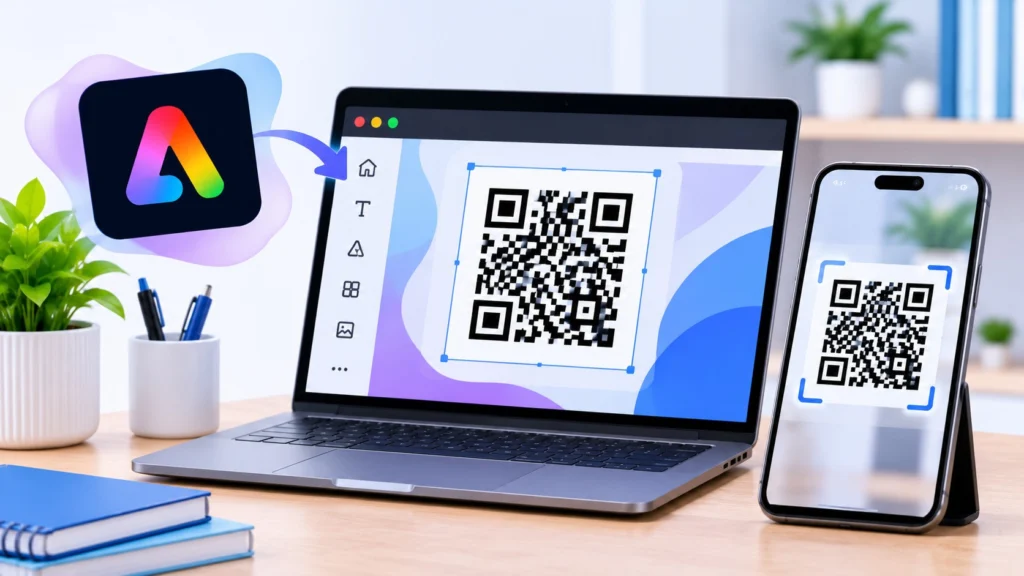
Adobe Express is a popular choice because the tool is free and the codes do not expire. Here is how to use the Adobe Express QR code generator:
- Open the generator and select Generate QR code.
- Enter or paste your URL in the link field.
- Choose a style and color.
- Download the code as a PNG, JPEG, or PDF.
You can also drop your finished code into a template for a flyer, poster, or business card. This saves time if you plan to print it right away.
How to Make a QR Code on iPhone (Shortcuts Method)
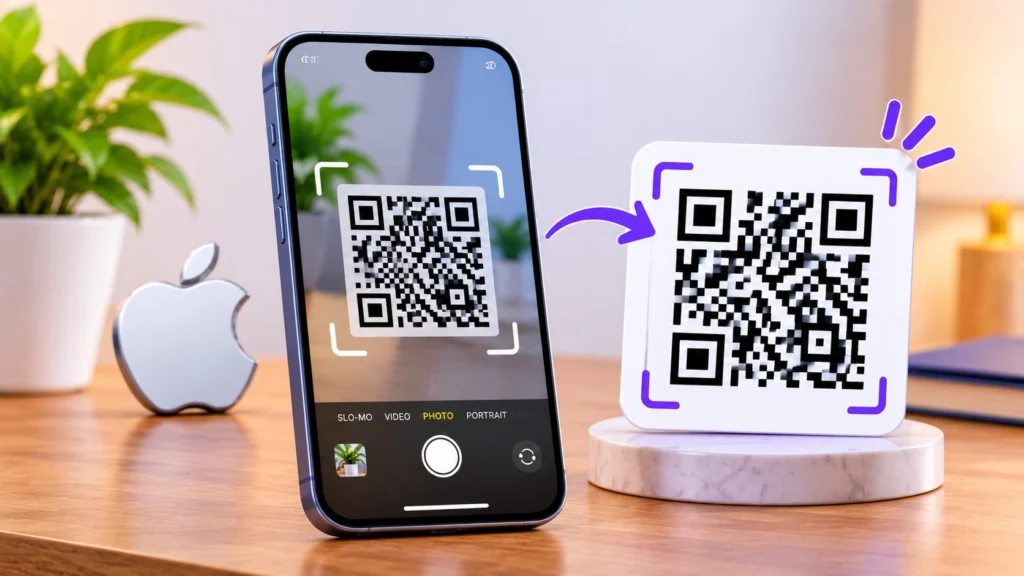
If you work on an Apple device, there is a clean way to build codes without any third-party website. This approach to QR codes for iOS uses the built-in Shortcuts app, which means no trackers are attached to your code. Apple Education has a detailed walkthrough in its QR code Shortcuts guide.
Here are the steps:
- Open Shortcuts and tap the plus (+) icon.
- Search for “QR” and choose Generate QR Code.
- Set the input to your clipboard, then add Save to Photo Album (or “Recents”).
- Rename the shortcut, for example “Create QR Code.”
- Copy any link, run the shortcut, and open the new image in Photos.
Tip: Give the image a caption in the info panel so you can find it again later by searching.
How to Make a QR Code on Android or Any Phone
You do not need a computer for this. On a phone, you can make a QR code online by opening any browser-based generator, pasting your link, and downloading the image. In Chrome for Android or iOS, you can also use the Share option and pick the QR code choice to generate a code for the current page.
Once downloaded, the image is usually saved in your Downloads folder or gallery. From there you can share it in a message or insert it into a document.
Create QR Code From URL for Your Website
If you want to generate a QR code for a URL such as a portfolio, online store, or blog, the safest route is a static code. Use the exact URL you want people to land on. A specific page such as your booking form often works better than a homepage because visitors reach what they need in one step.
If you want to measure the results later, add tracking tags (UTM parameters) to the link before you generate the code. Then you can see the traffic in your website analytics without a paid dynamic plan. A shorter version of the link keeps the pattern clean and easier to scan.
Can You Make a QR Code for a PDF or a File?
Yes, but a QR code cannot hold a file itself. It only holds a link. So first upload your PDF to a place that gives you a public link, such as Google Drive or Dropbox, and make sure sharing is turned on. Then turn that link into a code.
Be careful about privacy. If you are using a free online QR code generator, avoid uploading private documents to a site you do not trust. Upload the file somewhere you control, and only paste the link into the generator.
How to Customize Your QR Code (Colors, Logo, Frame)
A plain black-and-white code works. But a little style helps people trust it and scan it. If you want to change the look, a custom QR code generator lets you adjust everything below.
- Colors: Dark dots on a light background scan best. Light dots on a dark background can fail on some phones.
- Logo: A small logo in the center is fine. If it is too big, it covers important data.
- Frame and text: A short line like “Scan to book” tells people what to expect.
- Shape: Rounded dots look friendly, but keep the three large corner squares clear.
CherylD owns a small bakery. She added her pink logo and a “Scan for today’s menu” frame, and her customers stopped asking for the menu at the counter.
Which File Format Should You Download?
Most tools offer a few formats, and the right one depends on where you will use the code.
- PNG: Perfect for websites, social posts, and slides. A QR code PNG is the safest default for digital use.
- JPEG: Fine for quick sharing, but it can add blur around edges.
- PDF: Handy for print-ready files.
- SVG: A vector file that stays sharp at any size. Choose it for banners and large prints.
A small PNG stretched across a poster will look blurry, and blurry codes are hard to read. As a rule of thumb, never print a code smaller than about 2 cm (0.8 inches) wide.
How to Test Your QR Code Before You Share It
This step is skipped far too often. Before the code goes anywhere public, scan it with at least two different phones.
On an iPhone, open the camera and point it at the code. Apple explains the steps in its official guide. On Android, the camera app or Google Lens can do the same job. Try to scan QR code images both on-screen and on paper. If the link opens the right page, you are good.
Also test the code in the exact place you plan to use it. A glossy surface or poor lighting can cause trouble.
QR Code Best Practices
Follow these simple rules to avoid problems later:
- Leave blank space around the code. This “quiet zone” helps scanners find the edges.
- Use a short link when possible.
- Add a clear call to action. People rarely scan something they do not understand.
- Make it big enough for the scanning distance.
- Keep strong contrast between the code and its background.
These QR code best practices keep your code readable in real-world conditions. You should also know that the pattern includes built-in backup data. Higher QR code error correction levels let a code still work when it is a bit scratched or covered by a logo, though the pattern becomes denser. This is part of the official ISO/IEC 18004 standard.
Can You Track QR Code Scans?
Yes, but only with a dynamic code. These tools can show how many people scanned, when, and sometimes on which device. Marketers love this because it shows whether a poster or flyer actually works. That is the main reason people look for qr code tracking in the first place.
Static codes cannot track anything on their own. If you only need a free code, you can still add tracking tags to the link and read the traffic in your website analytics. A static code also has one privacy advantage: there is no third-party redirect, so nobody can send your visitors through a slow or shady middle page.
Common Mistakes to Avoid
- Typing the link wrong. One missing letter sends everyone to a dead page.
- Using a low-quality image. Always start with the highest resolution available.
- Low contrast. Pale yellow on white is a classic failure.
- Placing it where nobody can scan. A code on a moving vehicle or a high ceiling is useless.
- Ignoring safety. Never scan a random sticker placed over another code, because scammers do this. Before you trust any QR code scanner, check where the link leads. If you make codes for others, use only links you control.
Is It Really Free?
In most cases, yes. Static codes from browsers and many generators cost nothing, and a free QR code creator is plenty if you have a single link. You only pay when you want editing, analytics, or bulk features. Read the fine print, and do not pay for a basic static code unless you have a strong reason.
For more community tips on safe tools and expiry, you can browse this Microsoft Tech Community discussion.
Conclusion:
Now you know how to make a QR code for a link in four simple ways. Use Chrome or Edge for a quick job. Pick an online tool or Adobe Express when you want style and a logo. Choose static for permanent pages and dynamic if you plan to change things later. Then download a sharp PNG or SVG and test it on a couple of phones.
Once you have done it, you will see how simple it is. Make one today and place it where people will actually see it.
Frequently Asked Questions
How do I make a QR code for a link for free?
Open Chrome or Edge, go to your page, and use the built-in tool. Or paste the link into a free generator, then download the image. If you want to create a QR code free of sign-ups, choose a tool that lets you download without an account.
Do QR codes expire?
Static codes never expire, because the link is stored inside the pattern. A static QR code keeps working as long as the page exists. Dynamic codes may stop working if the paid plan behind them ends.
Can I change the link after making a QR code?
Only with a dynamic code. A QR link generator that offers redirects lets you edit the destination later. With a static code, you must make and print a new one.
Is it safe to use an online QR code generator?
Most are safe, but check three things: no forced sign-up, no hidden redirect, and no expiry. An online qr code generator that creates static codes is the safest option for permanent links.
What size should a printed QR code be?
Keep it at least 2 cm (0.8 inches) wide. Good qr code size and resolution also mean exporting at high quality. Use SVG for large prints so the edges stay sharp.
Can I make a QR code without an account or sign-up?
Yes. Chrome and Edge need no account at all. Many web tools also work without one, and a QR code maker free of login requirements is easy to find if you read the page before you click download.
How to create a qr code for a website?
Use the exact page address, include https://, and generate a static code. If you are wondering how to make a QR code for a website homepage versus a specific page, pick the page that matches the visitor’s goal, then test it on two phones.
Why is my QR code not scanning?
The usual causes are low contrast, a tiny print size, a blurry image, or a logo that is too large. Increase the size, use dark dots on a light background, and test again.
How do I generate a QR code for a URL?
Copy the full web address (including https://), paste it into a free browser tool or online generator, customize the colors if needed, and download it as a PNG or SVG.

Comments are closed