
Quick Answer
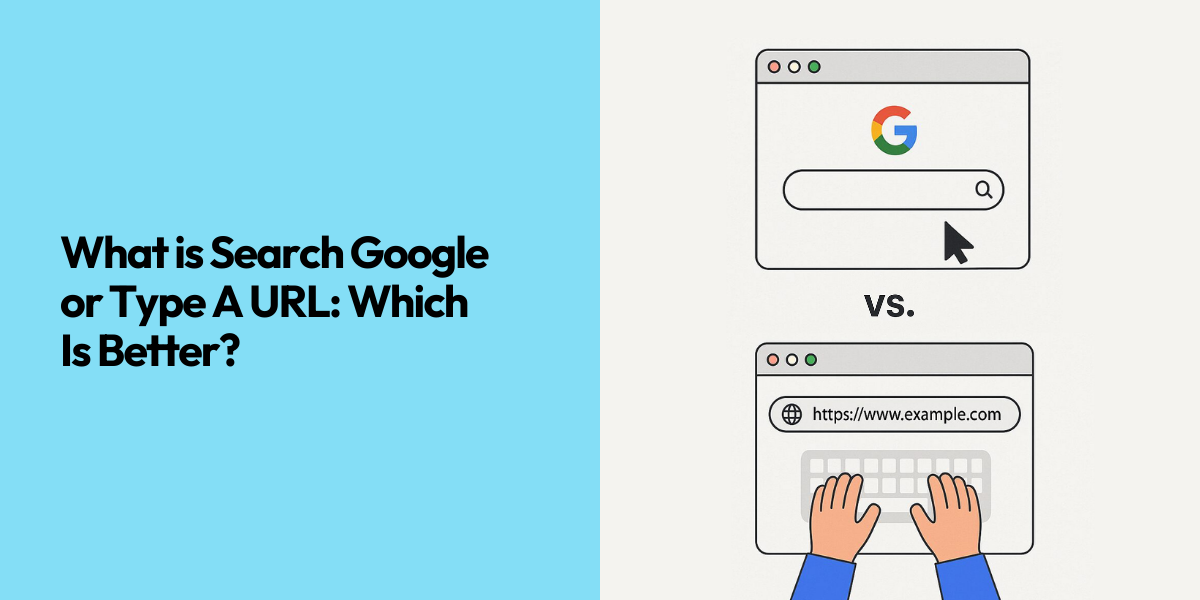
“Search Google or type a URL” is the placeholder text in your browser’s address bar. It describes two different ways to reach a page: type a phrase and your browser sends it to Google as a search, or type a complete web address and your browser connects directly to that site. Search when you don’t know the exact address. Type the URL when you already know exactly where you’re going.
When you open a new tab in Google Chrome, the text “Search Google or type a URL” appears in the address bar. It seems straightforward, but it actually describes two different ways of reaching information online. You can submit a query to Google and choose from search results, or you can go directly to a specific web address. For more precise results, Google search operators let you narrow a query even further.
The option you choose influences speed, convenience, how much data is collected about your activity, and how your visit appears in analytics tools. This article explains what that phrase means, what happens behind the scenes in each case, and when you should search or type a URL.
What Does “Search Google or Type a URL” Mean
“Search Google or type a URL” is the placeholder text in Chrome’s combined address and search bar, and it describes one field that does two different jobs. Many users now recognize this prompt as the standard way to start browsing, and other browsers show similar wording, such as “search or type web address” or “search or enter address”, but the underlying idea never changes: one field, two separate paths to information.
Whether the prompt reads ‘Search Google or type a URL’ or simply ‘search Google or type URL’, both refer to the same dual-function field one bar, two completely different paths to information.
If you enter ordinary words or a question and press Enter, the browser treats your input as a search query and sends it to your default search engine, typically Google. You are then shown a search results page.
If you enter a complete or partial web address, such as “example.com” or “https://example.com/blog”, the browser treats this as a URL and connects directly to that site, without showing a results page first.
The sentence in the bar is therefore not just a label. It is a concise description of the two main routes you can use to move around the web: search, or direct navigation.
What Is the Omnibox in Modern Browsers
The Omnibox is what Chrome calls the combined address and search bar at the top of the browser window. In older browsers, the address bar and the search box were separate controls. Modern browsers now combine them into a single field to make browsing faster and simpler.
From this single field, you can:
- Open a website by entering its address, such as “nytimes.com”.
- Run a web search by entering a phrase such as “email marketing strategy”.
- Perform simple calculations and conversions.
- Retrieve items from your own history and bookmarks, depending on configuration.
This design is now common across major browsers. Firefox, Safari, Microsoft Edge, Brave and others implement the same pattern, often using hints like “search or enter website name” in the same field, even if they use different names for it.
Public estimates indicate that Google now processes around 16.4 billion searches per day, which is roughly 190,000 searches every second. The Omnibox is the main gateway into that system in Chrome.
How Your Browser Decides Between a Search and a URL
Your browser makes this decision before you even finish typing, by checking whether your input matches the pattern of a real web address. It isn’t reading your mind; it’s running a quick set of checks against what you’ve typed so far.
Here’s the general logic, step by step:
1. It looks for URL signals first. A dot followed by a recognizable extension (.com, .org, .io), a slash, or a protocol like https:// tells the browser you probably mean a website.
2. Single words are the hardest case. Type “amazon” and the browser can’t be sure if you want the site or you’re researching the company, so it usually defaults to a search. Type “amazon.com” and the ambiguity disappears.
3. Multiple words almost always mean a search. A phrase like “best noise-canceling headphones” doesn’t match any URL pattern, so it’s sent straight to your default search engine.
4. If the text does look like an address, the browser tries a DNS lookup. If that resolves to a real server, it loads the page. If it doesn’t, some browsers fall back to a search rather than showing a dead end.
A quick comparison makes the pattern clearer:
| What You Type | What Usually Happens | Why |
| Amazon | Google search for “amazon” | Single word, ambiguous |
| amazon.com | Opens Amazon directly | Matches URL pattern |
| best budget laptops 2026 | Google search | Multiple words, reads as a question |
| support.mozilla.org | Opens Mozilla’s support site | Has dots, matches domain pattern |
One shortcut worth knowing: on Windows and Linux, typing a bare word and pressing Ctrl + Enter automatically wraps it in “www.” and “.com”, so “facebook” plus Ctrl + Enter opens facebook.com directly rather than running a search. On a Mac, the same shortcut is Ctrl + Return.
What Happens When You Search Google from the Address Bar
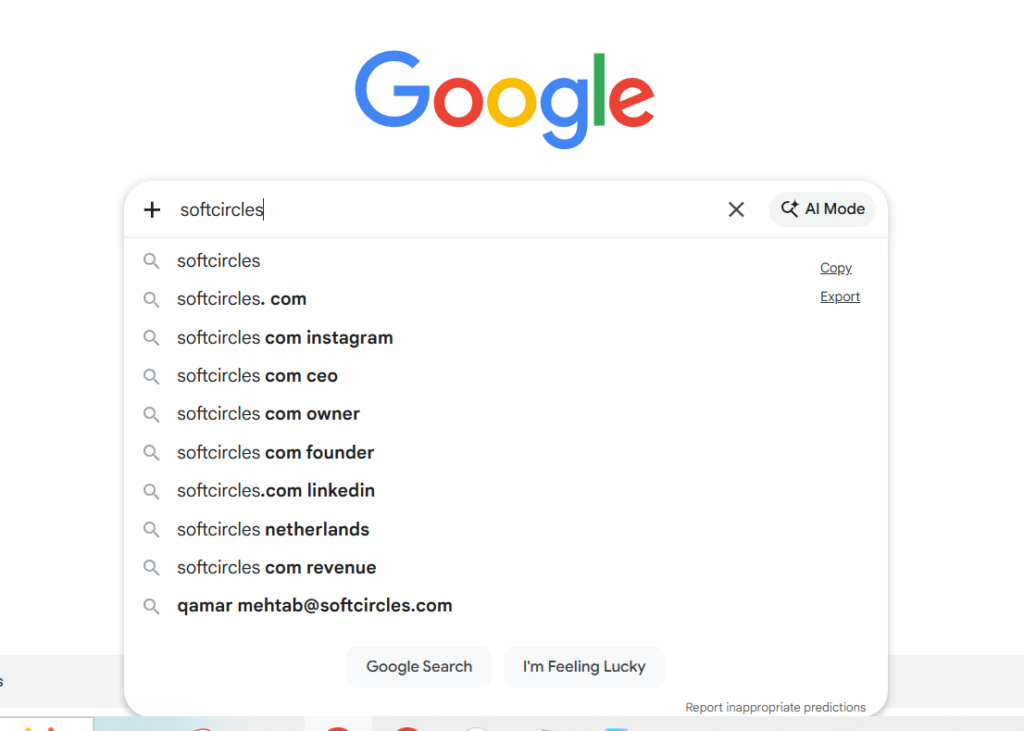
When your input looks like a phrase rather than a web address, Chrome sends it to Google (or whichever engine you have set as default). Several stages follow before you see a results page.
Autocomplete and Predictions
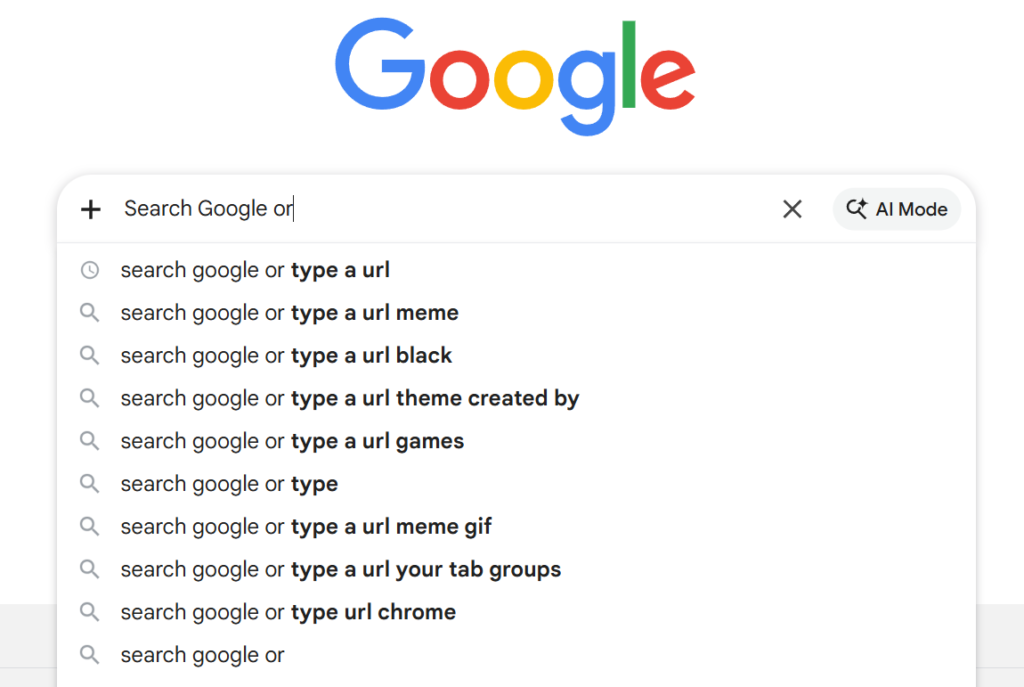
As you begin typing, suggestions appear under the bar. Some suggestions are based on your own browsing history and bookmarks. Others come from Google’s autocomplete system, which predicts likely queries using global popularity, regional trends and patterns in aggregated user behavior.
Users frequently use autocomplete suggestions to complete their queries instead of typing everything themselves, which can both lower the effort required and affect the exact query that reaches the search engine.
Handling Imperfect or Incomplete Queries
Google does not require exact spelling or complete words. If you type “amazn” or “amazo”, you still see results relevant to “Amazon”. This happens because Google uses Natural Language Processing (NLP) and Machine Learning (ML) models to recognize frequent misspellings, partial brand names, and common abbreviations.
Those models are trained on very large volumes of past search data. As a result, the system can infer intent from short, imperfect input and still return results that closely match what the user most likely meant.
Personalizing Search Results
After interpreting the query, Google adjusts the results according to context. This personalization can take into account factors such as:
- Past searches and browsing, if history is enabled on the account.
- Approximate location, to support queries like “restaurant near me”.
- Device type, so that mobile-friendly pages are prioritized on phones.
- Time sensitivity, for example during elections or major sports events.
Organic search is one of the largest sources of website traffic. Recent benchmark studies indicate that organic search provides roughly one quarter to one third of total traffic on average across major industries, making it a core channel in most traffic mixes. Google also maintains close to 90 percent of the global search engine market across devices, which makes its results particularly influential.
This is why even small changes in how results are ordered can matter significantly for site owners.
Ranking on the Search Engine Results Page
Once context has been applied, Google must decide which pages to show, and in what sequence. Its ranking algorithm evaluates a large number of signals. Core groups of signals include:
- Relevance of the page content to the query.
- Quality and authority, indicated in part by links and engagement.
- Freshness, when recency is likely to matter.
- Technical performance, such as page speed and mobile usability.
The outcome is the search engine results page (SERP). Typically, it contains a mixture of paid advertisements, featured snippets, local map listings, images or videos, and standard organic results. Analyses of user behavior indicate that the great majority of clicks occur on results shown on the first page, with the top positions capturing the largest share.
From the user’s perspective, all of this complexity is reduced to a ranked list of options. You scan the page and choose the result that seems most relevant.
Zero-Click Searches
For many queries, Google now provides the answer directly on the results page, without requiring a click. Examples include conversions, calculations, weather, and short factual lookups.
Recent clickstream research suggests that in the United States around 58–60 percent of Google searches end without the user clicking on any result; these are known as “zero-click” searches. This improves speed and convenience for users, but reduces the number of visits websites receive for those queries.
This is a key distinction between using Google search and typing a URL. When you search, the interaction may end on the results page. When you type a URL, a specific website is always loaded.
What Happens When You Type a URL in the Address Bar
Typing or pasting a URL starts a different chain of events. Instead of contacting a search engine first, the browser connects directly to the server that hosts the website.
Autocomplete and Local Data
Before making any network requests, Chrome checks your local data. If you visit “linkedin.com” frequently, entering the first few letters is often enough for the browser to suggest the full address. The same applies to other popular sites you have open or bookmarked.
This local autocomplete is why direct navigation becomes faster over time. Once you have established a pattern of visiting particular domains, the browser can predict them from minimal input.
Domain Name System (DNS) Resolution
After you confirm the address, Chrome needs to convert the domain name into a numerical internet address. This is handled by the Domain Name System (DNS).
The typical sequence is:
- Chrome looks in its own DNS cache for a recent entry for that domain.
- If there is no cached entry, it queries the DNS server configured for your connection.
- The DNS server replies with an IP address corresponding to the domain.
This translation normally takes fractions of a second, but it is essential. Without it, the browser would not know where to send the request.
Requesting and Rendering the Page
Once Chrome has the IP address, it establishes a connection to the web server and sends an HTTP or HTTPS request for the resource identified by the URL.
The server responds with the files that form the page: HTML, stylesheets, scripts, images and other assets. Chrome downloads these files, caches those that are suitable for re-use, and renders the page by laying out elements, applying styles, running scripts and drawing everything on screen.
When the connection uses HTTPS, the traffic is encrypted using protocols such as TLS. This protects the data exchanged between browser and server from basic interception or modification in transit.
Redirects and Canonical Addresses
Many websites standardize on one canonical form of each URL. As a result, you may be redirected from:
- “http://example.com” to “https://example.com”, or
- “example.com” to “www.example.com”.
Redirects also handle moved content, directing old paths to new locations. Each redirect introduces a small delay, but helps maintain a consistent and secure structure.
From the user’s point of view, the process remains simple: you type a URL, press Enter, and arrive at the intended site.
Anatomy of a Google Search URL
Every time you run a Google search, your browser builds a specific web address behind the scenes, and you can actually read it and even edit it, right in the bar.
Here’s a typical one, broken into its parts:
https://www.google.com/search?q=search+google+or+type+a+url
• https:// — the secure protocol
• google.com — the domain
• /search — the path Google uses to process a query
• ?q= — the parameter that holds your search terms, with spaces shown as plus signs or as %20
Because that structure is just text, you can edit the words after “?q=” directly in the address bar and press Enter to run a new search, without retyping everything from scratch. It’s a small trick, but it saves a surprising number of keystrokes if you search often.
Search vs URL: Key Differences
The Omnibox looks like a single control, but when you search and type URL in the same field, you are actually triggering two different systems with very different implications for speed, privacy, and analytics.
| Factor | Search Google | Type a URL |
| Main purpose | Discover or research information | Reach a specific, known site |
| Path | Query → search engine → results → chosen site | URL → DNS → server → page |
| Speed | Slightly slower due to the extra results page | Often faster, especially with autocomplete and cache |
| Precision | Effective when the topic is known, not the address | Effective when the address is known or stored |
| Safety | Risk from misleading ads or manipulated results | Risk from mistyped domains or look-alike sites |
| Data collection | Query recorded by search engine | Visit recorded by site, DNS provider and browser |
| Analytics label | Usually organic or paid search traffic | Usually direct traffic |
Both routes start in the same field, but one delegates the choice of site to Google’s ranking algorithm, while the other uses the exact address you provide.
When to Search Google and When to Type a URL
When to Use Google Search
Use search when you are not sure of the exact website address or extension (for example, whether it is “.com”, “.io” or another domain). Typing the brand or product name into Google is safer than guessing URLs.
Use search when you are comparing options. Queries like “best project management tools” or “SEO agency in London” are exploratory. You need reviews, lists and guides from several sites, which only a search engine can assemble.
When to Type a URL
Type a URL when you already know and trust the site. For webmail, your CMS, banking or other tools you open every day, entering part of the address and choosing the browser’s suggestion is usually the fastest route.
Type a URL when you want to avoid distractions or copycat domains in the results page. If you know the official address of your bank or another sensitive service, entering it directly reduces the chance of clicking an imitation.
Practical Search Tips in the Address Bar
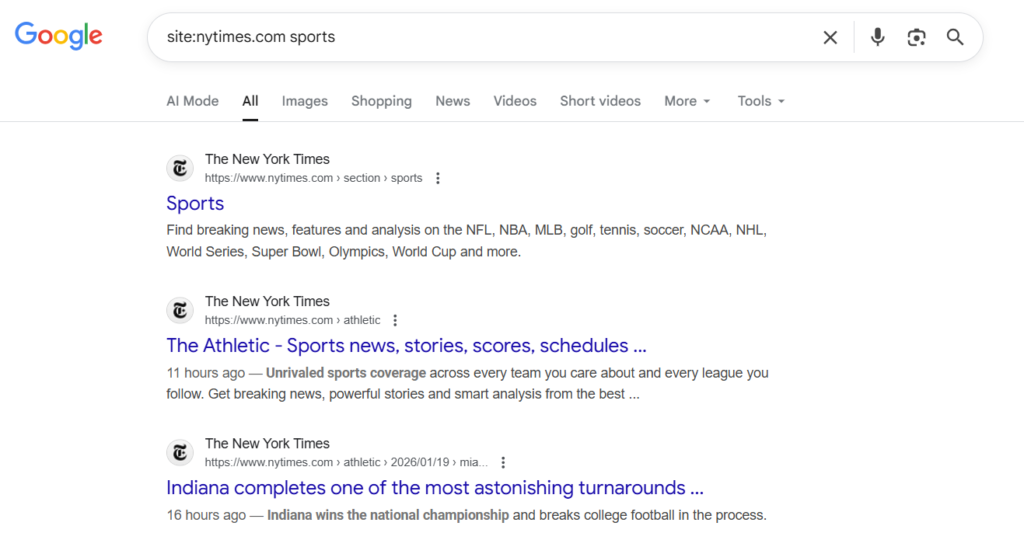
The Omnibox can do more than basic searches and URLs. These simple techniques make it more effective:
Search an exact phrase
Put the phrase in quotation marks.
Example: “best flower shop near me” tells Google to match that exact wording, not just pages that contain the individual words.
Search within a single website
Use the “site:” operator plus a domain and keyword.
Example: “site:nytimes.com sports” shows pages on “nytimes.com” that include “sports”. There is no space between “site:” and the domain, and one space before the keyword.
Use quick calculations and conversions
Enter expressions such as “45*1.18, 10 km in miles” or “25 usd in eur” directly in the bar. Google shows the answer without needing to open another website.
Use voice search when it is convenient
On desktop and mobile, click the microphone icon and speak your query, then let the browser process it as a normal search. This can be faster than typing on smaller screens.
Privacy and Security Things to Know
When you choose between searching Google and typing a URL directly, you also choose how much of your activity is logged, who can see it, and what kinds of attacks you are exposed to.
Using Google Search
When you search, your query is sent to and logged by the search engine. It can be used to personalize results and ads, and for aggregate reports. Because search engines are major sources of traffic, this data has commercial value.
Typing a Direct URL
When you type a URL, there is no search query for Google to record, but your activity is still visible. The website you visit logs requests, your DNS provider sees which domains you access, and your browser keeps a history unless you clear or disable it.
Reducing Stored Data
You can limit stored search data by changing settings in your Google account (pause or clear history), using incognito or private windows for sensitive topics, or choosing privacy-focused search engines for some queries.
Security Risks with Search
The main risk is clicking malicious or misleading results, especially paid ads or sites that imitate well-known brands. Always check the domain name and pay attention to browser security warnings before proceeding.
Security Risks with Direct URLs
The main risk is typing the address incorrectly and landing on a look-alike domain. Verify the spelling carefully and ensure the connection uses HTTPS before entering login details or payment information.
Common Scams That Exploit the Address Bar
Most people treat the address bar as safe by default, and most of the time it is, but it’s also a favorite target for scams that rely on you not looking closely.
Typosquatting is the most common one. Someone registers a domain that’s one letter off from a real brand, “arnazon.com” rather than “amazon.com,” for instance, hoping you’ll mistype the real address or skim past the difference. These pages often mimic the real site closely enough to collect login details or payment information before you notice anything’s wrong.
Ad impersonation shows up in search results rather than the address bar itself. A paid ad can sit above the organic result for a brand and lead to a page designed to look official, sometimes copying the real site’s layout almost exactly.
A few habits cut the risk substantially:
• Read the domain carefully before entering anything sensitive not just the brand name, but the full address and extension.
• Check for HTTPS and a valid certificate before logging in or paying.
• For banking, email, or anything with financial stakes, type the address yourself or use a saved bookmark rather than clicking a link from an email or a search ad.
• If a result looks slightly off different logo placement, unusual URL structure, requests for information a real site wouldn’t ask for close the tab and navigate there directly instead.
Common Myths About the Address Bar
Several misconceptions persist about how the Omnibox works and how you should use it. Here are some of the most common ones:
Typing a URL is always faster.
It is often faster for sites you visit frequently, because the browser suggests them. When you do not know the exact address, however, a short search query is usually quicker than guessing and correcting URLs.
Searching is unsafe and direct URLs are safe.
Safety depends mainly on behavior. Searching can be safe if you examine domains, avoid suspicious links and respect browser warnings. Direct URLs can still be risky if you follow untrusted links or mis-type an address that leads to a look-alike site.
The address bar is only for web addresses.
In modern browsers, the address bar is a general entry point for both search and direct navigation, which is why browsers use prompts like “Search Google or type a URL”, “search or type URL” or “search or enter address” instead of treating it as a box only for manual URLs.
Common Problems With Search Google or Type a URL (And How to Fix Them)
Most of the time, this all works quietly in the background. But it’s worth knowing what to do when it doesn’t.
“I Typed a URL, But It Searched Instead”
This is usually one of a few things:
• The input was ambiguous. A single word like “amazon” is read as a search far more often than a full address like “amazon.com” is.
• Autocomplete grabbed the wrong suggestion. Sometimes the highlighted suggestion is a search term, not the URL you meant to type. In Chrome and Firefox, you can remove a bad suggestion by highlighting it in the dropdown and pressing Shift + Delete.
• Your default search engine or an extension changed something. Check your search settings and installed extensions if this keeps happening on sites it used to load fine.
Is “Search Google or Type a URL” a Virus?
No. It’s the normal placeholder text your browser shows in an empty address bar, and it’s not malware, a warning, or a sign anything is wrong. It disappears the moment you start typing. What is worth paying attention to: if your search engine changes on its own, your homepage resets without your input, or you keep getting redirected somewhere unexpected, that can point to a rogue extension or browser hijacking not the placeholder text itself, but something that changed your settings without permission.
Signs Your Browser Settings Have Been Hijacked
Watch for:
• Your default search engine switches to something you didn’t choose
• Your homepage changes on its own
• Typing a familiar address sends you somewhere unfamiliar
• A toolbar or extension appears that you don’t remember installing
• Changed settings won’t save, or revert after a restart
If you notice a few of these together, remove any extensions you don’t recognize, reset your browser settings to default, and run a malware scan. On a work or school device, locked settings can also just mean IT policy is managing your browser; that’s not the same thing as an infection.
Changing Your Default Search Engine, Browser by Browser
• Chrome: Settings > Search engine > Manage search engines and site search, then set your preferred engine as default.
• Firefox: Settings > Search, then choose your default engine from the list.
• Microsoft Edge: Settings > Privacy, search, and services > Address bar and search.
• Safari: Safari > Settings > Search, then pick your engine. You can set a separate one for Private Browsing.
Reducing Search Suggestions and Tracking
When search suggestions are turned on, what you type in the address bar gets sent to your default search engine as you type before you even press Enter, along with your IP address. If that bothers you, every major browser lets you turn it off in settings (in Chrome, under “Improve search suggestions”). Worth noting: Firefox turns suggestions off by default in Private Browsing, and Edge does the same in InPrivate mode.
How This Affects SEO and Analytics
For everyday users, the only goal is to reach the right page. For website owners, however, the route a visitor takes changes how that visit appears in analytics.
- Visits from search results (after a query and a click) are usually recorded as organic search or paid search and can be tied to specific keywords and campaigns.
- Visits from direct URLs, bookmarks or links without referrer data are usually recorded as direct traffic, which can include true typed visits, bookmark returns and some app or email clicks.
Because Google is the largest single referrer on the web and organic search often drives far more traffic than social, distinguishing search traffic from direct traffic is essential. Rising organic traffic usually points to better visibility in search, while rising direct traffic often signals stronger brand recognition or more users saving and reusing your URLs.
Conclusion
“Search Google or type a URL” sums up the two ways to move from the browser’s address bar: enter a query and let Google choose the results, or enter a URL and go straight to a specific site.
Searching works best when you are exploring or do not know the exact address, while direct URLs are better when you already trust the site and want fast, predictable access. Understanding how each option affects speed, privacy, security and analytics helps you choose the right route and use the Omnibox as a deliberate, reliable tool.
Frequently Asked Questions
Is “Search Google or Type a URL” a feature of Chrome only?
The exact wording appears in Chrome, but the same behavior exists in most modern browsers. Firefox, Safari, Edge, Brave and others also use one combined bar for search and web addresses, although the placeholder text may differ.
Does using “Search Google” instead of a direct URL affect my security?
Yes, it can. Search results can include malicious or misleading pages, especially among advertisements. If you check domains carefully and respect browser warnings, searching can be safe. Typing a known URL avoids the results page, but you still need to avoid typos and untrusted links.
Is it better for SEO if users search my brand instead of typing my URL?
Both patterns are positive. Branded searches show that people look for you by name and can reinforce your presence in search results. Direct visits show that users remember and reuse your address. Analytics tools report them in different channels, but each reflects real demand.
What is the difference between a URL and a web address?
In everyday use, they are the same. A URL (Uniform Resource Locator) is the technical term for the web address that identifies a page or resource on the internet.
How do I change the default search engine used by the Omnibox?
In Chrome, open Settings, go to the “Search engine” section, and choose your preferred provider. You can also manage options under “Manage search engines and site search”. Other browsers provide similar controls in their settings menus.
When should I use quotation marks in Google searches?
Use quotation marks when you want results that contain an exact phrase. This is useful for song lyrics, article titles, product names and any query where word order and exact wording matter.
Can you give me an example of a Google URL address?
A standard Google address is [https://www.google.com](https://www.google.com). A search page looks like [https://www.google.com/search?q=weather](https://www.google.com/search?q=weather).
What is the difference between a search bar and an address bar?
The address bar sits at the very top of your browser window to take you straight to websites. A search bar sits on a web page and lets you look up words across the internet.
What happens when I type “www.Google.com” in my browser’s address bar?
Your browser asks the network for Google’s number, links to its computer, and loads the home screen.

Comments are closed