
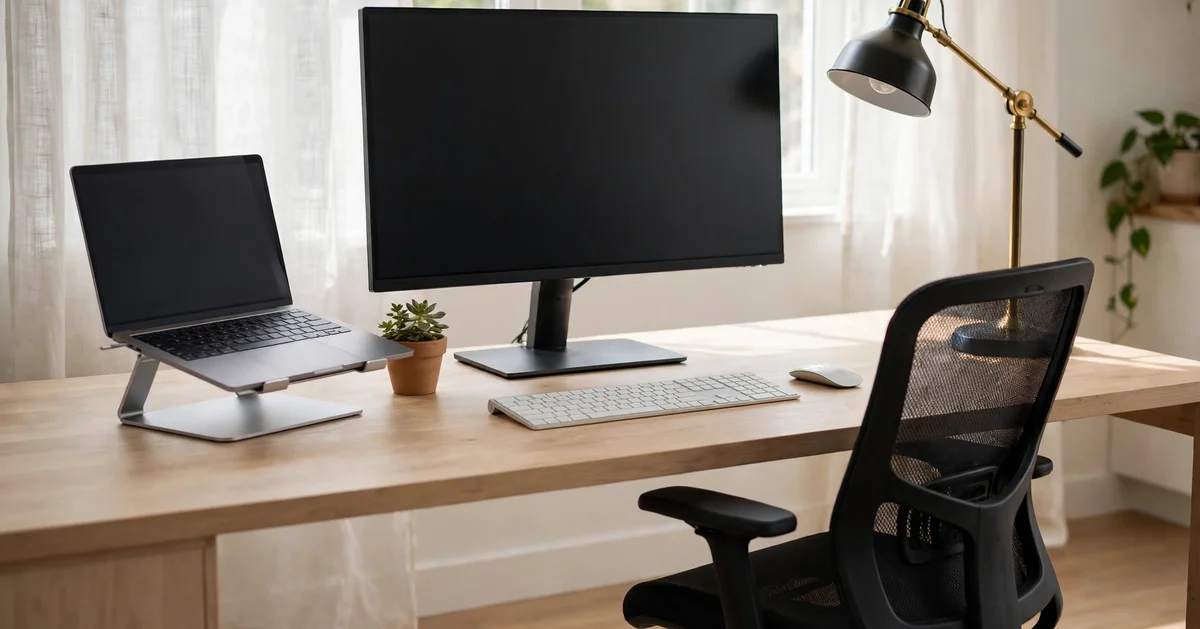
A remote work setup is the desk, gear, internet connection, software and routine you use to do your job from home. Internet comes first, ergonomics second, gear third, software and routine last. Each layer of a remote work setup solves a different problem. A fast laptop cannot fix a weak internet connection. Remote work tools cannot fix a day with no start and no end time.
The Bureau of Labor Statistics reports that 22.6 percent of workers teleworked in March 2026. The rate stayed between 21.5 percent and 23.0 percent over the previous year. Home offices stopped being a temporary fix when telework reached one worker in five.
Start with the connection
The Federal Communications Commission raised the fixed broadband benchmark to 100 Mbps download and 20 Mbps upload in March 2024. The previous benchmark, 25 Mbps download and 3 Mbps upload, dates from 2015. A reliable internet connection starts with a speed test at peak hours. Run the test where you actually sit, because walls and distance cut wireless speed. Video calls need less speed than most people expect. The Federal Communications Commission lists 6 Mbps as the minimum download speed for high-definition video teleconferencing. The same guide lists telecommuting at 5 to 25 Mbps. The same guide calls its figures rough guidelines, not measured standards. A wired ethernet cable removes the dropouts that wireless connections cause on calls. Move the router closer to the desk when a cable cannot reach it. A mesh network covers a large home where one router leaves dead zones. A mobile hotspot keeps billable hours safe during an outage. Test the hotspot once before an outage forces you to use it.
The gear, product by product
Your laptop is the centre of the home office: writers use a light laptop, developers need more memory. The fifteen products below turn a laptop on a table into a home office you can sit at all day. Buy them in the order that fixes your biggest daily annoyance first. The Human Factors and Ergonomics Society publishes ANSI/HFES 100-2007, Human Factors Engineering of Computer Workstations, for workstation design. The Human Factors and Ergonomics Society states that the 2007 edition is no longer maintained as an American National Standard. The draft revision, ANSI/HFES 100-2026, opened for public comment with comments due in May 2026. Workstation guidance still rests on the 2007 edition while the revision moves forward.
- External monitor
- Portable screen
- Laptop stand
- Wireless keyboard and mouse
- Mechanical keyboard
- Webcam
- Ring light
- Noise cancelling headphones
- Ergonomic chair
- Standing desk
- Surge protector
- Uninterruptible power supply
- Travel adapter
- USB-C hub
- Protective case and sleeve
1. External monitor
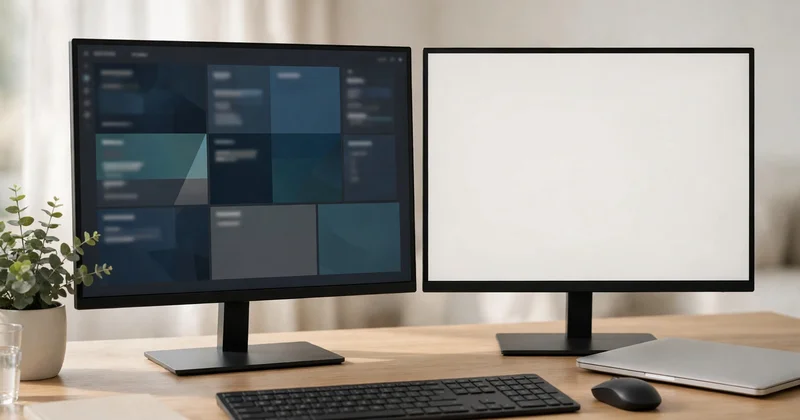
A laptop screen works for an hour, then tab-switching starts to cost time. Put your call on one screen and your work on the other. Keep a document open on the left and the draft you are writing on the right. Developers and designers gain most from a dual monitor setup: code on one screen, preview on the other. The Occupational Safety and Health Administration advises placing the monitor top at or below eye level. Sit about 18 to 20 inches from the screen, roughly one arm length away.
Look for these features in an external monitor:
- Choose a screen that fits the desk with room left for the keyboard.
- Pick height adjustment or a stand that lifts the screen to eye level.
- Check that text stays sharp at a normal reading distance.
- Confirm the right cable is in the box before you buy.
2. Portable screen
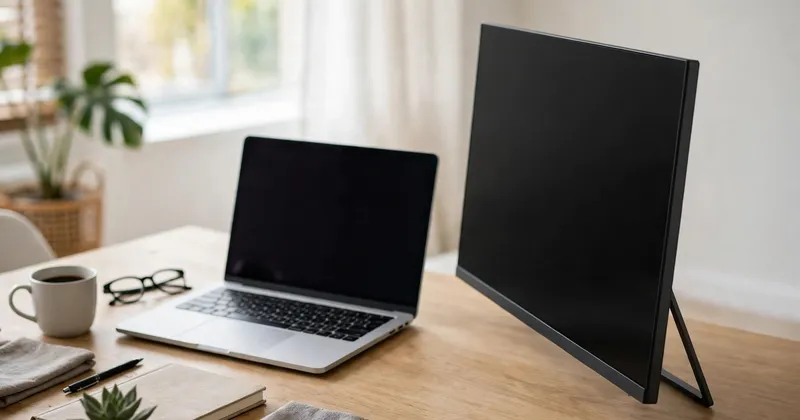
A portable screen brings a second screen to any desk. The screen packs flat for travel in a laptop bag. One USB-C cable connects the screen to the laptop. The screen draws power from the laptop, so no extra brick travels with you. Coworking desks, hotel rooms and kitchen tables all work the same way with a portable screen. Keep your notes or your call on the portable screen and your main work on the laptop. A second monitor in the bag ends the cramped single-window working style. The screen adds almost no weight to the bag. Pack the screen in its sleeve or a padded pocket to stop scratches from chargers and cables.
3. Laptop stand
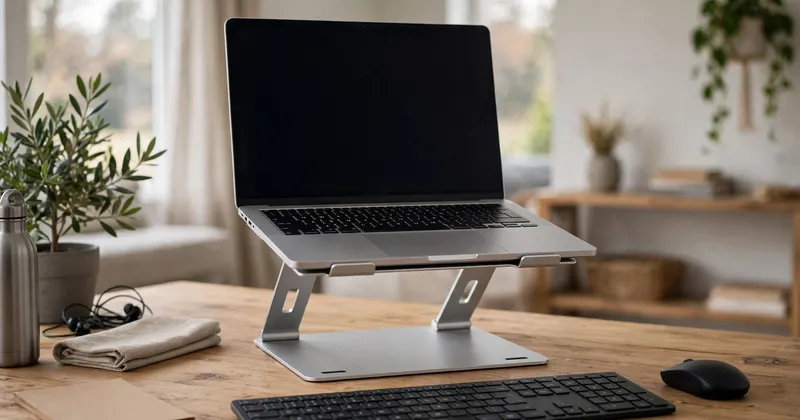
A laptop on a flat desk sits well below your eyes, so you spend the day looking down. A laptop stand lifts the screen to eye level. The higher screen ends the daily hunch for your neck. Sort the chair and the monitor at eye level first, before anything else. A good stand stays steady under your hands when you type. The same stand folds flat for the laptop bag. Open space underneath lets air flow around the laptop during long calls. Pair the stand with an external keyboard and mouse. The laptop keyboard sits too high and too far away once the screen rises. Keep elbows near the torso with forearms parallel to the floor at 90 to 100 degrees.
4. Wireless keyboard and mouse
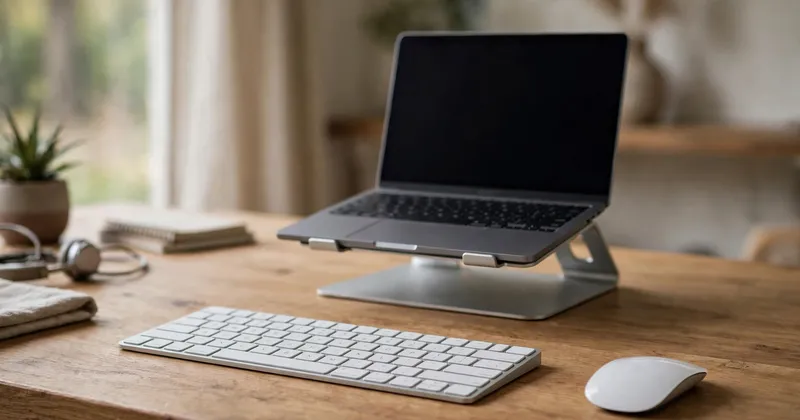
The laptop keyboard stops working for you the moment the laptop goes up on a stand. Your hands would hover in midair to reach the raised keyboard. Your wrists would bend at a bad angle all day. A wireless keyboard and mouse solve that problem completely. The keyboard sits flat on the desk where your hands rest naturally. The mouse sits beside the keyboard at the same height. Your arms stay relaxed with elbows close to your body. A quiet keyboard matters more than people expect, because a loud keyboard is the sound your whole team hears on every call. Pick a keyboard and mouse that connect over Bluetooth or a single small receiver.
5. Mechanical keyboard
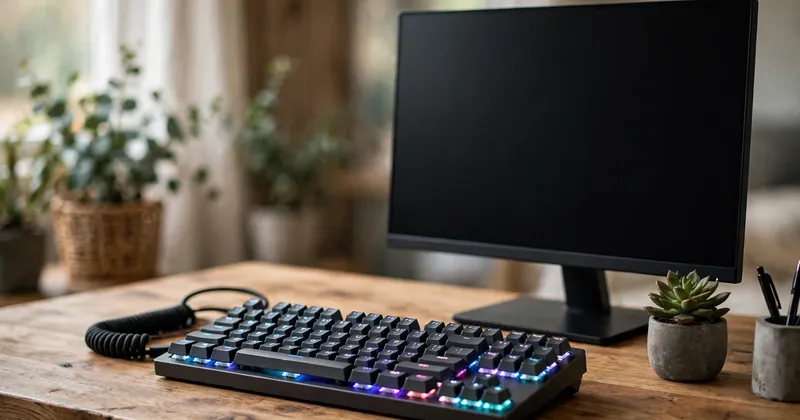
A mechanical keyboard puts a separate switch under each key. Every press feels firm and distinct under your fingers, not flat. You can feel when a key has registered without hammering it. Writers notice the difference first, because a full day of drafting is easier when the keyboard pushes back a little. Developers who live in an editor feel the same difference. A keyboard that feels good is one you can use for hours without thinking about it. Buy one if typing fills most of your working day. Try the keys before you buy when you can, because switches feel different across brands.
6. Webcam
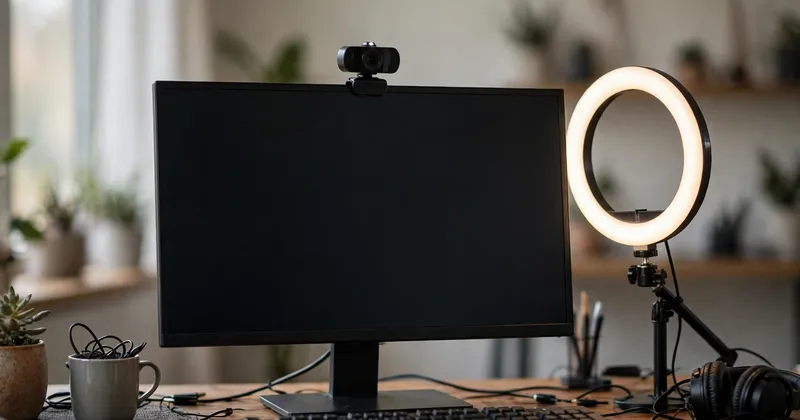
Video calls are the core of any home office. The camera shows your team what you actually look like. A laptop camera sits low on the desk during calls. The low camera points up at you from below. The low angle makes you look like you are talking down from a shelf. A separate webcam sits on top of the monitor at eye level, so you look straight at the people you are talking to. The picture grows sharper with a separate webcam on the monitor. The framing looks natural when the camera sits at eye level. Sound matters just as much as the picture on every call. A dedicated USB microphone makes your voice clear on every call. Our guide on video conferencing covers the gear in depth.
Look for these features in a webcam:
- Choose a camera that mounts on top of the monitor at eye level.
- Check for sharp video in normal room light, not bright daylight.
- Pick a built-in privacy cover to close the lens after calls.
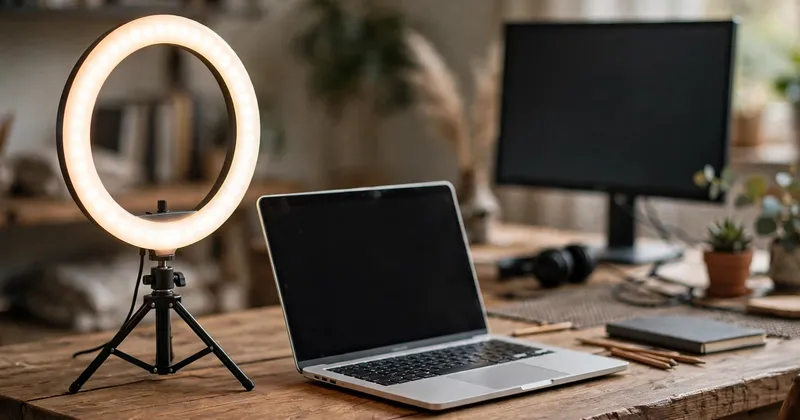
7. Ring light
Good lighting is the difference between looking professional on a call and looking like a shadow. When the window is behind you, the camera sees a bright room and a dark face. Nobody on the call can read your expression in that light. A ring light puts soft, even light in front of you. Place the light in front of you at eye level. Your face stays lit clearly without harsh glare on your glasses or your screen. Brightness you can adjust matters, because a light that is too strong at night is as bad as no light at all. Set the light up once for every call after that. Leave it in place between calls so it stays ready.
8. Noise cancelling headphones

A home is never as quiet as an office. Someone is on a call in the next room. The washing machine runs while a dog barks outside. Your focus breaks every few minutes in that noise. Noise cancelling headphones cut that noise out, so a busy house sounds like a quiet room. Your calls sound clear on the other end too. Wireless earbuds fit in a jacket pocket for travel. Over-ear headphones cover the whole ear for long calls. The over-ear fit suits deep focus sessions across a full day. Pick the form you will actually wear all day.
Look for these features in noise cancelling headphones:
- Choose earbuds for travel and over-ear headphones for long days at the desk.
- Check the microphone, because your team hears you through it on every call.
- Test comfort across a full day of wear before you decide.
9. Ergonomic chair
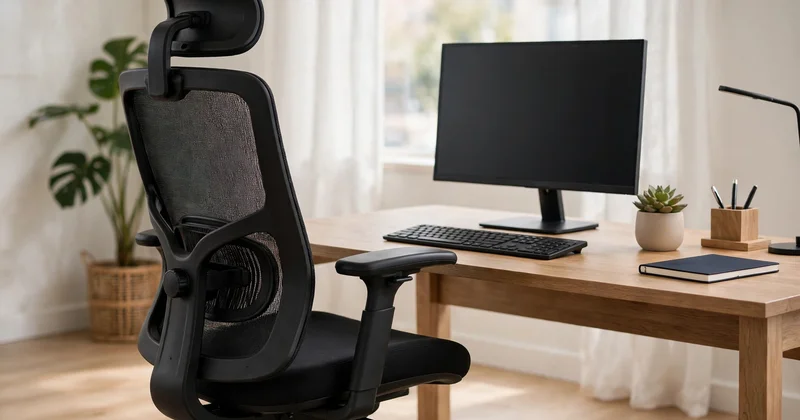
Your chair is the piece of furniture your body notices most, because you sit in it for eight hours a day. A dining chair or a sofa forces your back into a curve. Your feet dangle or your knees sit too high. By the afternoon your lower back aches from the curve. An ergonomic chair fixes the posture instead of fighting it. Choose a chair with lumbar support that follows the natural curve of the spine. The Occupational Safety and Health Administration advises a backrest that conforms to the natural curvature of your spine. Use a fully adjustable chair so your body stays supported through posture changes. Adjust every lever while you sit in the chair. Buy the chair that fits your body, not the one that looks best in a photo.
Look for these features in an ergonomic chair:
- Choose adjustable lower-back support that meets your spine where it curves.
- Pick a seat height that lets your feet rest flat on the floor.
- Check armrests that support your elbows without pushing your shoulders up.
- Test the seat for a full workday, not five minutes.
10. Standing desk
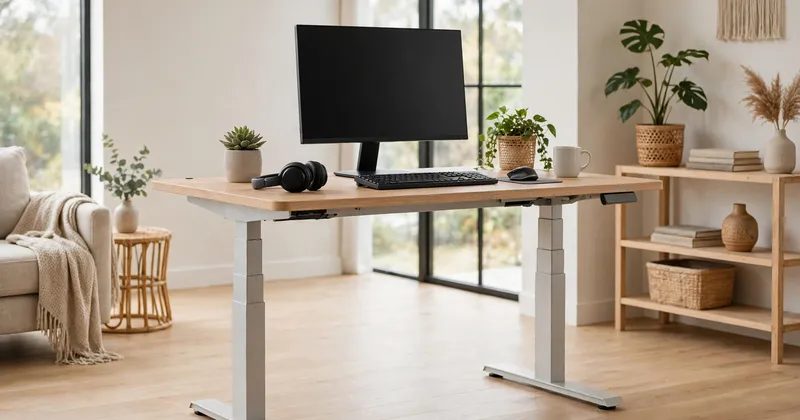
A standing desk solves the problem of sitting all day. Movement through the working day brings the real benefit. Standing all day brings no benefit on its own. A desk that rises and falls lets you change position when your back starts to complain. Stand for a call, sit to write, stand again after lunch. Ergonomic furniture works best as a matched set of pieces. The desk moves while the chair supports your back. The monitor sits at eye level through every change. A motorized desk earns its place, because pressing a button to change height is easy. A desk you have to crank by hand is a desk you will leave in one position. A good standing desk has room for a monitor and a keyboard at both heights. The desk moves smoothly and quietly, so you can adjust it during a call without anyone noticing. Put the chair first in any home office you build. A desk that moves is no help when the chair hurts your back.
11. Surge protector
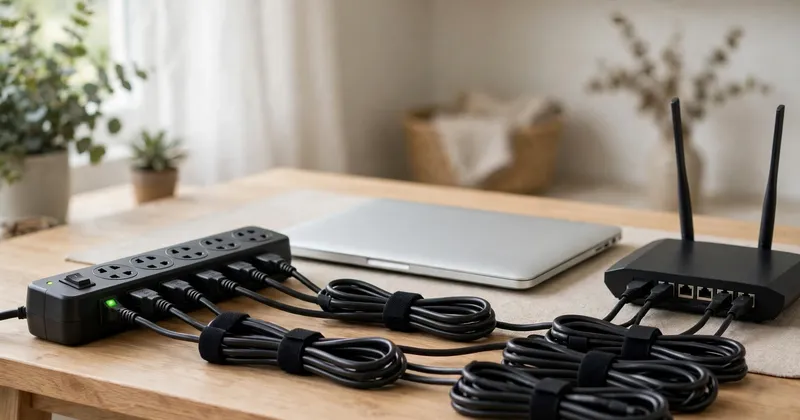
A power spike can kill a laptop, a monitor and a router in one second. No warning comes before a power spike hits your gear. A surge protector sits between the wall and your gear. The protector takes the hit so your equipment does not have to. Plug the desk and the router into the same protector. A fried router means no internet even when the laptop survives. A surge protector needs no setup and no upkeep. You hope you never need the protection it gives.
12. Uninterruptible power supply
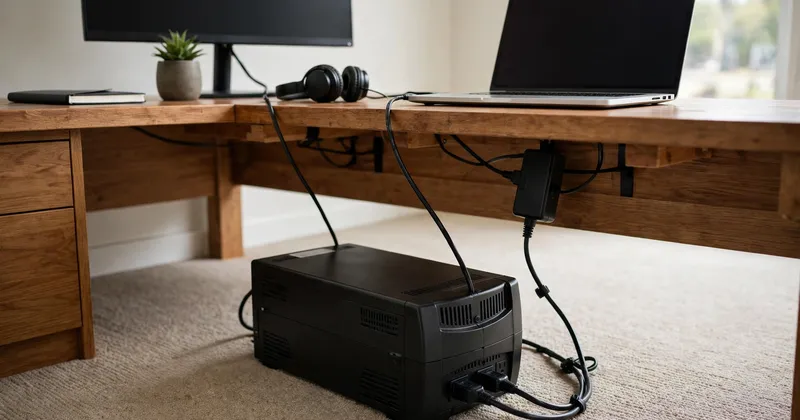
A surge protector guards against power spikes, nothing more. An uninterruptible power supply guards a home office against the power going out altogether. When the lights cut for a minute, the supply keeps your laptop, monitor and router running. You gain enough time to save your work before the screen dies. Shut down cleanly instead of losing an unsaved document. In a home with an unreliable supply, that short window is the difference between a small interruption and a lost morning. Keep the unit under the desk, out of the way. Plug only the laptop, the monitor and the router into the unit. Test the unit once so you know how much time it actually gives you. A printer or a lamp on the same unit just eats the battery faster.
13. Travel adapter
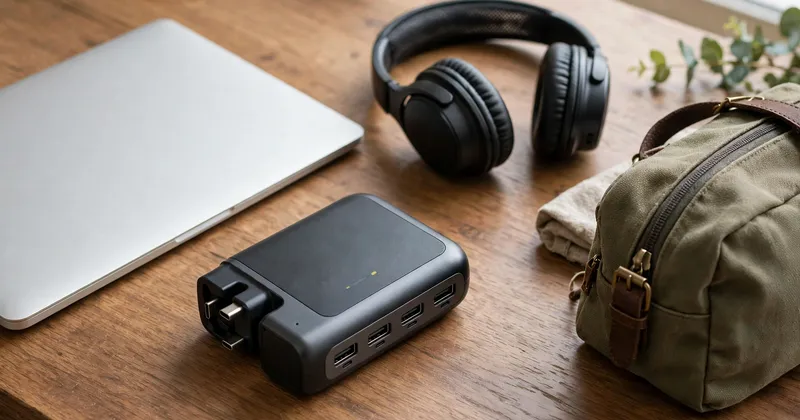
A travel adapter is the smallest item in a digital nomad setup. You miss it most on the day you forget it. One adapter with USB-C ports charges your laptop, your phone and your headphones at the same time. One wall socket in a hotel room or an airport lounge is enough. A bag full of separate chargers is heavy to carry. A wall with one socket and three devices is a daily problem on the road. Pick one that covers the countries you actually visit. Keep it in your bag, not in a drawer at home, so it is there when you land.
14. USB-C hub
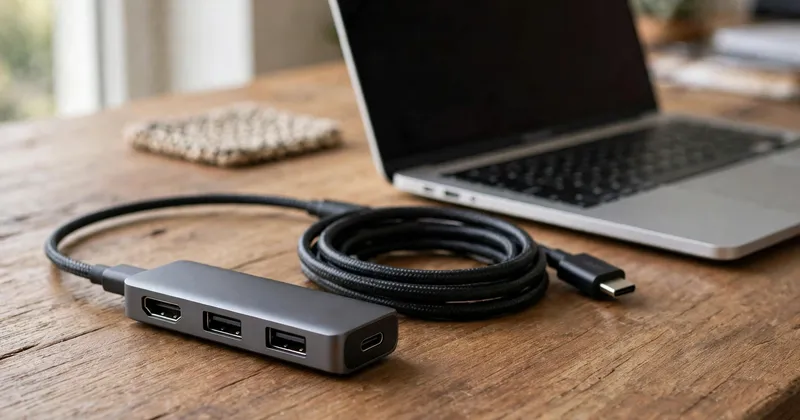
Most coworking spaces have an extra screen you can use. Almost all of those shared screens connect over HDMI. A modern laptop ships with very few ports on its sides. An HDMI port is often missing from modern laptops altogether. A USB-C hub closes that gap for any laptop. Plug the hub into the laptop for HDMI, USB and charging through one cable. The hub gives you an HDMI port for the screen. USB ports take the keyboard and mouse at the same time. A memory card slot takes your camera card without an adapter. The hub turns any shared desk into your own home office for the day. Keep it in your bag even on days you do not expect to need it. The day you need it is the day you will not have it.
15. Protective case and sleeve
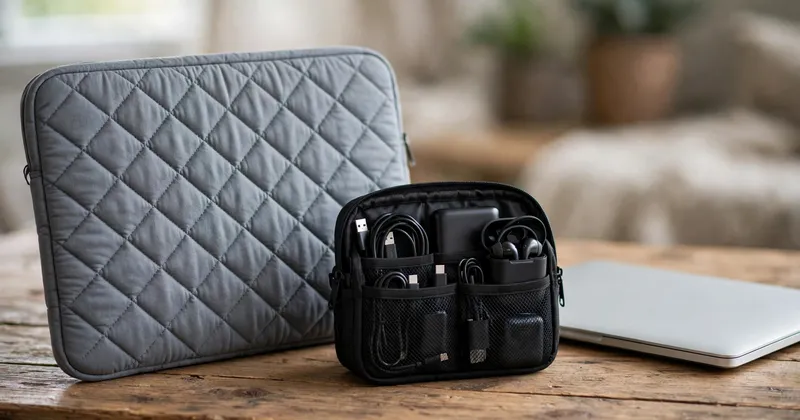
Gear that travels gets knocked around in every bag. A laptop rattles against a charger in a bag. A portable screen gets scratched by a loose cable. A mouse gets crushed under a book in the same bag. A padded sleeve and a small electronics bag stop that damage before it happens. The sleeve takes the bumps from every journey you make. The bag keeps cables and adapters in one place so they are not grinding against the screen. Good gear in a home office is worth protecting. A sleeve is a small thing to buy once. The sleeve pays for itself the first time your bag takes a hard knock. Keep one small bag just for cables and chargers. One small bag stops the daily hunt through the main bag. The same bag keeps sharp ends away from your screens.
Software and communication tools
Gear is only half of a working home office. The other half is the software your team runs on. Start with a suite for documents, email and calendars. Add one chat tool for quick questions through the day. Add one video tool for calls and meetings each week. Add one project board to track tasks and deadlines. Project management tools live on the board your team checks daily. Communication tools carry the daily talk between remote workers. Collaboration tools only work when the team agrees on the rules. Decide which tool serves chat, video calls, tasks and files. Keep the software layer boring: one suite, one chat tool, one video tool, one board. Our guide to team collaboration tools explains the setup in depth.
Products and tools named in this guide
Every product and tool in this guide appears once in the table below, with prices shown only where checked in November 2026.
| Product | Type | Price checked November 2026 | Role |
|---|---|---|---|
| Google Workspace | Suite | – | Documents, email and calendars |
| Microsoft 365 | Suite | – | Office documents and email |
| Slack | Chat | – | Team messaging |
| Microsoft Teams | Chat | – | Team messaging and video calls |
| Zoom | Video calls | – | Video meetings |
| Google Meet | Video calls | – | Video meetings |
| Trello | Project board | – | Task boards |
| Asana | Project board | – | Task tracking |
| Jira | Project board | – | Task tracking for developers |
| MacBook Pro | Laptop | – | Full-size laptop for heavy work |
| MacBook Air | Laptop | – | Light laptop for travel |
| Pixel Buds | Earbuds | – | Wireless earbuds for travel and calls |
| Apple AirPods | Earbuds | – | Wireless earbuds for Apple devices |
| Sony over-ear headphones | Over-ear headphones | – | Long calls and deep focus |
| Earfun Air Pros | Earbuds | – | Wireless earbuds for a travel kit |
| NordVPN Basic | VPN | $3.49 a month, two-year plan, billed upfront | Virtual private network |
| 1Password Individual | Password manager | $2.99 a month, first year, billed yearly | Password storage |
| Norton AntiVirus Plus | Antivirus | $29.99 first year, one device | Antivirus software |
Internet backup and power
A backup connection matters most when an outage hits during a call. Keep the hotspot charged and ready at all times. Keep the data plan active through every month of the year. Power backup follows the same logic: protect the gear that keeps you online. Run a speed test at the start of each month. Replace any cable that shows wear before it fails.
Security basics
Remote employees handle company data on home networks, so security belongs in every home office. Company-provided equipment usually comes with security rules attached by the employer. Some employers pay for gear through a remote work stipend. The four basics are a virtual private network, a password manager, multifactor authentication and antivirus software. Keep every one of them updated on the day the update appears. Budget $3.49 a month for a VPN on a two-year plan, billed upfront (November 2026). A password manager costs $2.99 a month for the first year, billed yearly (November 2026). The regular price is $3.99 a month after the first year. Antivirus software costs $29.99 for the first year for one device (November 2026). Renewal costs $59.99 a year for the same plan. Never use public Wi-Fi for work without your VPN on. Our guide on how to protect your business from cyber threats covers the wider picture.
What a home office costs
Three tiers below describe what each budget level buys.
| Tier | What it covers | Who it suits |
|---|---|---|
| Basic | Laptop you own, wired internet, laptop stand, keyboard and mouse, webcam | Starting out |
| Comfortable | Everything in Basic, plus an external monitor, an ergonomic chair, a ring light and noise cancelling headphones | Full-time remote workers |
| Professional | Everything in Comfortable, plus a standing desk, a dual monitor setup and quality audio and video gear | Creators and developers |
Start at the tier that fits your current budget. Upgrade one item at a time after the first purchase.
Setup by job type
Buy gear for the work you do most each day.
| Job type | First upgrades |
|---|---|
| Software developer | Dual monitors, mechanical keyboard, noise isolation |
| Designer | Color-accurate 4K monitor, drawing tablet |
| Writer or content creator | Distraction-free setup, mechanical keyboard, focus tools |
| Video calls and sales | Webcam, ring light, USB microphone, fast internet |
| Student | Monitor, laptop stand, keyboard, ergonomic chair |
Small-space setups
Small spaces ask for a smaller desk, not a smaller chair. A small desk that fits one monitor, a keyboard and a laptop stand works fine. Mount the monitor on a desk arm to free the surface below it. Store gear vertically: a wall shelf above the desk holds books, a headset and cables. Keep only the gear you use daily on the desk. Mark one corner as the office with a rug or a screen. A home office setup in a small space needs the same five layers, just smaller. A dedicated workspace marks the boundary between work and home.
Working from anywhere
A digital nomad setup is a home office that fits in a bag. The rules stay the same at home and on the road. Everything must be light, flat and hard to break. The core kit is a laptop, a portable screen, a wireless keyboard, a mouse and noise cancelling headphones. Connectivity causes the most trouble on any trip away from home. The travel adapter and USB-C hub in the gear section solve it. Keep the same routine on the road: one workspace, one start time, one end time. Work from anywhere depends on a kit that stays light and backed up.
Productivity routine
Gear alone does not make a home office productive. A routine and a dedicated workspace turn a pile of gear into a working day. Give your most productive hours to your hardest tasks. Turn off every non-essential notification during deep work sessions. Put your phone in another room for the same reason. Work in Pomodoro intervals: 25 minutes on, 5 minutes off, with a longer break after four rounds. End each working day on purpose, not by accident. Close your laptop at the end time you set. Leave your dedicated workspace behind when the day ends. Work-life balance is the reason a routine matters at all. Our guide on how to focus covers the habits in depth.
Build your remote work setup in five steps
Follow the five steps below in the order given.
- Test your internet speed at peak hours on a weekday.
- Buy an ergonomic chair before any other piece of gear.
- Add a laptop stand, an external keyboard and a second monitor.
- Put a webcam at eye level above the monitor.
- Set a start time and an end time for each working day.
Conclusion
A good remote work setup earns its keep when the internet holds, the chair fits, the screen sits at eye level. Start with the connection, then the chair, then the screen. Add the second monitor and the standing desk when your budget allows. Our guide to the best productivity tools covers the software side in depth. A setup built in the right order needs no rebuild.
Frequently asked questions
What do I need for a complete home office?
You need five things: a reliable internet connection, a desk, an ergonomic chair, a laptop with an external monitor, and a webcam with a microphone. Add a laptop stand, a ring light and noise cancelling headphones next. Software and routine come after the gear is in place.
How much does a work from home setup cost?
A basic work from home setup uses gear you already own, a stand, a keyboard and a webcam. A comfortable setup adds an external monitor, an ergonomic chair, a ring light and noise cancelling headphones. A professional setup adds a standing desk, a second monitor and better audio gear.
What internet speed do I need for working from home?
Video calls need far less speed than the full broadband benchmark. High-definition video teleconferencing needs 6 Mbps download, according to the Federal Communications Commission. Wired ethernet gives video calls more stability than wireless.
Is a standing desk worth it for working from home?
A standing desk earns its place when you alternate sitting and standing. Movement brings the benefit, not standing all day long. Buy an ergonomic chair first, because the chair and a monitor at eye level matter more at the starter budget.
What is the best home office setup for a small space?
Use a small desk, a real ergonomic chair and a monitor on a desk arm. Keep the laptop on a stand or closed in clamshell mode. Mark one corner as the office with a rug or a screen.
How do I stay focused when working from home?
Work in one dedicated workspace with clear start and end times. Work in Pomodoro intervals of 25 minutes on and 5 minutes off. Turn off every non-essential notification during deep work sessions.

Comments are closed