

Connecting desktop software directly to central servers can quickly turn into a complex coding task. This is where an application client container helps developers simplify their work.
This software environment runs right on a user’s computer under the Java EE and Jakarta EE rules set by Oracle. It handles network connections for a client program by taking care of security checks and JNDI resource lookups automatically. Despite writing lines of boilerplate code to locate remote Enterprise JavaBeans (EJB), the container handles those connections behind the scenes.
Understanding how an application client container works remains important for enterprise developers today. It keeps financial tools, desktop interfaces, and background scripts running safely while communicating directly with backend application servers.
Key Takeaways
• The ACC runs on the client machine, not on the application server.
• It provides JNDI lookups, dependency injection, and JAAS-based login to a standalone Java client.
• It is supported only in the full platform, not in the Web Profile.
• Each server vendor ships its own launcher: appclient on GlassFish, launchClient on WebSphere, and appclient.sh on WildFly.
• Since Jakarta EE 9, imports changed from javax.* to jakarta.*, which breaks older clients until they are updated.
• The ACC is mostly used in legacy enterprise systems today. For new projects, REST or JMS clients are often a simpler choice.
What Is an Application Client Container?
An application client container (ACC) is a lightweight runtime that runs Java application client components on a user’s machine. It sits alongside the Web Container and the EJB Container as one of the three main Java EE container types. This comparison comes up again later in the article. Sun Microsystems introduced the concept, and Oracle carried it forward first under Java EE, and now under the Jakarta EE umbrella managed by the Eclipse Foundation. Like the other containers, it runs inside a Java Virtual Machine (JVM), but on the client side rather than the server.
Java EE introduced the ACC to save developers from writing repetitive networking and security code. A plain Java program has to set up server connections by hand. The ACC gives an enterprise application client a managed execution environment that links straight to the application server runtime. This gives the client quick access to Java Naming and Directory Interface (JNDI), Enterprise JavaBeans (EJB), and Java Message Service (JMS).
Knowing what is application client container architecture shows how it fits into a enterprise setup. It sits as a client-side container between local programs and backend servers, without trying to replace web servers or Docker. Companies still use the ACC today so trading tools, desktop software, and background scripts can talk to servers safely. It often works alongside broader service-oriented designs such as SOA OS23.
How the Application Client Container Works
The application client container (ACC) manages a program from startup to shutdown, handling all server connections behind the scenes. Following this step-by-step process shows how a client application connects to central enterprise tools.
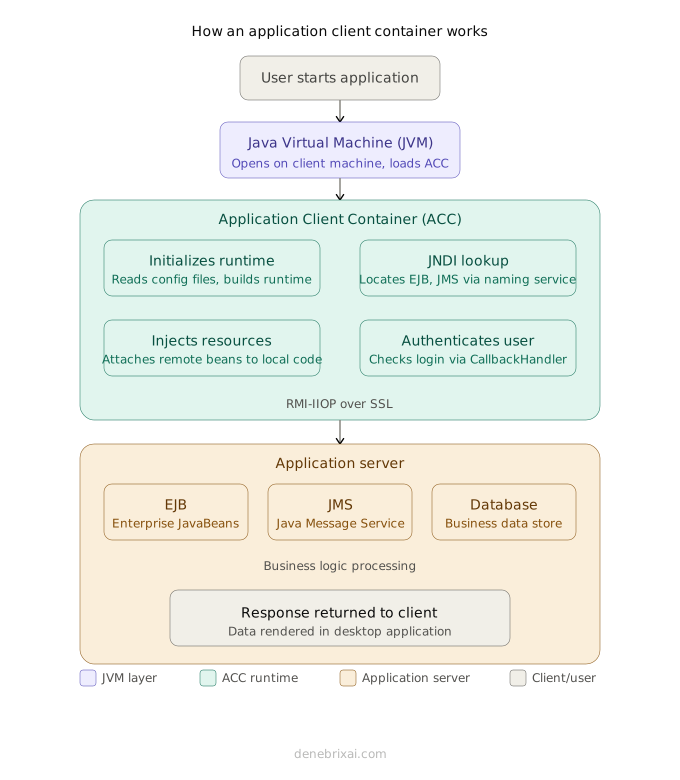
User Starts Application
↓
Java Virtual Machine (JVM)
↓
Application Client Container
├─ Initializes Runtime
├─ Performs JNDI Lookup
├─ Injects Resources
└─ Authenticates User
↓
Application Server
├─ Enterprise JavaBeans (EJB)
├─ Java Message Service (JMS)
└─ Database
When someone starts the application, the Java Virtual Machine (JVM) opens on the user’s computer. It loads the ACC before any main code runs. The container reads the setup files, builds the runtime space, and prepares background services.
From there, it runs an application client container JNDI lookup to locate remote resources. Rather than hardcoding a server address into the application, the client asks the naming service to find the EJBs and JMS queues it needs, so if the server ever moves, the client code doesn’t have to change.
After finding those tools, the container sets up a connection to the server. Running as an RMI-IIOP application client, an internal Object Request Broker (ORB) sends request messages and data back and forth over the network.
Lastly, the ACC handles basic background jobs. It uses dependency injection to attach remote beans to local code, checks user login details, and tracks basic data tasks. This simple setup helps Java EE and Jakarta EE client applications talk to main servers without extra coding.
A Simple Lookup, Two Ways
Older application clients look up a remote bean by hand. This code uses JNDI directly to find the EJB.
import javax.naming.Context;
import javax.naming.InitialContext;
public class PaymentClient {
public static void main(String[] args) throws Exception {
// Manual JNDI lookup, the way older application clients found a remote EJB
Context ctx = new InitialContext();
PaymentService service =
(PaymentService) ctx.lookup(“java:comp/env/ejb/PaymentService”);
Order order = new Order(“ORD-1001”, 250.00);
service.processPayment(order);
}
}
Newer code skips this step. The container injects the reference automatically through an annotation. Note that the field must be static, because the container injects into the main class before main() runs, and main() itself is static.
import jakarta.ejb.EJB; // use javax.ejb.EJB on Java EE 8 and older
public class PaymentClient {
@EJB
private static PaymentService service; // static is required
public static void main(String[] args) {
Order order = new Order(“ORD-1001”, 250.00);
service.processPayment(order);
}
}
The annotation method uses less code. It keeps the lookup logic out of the main business class. This is why most new projects use it. The manual method still shows up in older codebases. Developers who maintain legacy systems should know both.
Packaging and Deploying an Application Client

Packaging and running an application client takes a few specific files and settings. Knowing how these pieces work together makes sending out software to users much easier.
Packaging the Application Client
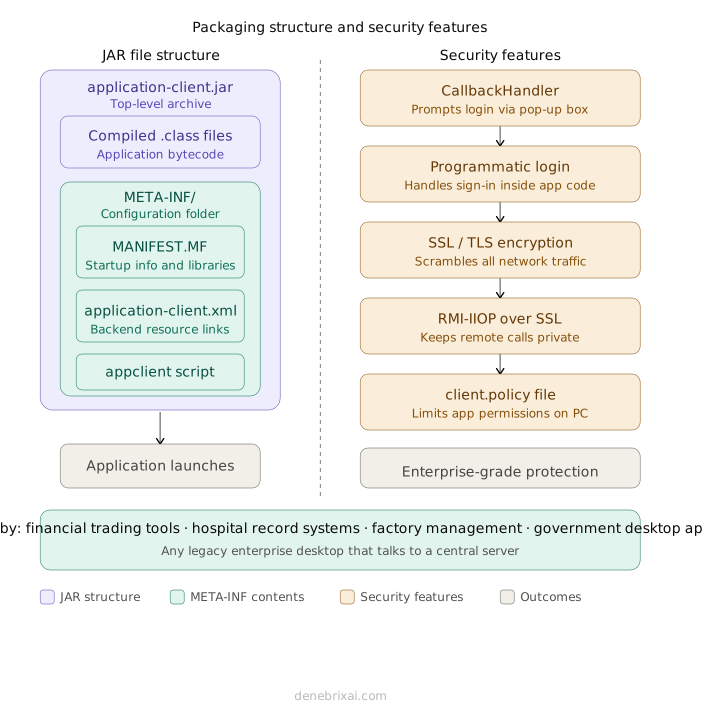
An application client comes packed inside a single JAR file. The application client JAR file structure holds your compiled code plus a special META-INF folder. Inside that folder, a MANIFEST.MF file lists startup details and extra libraries.
In older systems, this folder also contains the application-client.xml file. The application-client.xml file acts as a configuration file in Java EE applications, storing environment entries, resource references, and security roles. It defines how client software connects to backend resources and manages access permissions. Newer Jakarta EE apps use simple code annotations instead, but many companies still use this XML file today.
Keeping deployment files organized with proper technical documentation makes enterprise applications easier to maintain and troubleshoot.
| Component | Purpose |
| JAR File | Holds the client code and application files |
| META-INF | Folder that stores setup files and metadata |
| MANIFEST.MF | Sets startup info and required libraries |
| application-client.xml | Sets up links to backend server resources |
| appclient Script | Starts the client with all required container tools |
Starting the Client Program
You can’t launch an enterprise client with a plain double-click or a standard Java command. It needs the container’s setup loaded first. On GlassFish, that means running the appclient script, which loads the full application client container GlassFish setup. This includes the network configuration and libraries the app needs.
Other servers ship their own launch tools. WebSphere uses its own startup command as part of the application client container WebSphere runtime. WildFly and Apache Geronimo work the same way. The exact command changes from vendor to vendor, but the underlying Java EE contract stays the same.
| # GlassFish appclient -client paymentclient.jar -name PaymentClient # WebSphere launchClient paymentclient.ear -CCverbose=true # WildFly $WILDFLY_HOME/bin/appclient.sh paymentclient.jar |
While building or debugging, most developers reach for an embeddable application client container instead. It lets you test the client on your own machine without spinning up a full application server, which is a lot faster for day-to-day work. Many teams also validate new features in a sandbox environment before pushing them anywhere near shared testing or production systems
Securing an Application Client Container
Protecting information sent between a client program and a main server is a top priority for big companies. The ACC security authentication Java EE system keeps data safe using login windows, scrambled text, and local computer rules.
| Security Feature | Purpose |
| CallbackHandler | Asks for logins using a built-in or custom pop-up box |
| Programmatic Login | Logs users in straight from the application code |
| SSL/TLS | Scrambles network traffic so outsiders cannot read it |
| RMI-IIOP over SSL | Keeps remote server calls private over open networks |
| client.policy | Controls what the app is allowed to do on a user’s PC |
When a program asks for protected files, the container prompts for a username and password with a callback handler. Developers can also use programmatic login to handle user sign-ins directly inside their code.
To shield information while it moves across the web, SSL/TLS authentication moves all network traffic. Running RMI-IIOP over SSL keeps remote server calls private. Finally, a client.policy file blocks the application from doing unsafe things on the user’s computer. Modern systems can also link these checks to identity tools like AWS IAM or Amazon Cognito to keep logins safe across every app. Some teams also tie these checks into an external identity provider so logins stay consistent across every application in the company.
From Java EE to Jakarta EE: What Actually Changed
Most of the confusion around Java EE and Jakarta EE comes from one change. This change is the package name. Oracle gave the platform to the Eclipse Foundation in 2017. Oracle kept the Java EE trademark. Oracle could not transfer the javax.* namespace along with it. Starting with Jakarta EE 9, every API moved from javax.* to jakarta.*. This includes the APIs an application client depends on.
For an application client, javax.ejb.EJB becomes jakarta.ejb.EJB. javax.annotation.Resource becomes jakarta.annotation.Resource. The behavior of these APIs did not change. Only the import statement changed. This is still a breaking change. A client built for Java EE 8 will not compile against a Jakarta EE 9 container. The imports must be updated first.
Teams migrating an older client don’t have to update every import by hand. The Eclipse Transformer project rewrites javax imports to jakarta automatically. This tool works across an entire codebase in one pass.
Comparing Java EE Container Types
Java EE uses different containers because each one has a specific job. They do not replace each other. Rather, they work together inside the same enterprise application to handle client and server tasks.
Java EE Container Comparison
| Feature | Application Client Container | Web Container | EJB Container | Thin Client |
| Runs Where | Client machine | Application server | Application server | Browser or lightweight client |
| Main Purpose | Enterprise desktop applications | Web applications | Business logic | Access remote services |
| Supports | JNDI, EJB, JMS | Servlets, JSP | EJB components | HTTP / REST |
| Typical Users | Enterprise employees | Website users | Backend services | End users |
| Offline Capability | Limited | No | No | Depends on application |
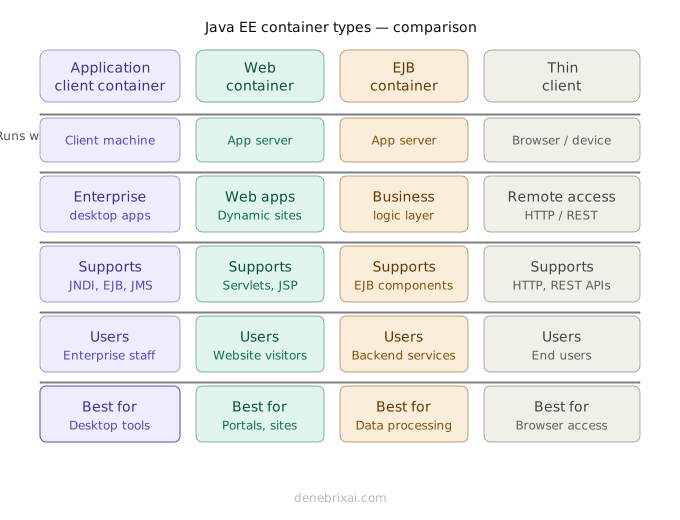
Application Client Container vs Web Container
Comparing an application client container vs web container comes down to where the software runs. The ACC runs on a user’s computer to power desktop tools. The Web Container stays on the central server to host dynamic websites using Servlets and JSP pages.
Application Client Container vs EJB Container
Looking at an application client container vs EJB container setup shows how client and server work gets split. The ACC sits on the client side to ask for data. The EJB Container runs on the server to process core business logic and send back responses.
Where a Thin Client Fits In
A thin client is not a true Java EE container. It is simply a browser or a lightweight app. It talks to the server using HTTP or REST. No local container manages security or lookups for it. This row appears in the table for comparison. It shows how much background work the ACC handles that a thin client does not.
Choosing the Right Java EE Container
Here is how to pick among the Java EE container types explained:
- Desktop tools for internal workers: Use the Application Client Container.
- Websites and online portals: Use the Web Container.
- Backend business rules and data processing: Use the EJB Container.
- Basic web browser apps: Use a Thin Client setup.
Common Errors and How to Fix Them
“Client container XML was not found”
This appears when sun-acc.xml, or the server’s own config file, is missing from the classpath. The container then falls back to its default settings. These default settings often miss the resource references the app needs. The fix is to point the launch command directly at the correct config file.
NameNotFoundException on a JNDI lookup
This usually means a name mismatch. The ejb-ref-name in application-client.xml must match the name the server registered. A manual lookup also needs the java:comp/env/ prefix. Missing this prefix is a common mistake.
NoInitialContextException
The client could not build a JNDI context. This often happens when you run the JAR with a plain java command instead of the server’s launcher, so the container libraries are missing. Start the client with appclient (or your server’s launcher) instead.
LoginException or failed authentication
If JAAS login fails, the client does not reach main() and cannot call protected beans. Check that the username exists in the server’s security realm and that the callback handler class in application-client.xml is on the classpath.
Connection refused or timeout
The client cannot reach the server’s naming or IIOP port. On GlassFish, the default IIOP port is 3700. Check the server host and port settings and make sure a firewall is not blocking them.
ACC will not start on a non-GlassFish server
This is normal, not a bug. The appclient launcher belongs to GlassFish. WildFly, WebSphere, and other vendors use their own version of the client container. Each vendor needs its own launch command.
ClassNotFoundException after copying the client JAR
Newer GlassFish versions split the client files into several JARs. Copying only the main JAR leaves out required files. The asadmin get-client-stubs command collects every needed file at once.
Is the Application Client Container Still Relevant Today?
Many developers ask if the Application Client Container still matters. The short answer is yes. Even as software trends change, ACC in Jakarta EE under the Eclipse Foundation stays fully supported.
It helps to separate the ACC from tools like Docker. A containerized web application deployment packages backend server software into isolated units. The ACC acts as a microservices client runtime built specifically for desktop software. Containerization handles how server workloads run, while the ACC handles how desktop programs talk to remote servers. The two technologies solve different problems and often work side by side.
In a modern cloud-native architecture, backend services run inside microservices on tools like Amazon ECS or AWS Fargate, with image files stored in Amazon ECR and traffic managed by an Application Load Balancer. Desktop tools running inside an ACC connect directly to these cloud servers.
Banks, hospitals, factories, and government offices still use the ACC today. Financial trading screens, medical record programs, and plant management tools rely on it to keep desktop software connected to main servers without rewriting legacy code.
Conclusion
An application client container (ACC) gives desktop apps a managed execution setup to talk directly to central servers. As a core part of ACC in Java EE and Jakarta EE, it handles resource lookup, security checks, and network connections automatically. Even as cloud setups rely on Docker and Amazon ECS, the application client runtime remains essential for legacy enterprise software. Selecting the right container depends on your architecture goals and where your app runs.
Frequently Asked Questions
What is an application client container in Java EE?
An application client container is a client-side runtime environment. It lets desktop Java apps connect to server-side components like EJBs while managing background services like security and connection pooling.
How does application client container JNDI lookup work?
The container reads configuration files at startup and uses an application client container JNDI lookup to locate remote resources on the server automatically, avoiding hardcoded server IP addresses in the code.
What is the difference between application client container vs web container?
In an application client container vs web container setup, the ACC runs locally on a user’s computer to power desktop software. The Web Container runs on the application server to host websites, Servlets, and JSP pages.
How does application client container vs EJB container compare?
Evaluating application client container vs EJB container roles shows that the ACC consumes remote services from the client side, while the EJB Container runs on the server to execute core business logic.
What is the appclient script in GlassFish used for?
The appclient script GlassFish utility that launches the application client container in the GlassFish environment, loading all required client libraries and settings before the desktop app opens.
What is a client application?
A client application is software on your device that requests data from a central server and displays it. Examples include web browsers, video streaming apps, and chat tools.
What are four types of containers?
Four common types are application containers for running a single program, system containers that act like mini operating systems, sandbox containers that add strict security walls, and scientific containers built for heavy research simulations.
What exactly is a container?
A container is a lightweight digital package holding an application and every file it needs to run. It lets the program work the exact same way on any computer without missing parts.

Comments are closed